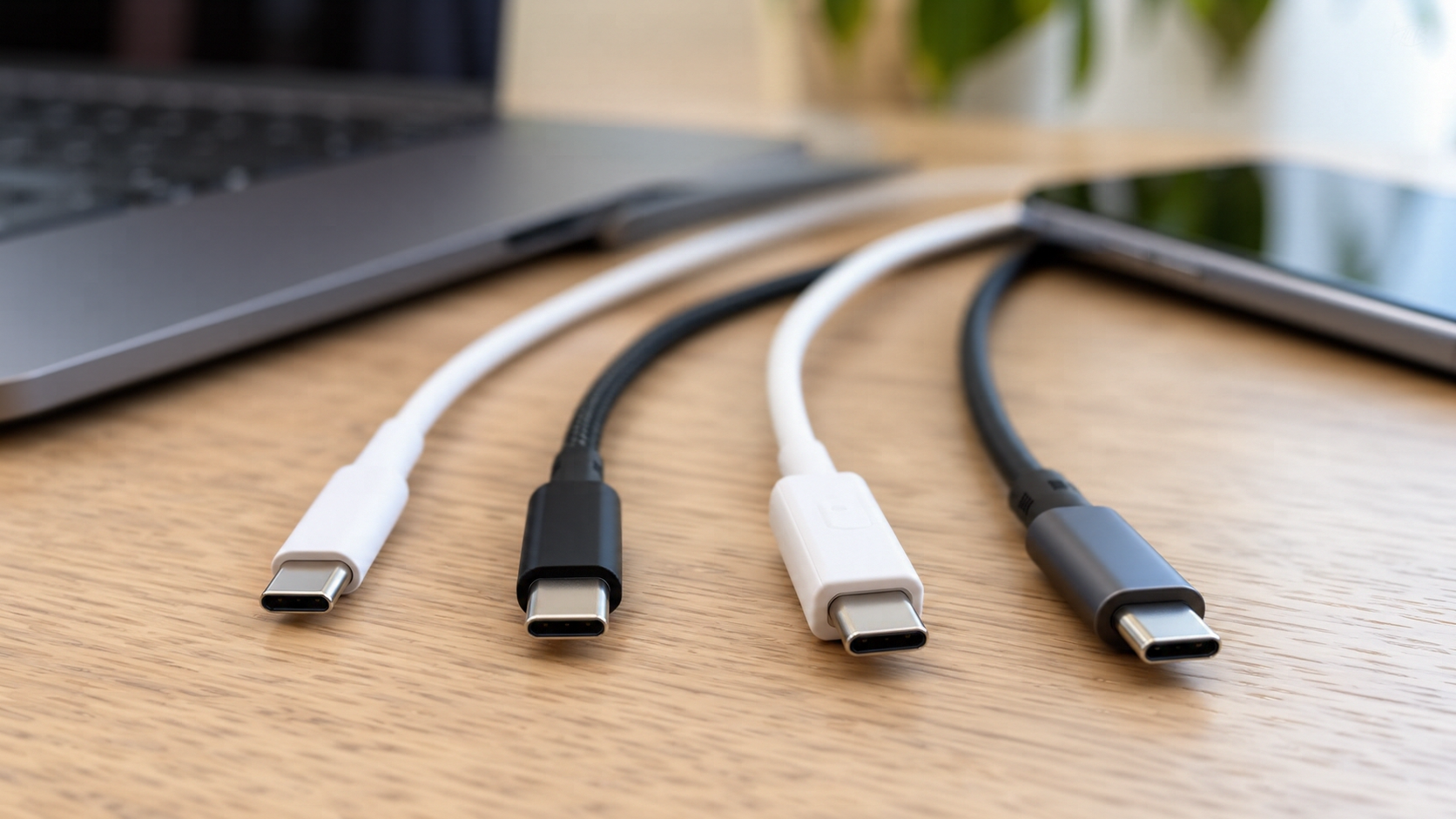


Two USB-C cables sit next to each other on a desk. Both have identical oval connectors, both fit the same laptop, and both can charge a phone. Yet one transfers files at 480Mbps while the other supports 40Gbps, and only one may work with an external monitor.
USB-C cable types differ in three essential capabilities: charging power, data transfer speed, and video support. The USB-C connector itself guarantees none of them beyond the basic capabilities required by the applicable specification.
This distinction matters ahead of Black Friday on November 27, 2026, and Cyber Monday on November 30. A discounted cable labeled 240W might be excellent for charging but painfully slow for transferring files. Meanwhile, an expensive high-speed cable may offer little advantage when connected to a phone that only supports USB 2.0 speeds.
Understanding USB-C cable types before buying can prevent slow charging, failed monitor connections, unnecessary spending, and frustrating compatibility problems.
USB-C Cable Types Explained – What Makes Them Different?
The main difference between USB-C cable types is what happens inside the cable, not the shape of its connectors. Different cables contain different wiring configurations, support different signaling technologies, and have different electrical power ratings.
USB-C describes the physical connector. USB 2.0, USB 3.2, USB4, and Thunderbolt describe technologies that determine how connections operate.
There are three specifications worth checking before purchasing any USB-C cable:
- Power rating: How much electrical power the cable is designed to carry, commonly 60W or 240W on newer certified USB-C-to-USB-C cables.
- Data transfer speed: How quickly compatible devices can exchange information, ranging from 480Mbps to 80Gbps across current USB cable categories.
- Video capability: Whether the cable can carry a supported display signal between a computer, monitor, or docking station.
These specifications are independent. A 240W cable can have USB 2.0 data speeds, while a 40Gbps cable may have a 60W power rating.
The connected equipment also matters. Actual performance is limited by the capabilities shared by the cable and both connected devices.
Why Do Some USB-C Cables Only Charge Devices?
Some USB-C cables are designed primarily for charging and provide only basic USB 2.0 data transmission. They can handle everyday charging without containing the additional high-speed signal paths needed for USB 3.x, USB4, or DisplayPort Alternate Mode.
A USB 2.0 USB-C cable supports a maximum signaling rate of 480Mbps. That is adequate for many simple accessories but significantly slower than modern external SSD interfaces.
Products advertised as charge-only may omit normal data connectivity altogether. Such specialty cables should not be confused with standard USB-C cables, which have defined data requirements.
For ordinary charging, the distinction may be unimportant. For file transfers, wired phone connections, or external displays, it can determine whether the connection works at all.
USB-C Cable Types Comparison – Charging, Data Speed, and Video
USB-C cable types can be grouped according to their supported data standards, although charging wattage must be checked separately. A faster cable does not automatically have a higher power rating.
The following comparison shows the main cable categories and the tasks they are suitable for.
| USB-C cable type | Maximum nominal data rate | Video capability | Common use |
| USB 2.0 USB-C | 480Mbps | No native DisplayPort Alt Mode | Phone charging, basic data transfers |
| USB 5Gbps | 5Gbps | Possible with a suitable full-featured cable and compatible devices | External drives, everyday accessories |
| USB 10Gbps | 10Gbps | Possible with appropriate cable and device support | Portable SSDs, compatible displays |
| USB 20Gbps | 20Gbps | Depends on cable construction and connected equipment | High-speed storage |
| USB4 20Gbps | 20Gbps | Supported through compatible USB4 display connections | USB4 accessories and docks |
| USB4 40Gbps | 40Gbps | Supported on compatible USB4 systems | Fast storage, docking stations, monitors |
| USB4 80Gbps | 80Gbps | Supported on compatible USB4 systems | Advanced docks and high-bandwidth devices |
| Thunderbolt 3 | Up to 40Gbps | Yes, with compatible equipment | Older Thunderbolt docks and storage |
| Thunderbolt 4 | 40Gbps | Yes, with compatible equipment | Laptop docking and external displays |
| Thunderbolt 5 | 80Gbps, with up to 120Gbps in one direction for supported workloads | Yes, with compatible equipment | High-end docking, storage, demanding displays |
The figures represent maximum interface signaling rates, not guaranteed file transfer speeds. Power ratings vary independently. USB 3.x data capability alone does not guarantee that a particular cable or port supports video.
For most people, USB-C cable types in the 10Gbps or 40Gbps categories provide a useful balance of speed and flexibility. USB4 80Gbps and Thunderbolt 5 become relevant when the connected hardware can actually take advantage of their additional bandwidth.
The table also explains why buying a cable based only on the connector shape or advertised wattage is unreliable.
USB-C Charging Cable Types – 60W vs 100W vs 240W
The charging power a USB-C cable can carry depends on its electrical rating, while the actual charging speed depends on the charger, device, and negotiated power level. Higher wattage markings indicate capacity, not continuous power consumption.
Three ratings commonly appear on USB-C cable packaging.
60W USB-C Cables – Enough for Phones and Smaller Laptops
A 60W USB-C cable is rated to carry up to 3 amperes at 20 volts under a suitable USB Power Delivery connection. It can be appropriate for phones, tablets, accessories, and many lower-power laptops.
A phone that supports 25W charging does not suddenly receive 60W because a 60W cable is connected. Its charging system negotiates an appropriate power level with the charger.
Similarly, a laptop designed to charge at 65W may charge more slowly or report insufficient power when used with equipment limited to 60W.
A 60W cable is not automatically suitable for every USB-C laptop. Check the laptop's supported charging requirements before relying on it as a replacement for the original cable.
100W USB-C Cables – Why They Still Appear in Stores
A 100W USB-C cable is an established high-current design rated for up to 5 amperes at 20 volts. These cables remain common in retail listings and can work well with compatible laptop chargers.
However, USB-IF moved its certification program toward 240W Extended Power Range cables as the replacement for the older 100W cable category. Newer certified USB-C-to-USB-C cables use 60W or 240W power-capability markings.
That does not mean an existing properly made 100W cable has suddenly become unusable. It means shoppers should understand why older 100W products and newer 240W-certified products coexist.
For a laptop using 65W, 90W, or 100W USB Power Delivery, a suitable high-current cable can be sufficient. The important consideration is the cable's genuine electrical rating and compatibility, not whether it carries the largest number on the shelf.
240W USB-C Cables – When Is the Extra Power Useful?
A 240W USB-C cable supports USB Power Delivery Extended Power Range operation, which allows up to 48 volts at 5 amperes when supported by the entire charging system.
This higher rating provides additional capacity for compatible power-hungry laptops and other devices. It does not mean every laptop with a USB-C port can charge at 240W.
To exceed the older 100W USB Power Delivery limit, the charger and device must support the required higher-power mode. The cable must also be suitable for Extended Power Range operation.
A 240W USB-C cable does not automatically charge faster than a 60W or 100W cable. The difference appears only when the connected hardware can use the additional power.
A high-wattage gaming laptop may also require its proprietary power adapter for maximum performance, even when it supports some USB-C charging.
What Is an E-Marker Chip in a USB-C Cable?
An e-marker is an electronic identification component that allows compatible equipment to discover important cable capabilities. It is required for compliant USB-C cables supporting currents above 3 amperes and is also used in various high-speed cable designs.
For high-power charging, the e-marker communicates the cable's supported current and relevant characteristics. This helps the charger and device negotiate within the cable's limits.
The presence of an e-marker does not establish that the cable supports high-speed data, video, or 240W charging. Its reported capabilities matter.
A cable marked 240W might still transfer files at only 480Mbps. This is one of the most important distinctions between USB-C cable types.
USB-C Data Cable Types – Why 480Mbps and 40Gbps Feel So Different
USB-C data cable types can deliver dramatically different transfer speeds, even though their connectors are identical. The difference becomes noticeable when moving large video files, game backups, photo libraries, or other data between devices.
A USB 2.0 cable operates at a nominal maximum signaling rate of 480Mbps. USB 10Gbps cables provide a much faster interface, while USB4 connections can reach 40Gbps or 80Gbps on supported hardware.
The theoretical difference is substantial, but actual transfer performance is influenced by storage speed, controllers, protocol overhead, and the capabilities of both devices.
USB 2.0 vs USB 3.2 USB-C Cables
For transferring files, USB 3.2 cable types generally offer much higher potential throughput than USB 2.0. A phone or external drive limited to USB 2.0, however, will not become faster merely because it is connected with a more capable cable.
Consider transferring a 10GB video file from an external SSD to a laptop.
At a theoretical 480Mbps signaling rate, transferring 10GB would take approximately 2 minutes and 47 seconds before accounting for overhead. At 10Gbps, the equivalent calculation is roughly 8 seconds.
These are idealized comparisons rather than measured transfer times. Real transfers take longer, and performance may be limited by the source drive, destination drive, USB controller, and file structure.
The practical point remains: a charging-oriented USB 2.0 cable can become a severe bottleneck for fast external storage.
USB 3.2 naming can also be confusing. USB 3.2 Gen 1 generally corresponds to 5Gbps, Gen 2 to 10Gbps, and Gen 2x2 to 20Gbps. The simpler performance labels USB 5Gbps, USB 10Gbps, and USB 20Gbps are easier to compare.
Not every computer supports the 20Gbps USB 3.2 Gen 2x2 mode, so a compatible drive may operate more slowly on some USB-C ports.
USB4 20Gbps, 40Gbps, and 80Gbps Explained
USB4 is a more advanced connection architecture that can combine data and display traffic over a compatible USB-C connection. Different USB4 implementations support different maximum bandwidth levels.
USB4 20Gbps and 40Gbps connections are useful for compatible external storage devices and docking stations. USB4 80Gbps adds more bandwidth for newer high-performance systems.
Some USB4 implementations can also allocate bandwidth asymmetrically, providing up to 120Gbps in one direction for supported applications. This should not be confused with a guaranteed 120Gbps file transfer rate.
For ordinary phone charging, an 80Gbps cable usually provides no meaningful advantage over a suitable less expensive cable. For a high-end workstation with demanding displays and storage devices, the additional capability can matter.
USB-C vs Thunderbolt Cables – Is the Extra Cost Worth It?
Thunderbolt cables use the USB-C connector but belong to a connectivity ecosystem with defined performance and compatibility requirements. Thunderbolt 3, 4, and 5 are not simply alternative names for ordinary USB-C cables.
Thunderbolt 3 and Thunderbolt 4 support connections up to 40Gbps, while Thunderbolt 5 introduces 80Gbps bidirectional bandwidth and a bandwidth-boost mode capable of allocating up to 120Gbps in one direction.
A certified Thunderbolt cable can be a practical option for supported docks, external SSDs, and multiple-monitor workstations.
Thunderbolt 4 vs Thunderbolt 5 Cables
Thunderbolt 4 remains suitable for many demanding setups that use 40Gbps connections. Thunderbolt 5 is designed for newer high-bandwidth equipment, particularly systems connecting advanced displays and storage.
The main distinctions are bandwidth and the capabilities supported by the connected devices. A Thunderbolt 5 cable does not transform a Thunderbolt 4 laptop into a Thunderbolt 5 system.
For someone using a basic USB-C charging port, purchasing a Thunderbolt 5 cable solely for charging may be unnecessary.
Thunderbolt 5 becomes more compelling when a laptop, dock, and connected peripherals support its higher performance levels.
Can Thunderbolt Cables Work With Regular USB-C Devices?
Yes, compatible Thunderbolt cables can generally operate with ordinary USB-C equipment through supported USB modes. However, the negotiated connection will use capabilities available to both devices and the cable.
Cable certification and construction matter, especially with older Thunderbolt 3 active cables, which can have different USB compatibility characteristics.
For a modern general-purpose setup, a properly certified Thunderbolt 4 or 5 cable is often a flexible choice. It is still important to check the exact model's power rating and supported modes.
Which USB-C Cable Types Support Monitors and 4K Video?
USB-C cables can carry video through supported technologies such as DisplayPort Alternate Mode, USB4, or Thunderbolt. However, the presence of a USB-C connector does not guarantee display output.
A successful monitor connection requires compatible hardware at both ends and a cable capable of carrying the necessary signals.
For conventional DisplayPort Alternate Mode, a suitable full-featured USB-C cable is needed. A basic USB 2.0 USB-C cable does not provide the high-speed signal paths required for this mode.
A cable's advertised USB 5Gbps or 10Gbps capability can indicate high-speed wiring, but that label alone should not be treated as an unconditional video guarantee.
Why Won't a USB-C Cable Display Video on a Monitor?
The most common explanation is that the laptop, phone, cable, or display does not support the required video connection. A cable may successfully charge a device while remaining incapable of transmitting the requested picture.
Check the following components:
- Laptop USB-C port. Confirm DisplayPort Alternate Mode, Thunderbolt, or appropriate USB4 display support.
- USB-C cable. Verify that the model supports the required video connection and bandwidth.
- Monitor input. Check whether its USB-C port accepts video rather than providing only data or charging.
- Dock or adapter. Confirm compatibility with the computer's video output and the monitor's input.
- Display settings. Select the correct monitor input and inspect the computer's display configuration.
A standard USB-C charging cable may fail at the second step even though it works perfectly with a phone charger.
For anyone building a workstation, the guide to choosing a second monitor for a home office covers resolution, refresh rate, USB-C connectivity, and other purchasing mistakes that affect the complete setup.
Replacing a cable is useful only when the original cable is the limiting component. If the laptop's port does not support video output, a different passive cable cannot add that feature.
Does Every USB-C Cable Support 4K at 60Hz?
No. A USB-C cable needs an appropriate video-capable design, and the connected devices must support the necessary display mode and bandwidth.
A 4K monitor running at 60Hz has different bandwidth requirements from a 4K gaming display operating at 144Hz. Color depth, compression, and simultaneous data traffic also affect which configurations are possible.
Some USB-C docks divide available high-speed lanes between DisplayPort video and USB data. This can limit display configurations or reduce peripheral throughput, depending on the hardware and operating mode.
For 4K or high-refresh-rate displays, check the exact supported resolution and refresh rate of the complete connection. Generic claims such as "supports 4K" are not sufficiently precise.
Is USB-C to HDMI the Same as USB-C to USB-C?
No. A USB-C-to-HDMI cable or adapter normally includes the necessary technology to convert a supported USB-C video signal into an HDMI-compatible output. An ordinary USB-C-to-USB-C cable does not perform that conversion.
If a laptop lacks USB-C video output, a simple USB-C-to-HDMI adapter relying on DisplayPort Alternate Mode will not fix the limitation.
Some specialized display adapters use different technologies and drivers, but their compatibility must be checked separately.
How to Identify USB-C Cable Types From Logos and Labels
The easiest way to identify USB-C cable types is to inspect the cable's power and data performance markings. Connector shape and cable thickness are not reliable substitutes for technical specifications.
USB-IF certification markings can show both wattage and data capability. For applicable certified USB-C-to-USB-C cables, the organization's requirements include a 60W or 240W power marking, with additional speed markings for categories above USB 2.0.
Useful performance markings include:
- 60W: A cable rated for the corresponding power capability.
- 240W: A cable designed for up to 240W Extended Power Range operation.
- USB 5Gbps: A cable supporting the specified USB data rate.
- USB 10Gbps: A cable supporting 10Gbps operation.
- USB 20Gbps: A cable supporting 20Gbps operation.
- USB 40Gbps: A cable supporting 40Gbps operation.
- USB 80Gbps: A cable supporting 80Gbps operation.
- Thunderbolt symbol with a version number: A cable marketed for the corresponding Thunderbolt generation.
These markings may appear on the connector housing, packaging, or both. Check the full product specification rather than assuming a lightning symbol alone establishes a particular Thunderbolt version.
A listing that advertises "240W fast charging" without mentioning data speed may describe a USB 2.0 cable. Likewise, a cable advertised as "40Gbps" should still have its power rating checked.
What Does a 5A USB-C Cable Mean?
A 5A marking indicates a cable designed to carry up to 5 amperes under appropriate operating conditions. It does not establish the voltage, USB Power Delivery mode, or data rate by itself.
At 20 volts, 5 amperes corresponds to 100 watts. Under supported USB Power Delivery Extended Power Range operation, the higher voltage can allow up to 240 watts.
A 5A marking alone is therefore not enough to establish that a cable is suitable for every 240W charging configuration.
Can Cable Color or Thickness Reveal USB-C Speed?
No. USB-C cable colors and exterior dimensions are not standardized indicators of maximum data speed or supported charging power.
A thick braided cable may use USB 2.0 data wiring, while a relatively slim cable may support high-speed USB4 operation. Braiding is primarily an exterior construction feature, not a guarantee of performance.
The safest approach is to check the manufacturer's technical information and genuine certification markings.
If a cable has no identifiable specifications and its packaging is missing, using it for low-demand tasks is more predictable than relying on it for demanding charging or display applications.
Does USB-C Cable Length Affect Charging and Transfer Speed?
Yes. Cable length can affect signal integrity and electrical resistance, making it an important consideration when selecting high-speed or high-power USB-C cables.
Longer cables create greater challenges for maintaining high-frequency signals. This is one reason many passive high-bandwidth USB4 and Thunderbolt cables are relatively short.
Some longer high-speed cables use active electronics to maintain signal quality. However, active cable designs have their own compatibility requirements and should be selected for the specific connection.
For charging, a longer cable can also introduce additional voltage drop if its electrical construction is inadequate. A properly designed cable must still operate within its rated limits.
Do not assume that every 2-meter or 3-meter USB-C cable supports the same speed as a shorter cable with identical connectors.
Before buying a long cable, verify its advertised data rate, power rating, and compatibility with the intended equipment.
Best USB-C Cable Types for Phones, Laptops, SSDs, and Monitors
The best USB-C cable types depend on the devices being connected. Buying the fastest available cable for every task can increase costs without improving performance.
A simple matching approach is more reliable than selecting cables based on advertising claims.
| Device or task | Suitable cable specification | Important check |
| Smartphone charging | Quality USB-C cable with adequate power rating | Phone and charger fast-charging compatibility |
| Tablet charging | 60W USB-C often sufficient | Actual device power requirements |
| Smaller USB-C laptop | 60W or higher, as required | Manufacturer's charging specification |
| Laptop requiring over 60W | Suitable 5A cable, commonly 100W or 240W rated | Charger and laptop USB PD support |
| High-power compatible laptop | 240W EPR cable where required | Actual EPR charging support |
| External SSD | USB 10Gbps, 20Gbps, or faster as supported | SSD enclosure and computer port speeds |
| USB-C monitor | Full-featured video-capable cable | DisplayPort Alt Mode, USB4, or Thunderbolt support |
| Thunderbolt 4 dock | Compatible Thunderbolt 4 cable | Dock requirements and power rating |
| Thunderbolt 5 dock | Certified Thunderbolt 5 cable | Host, dock, and cable capabilities |
The most useful purchase is the cable that meets the full requirements of the devices involved. Paying for unsupported capabilities provides no direct performance benefit.
USB-C Cable Types for Android Phones and iPhones
For everyday smartphone charging, a reliable USB-C cable with adequate current capacity is usually more important than an extremely high data rating. Most phones cannot use the full potential of a 240W cable.
File transfer requirements are different. Some phones support only USB 2.0 data speeds through their USB-C port, while other models support faster connections.
A high-speed cable is useful when both the phone and computer support faster transfers. It cannot bypass the limitations of the phone's USB controller.
For wired phone internet sharing, the cable must also support data communication. The guide to using a phone as a hotspot for a laptop or TV explains how USB tethering differs from wireless hotspot connections and when a data-capable cable is required.
A basic charging cable may therefore be sufficient for powering a phone but unsuitable for some wired connectivity tasks.
USB-C Cable Types for Laptop Charging
For laptops, the first priority is matching the cable's power rating to the device's supported charging requirements. A 60W cable may work for a lightweight notebook, while more demanding models need a suitable 5A cable.
A 240W-rated USB-C cable offers additional electrical capacity, but the charger and laptop must support the relevant power modes.
Check whether the laptop uses USB Power Delivery or a proprietary charging method. A USB-C connector alone does not establish compatibility with every USB-C charger.
If the laptop also connects to a dock or external monitor, data bandwidth and video capability should be considered alongside charging power.
USB-C Cable Types for External SSDs
For an external SSD, data throughput is the main priority. A USB 10Gbps cable is useful for many portable drives, while compatible USB4 and Thunderbolt storage can benefit from higher-bandwidth connections.
A 40Gbps cable is not automatically faster than a 10Gbps cable when connected to a 10Gbps SSD. The storage enclosure, computer port, and internal drive can all limit transfer performance.
For large backups and frequent file transfers, it is worth choosing a cable that matches the fastest supported connection.
USB-C Cable Types for Gaming and Home Office Setups
Gaming and workstation setups often combine several demanding connections. A laptop may need power, high-speed external storage, a monitor, and multiple USB accessories through one docking station.
A suitable USB4 or Thunderbolt cable can carry the required traffic when the connected devices support it. However, higher display bandwidth requirements may reduce the bandwidth available for other traffic.
Check the dock's supported monitor configurations, data throughput, and charging output as separate specifications.
For a simple office setup with a keyboard, mouse, and one ordinary display, a less expensive compatible cable may be entirely adequate.
Why Is a USB-C Cable Charging Slowly or Not Transferring Data?
A USB-C cable that charges slowly or fails to transfer data is not necessarily defective. The most likely explanation is a mismatch between the cable, charger, device, and intended function.
Start by identifying which feature is failing. Charging, file transfers, and video output involve different components and should be tested separately.
| Problem | Possible cause | First check |
| Laptop charges slowly | Insufficient charger or cable power rating | Compare wattage requirements |
| Phone charges but PC cannot transfer files | USB mode, cable, or port limitation | Test a known data-capable cable |
| External SSD transfers slowly | USB 2.0 cable or slower host port | Check negotiated USB speed |
| Monitor shows no signal | Missing video capability | Check Alt Mode, USB4, or Thunderbolt |
| Cable disconnects when moved | Damaged connector or unstable port | Stop using the damaged connection |
| Dock loses functions intermittently | Cable compatibility or power limitation | Test the dock's specified cable |
| High-power charging does not activate | EPR or other charging mode unsupported | Check all three components |
Most problems can be narrowed down by testing one known-compatible cable and port at a time. Avoid replacing several accessories before identifying the actual limitation.
How to Check Whether a USB-C Cable Is Fast Enough
The most practical test is to compare the same devices using two cables with known specifications. If a supported external SSD performs substantially better with a verified USB 10Gbps cable, the original cable may be the bottleneck.
On a Windows PC, USB diagnostic utilities and controller information may help identify negotiated USB speeds. On macOS, System Information can provide details about connected USB and Thunderbolt hardware.
An ordinary file copy is useful for comparison, but it is not a laboratory cable certification test. Storage caching, thermal throttling, and file sizes can change the results.
For power testing, a compatible USB-C power meter can help measure negotiated voltage and current. Such measurements require suitable equipment and should not be treated as a substitute for cable certification.
Can a Bad USB-C Cable Damage a Device?
A poorly made, damaged, or electrically noncompliant USB-C cable can introduce safety and reliability risks. Possible consequences include overheating, unreliable connections, or electrical problems.
Proper USB Power Delivery systems negotiate supported power levels rather than forcing maximum wattage into every connected device. A cable's 240W rating is a capacity limit, not a command to deliver 240W.
However, negotiation cannot compensate for every manufacturing defect or physical failure.
Stop using a cable if its connectors become unusually hot, the insulation is damaged, or the connection repeatedly fails under normal conditions.
Never continue using a visibly damaged USB-C cable simply because it still charges a device.
USB-C Cable Safety and Compatibility Before Black Friday 2026
Black Friday 2026 falls on November 27, followed by Cyber Monday on November 30. Electronics discounts during the holiday shopping season create an opportunity to replace outdated accessories, but cheap cables with incomplete specifications can turn an apparent bargain into a compatibility problem.
A discounted cable should be evaluated by its actual capabilities rather than the percentage shown in the promotion.
Before making a purchase, inspect the specifications, seller information, return conditions, and product identity.
7 Things to Check Before Buying a USB-C Cable
A short compatibility checklist can prevent most common mistakes. The goal is to confirm that the cable supports the intended task before comparing prices.
- Check the required charging wattage. Match the cable to the device and charger's supported power requirements.
- Confirm the USB data rate. Look for a clear specification such as USB 10Gbps or USB 40Gbps.
- Verify video compatibility. Confirm support for the necessary DisplayPort, USB4, or Thunderbolt connection.
- Check the cable length. Make sure the advertised performance applies to the exact length being purchased.
- Look for genuine certification. Prefer clearly identified products with credible USB-IF or Thunderbolt compliance information where applicable.
- Inspect the seller and return policy. Avoid unfamiliar storefronts, incomplete specifications, and suspiciously unrealistic discounts.
- Compare the entire connection. Make sure the cable, charger, computer, dock, and peripherals support the intended features.
The same principles apply to discounted laptops, monitors, SSDs, and charging accessories. A low price has little value when the product cannot perform the required task.
For a broader purchasing plan, the Black Friday tech shopping checklist covers specification checks, price comparisons, and common mistakes when buying discounted electronics.
A clearly specified, appropriately certified cable is generally a safer purchase than an unverified product making unusually broad performance claims.
Are Cheap USB-C Cables Always Worse?
No. An inexpensive cable can be perfectly adequate for basic charging or low-speed data transfers when it is properly designed and meets the required specifications.
The problem arises when a low-cost product claims unsupported capabilities or provides no reliable technical information.
A short 60W USB-C cable used for everyday phone charging does not need the same construction as a high-bandwidth cable connecting a professional workstation to a dock.
Pay for the specifications required by the task, not unnecessary speed ratings or decorative features.
Are Magnetic USB-C Cables Safe for Everyday Use?
Magnetic USB-C accessories should be evaluated carefully because many third-party magnetic connector systems are not equivalent to standard certified USB-C cable assemblies. Their electrical design, pin arrangement, and supported functions can vary.
A magnetic connector may be convenient, but that does not establish compatibility with high-power charging, high-speed data, or video.
Potential concerns include exposed contacts, accidental disconnection, contamination, and inconsistent implementation.
For expensive laptops, high-power charging, and critical data connections, a conventional properly rated cable is the more predictable option.
Are Public USB-C Charging Cables Safe?
A cable connected to an unknown computer or USB port can potentially create a data connection if the connected device permits it. This is separate from the cable's wattage or advertised charging speed.
Use a trusted charger and personal cable when possible, and do not approve unexpected file-transfer or device-trust prompts.
Specialized data blockers can restrict data connectivity during charging, but they are not universal protection against every malicious or electrically unsafe device.
The same distinction matters with unfamiliar storage devices. The guide to checking an unknown USB drive safely explains why an ordinary adapter or cable does not make an untrusted USB accessory harmless.
USB-C compatibility and USB security are related concerns, but solving one does not automatically solve the other.
Which USB-C Cable Type Should You Buy in 2026?
For most people, the right USB-C cable is the least complicated model that reliably supports the required charging, data, and display capabilities. There is no single cable specification that everyone needs.
A 60W USB-C cable may be sufficient for everyday phone charging. A compatible 240W cable offers more flexibility for higher-power devices, while a USB 10Gbps cable can be useful for portable SSDs.
A certified USB4 40Gbps or Thunderbolt 4 cable is worth considering when one cable must connect a laptop to a capable docking station, external display, or fast storage device. Thunderbolt 5 or USB4 80Gbps makes more sense for hardware designed around those higher bandwidth levels.
The most important purchasing rule is simple: check charging wattage, data speed, and video support separately. A higher number in one category does not guarantee better performance in the others.
Ahead of the 2026 holiday shopping season, that distinction can save money and prevent a new laptop, monitor, or SSD from being limited by the wrong cable.
FAQ About USB-C Cable Types
No. USB-C cable types share a connector shape but differ in charging power, data speed, and video capability. Some support USB 2.0 at 480Mbps, while others support USB4 or Thunderbolt connections up to 80Gbps. Check the cable's specifications before purchasing.
USB 2.0 USB-C cables support data signaling up to 480Mbps, while USB 3.2 cables can support 5Gbps, 10Gbps, or 20Gbps depending on the implementation. Both may support charging, but their data capabilities are substantially different.
Not necessarily. A 240W rating describes power capacity, not data speed. Some 240W USB-C cables support only USB 2.0 transfers at 480Mbps. Look for a separate speed marking such as USB 10Gbps or USB 40Gbps.
No. A USB-C cable must support the appropriate display connection, and the devices must provide compatible video capabilities. Basic USB 2.0 cables cannot carry native DisplayPort Alt Mode video. Supported resolution and refresh rate depend on the entire connection.
Neither is universally better. USB4 includes multiple performance levels, while Thunderbolt 4 has defined certification requirements and supports 40Gbps operation. Compatibility, display needs, power delivery, and connected devices determine which connection is more suitable.
Check the connector markings, original packaging, or manufacturer's specifications. Certified USB-C-to-USB-C cables use power-capability markings such as 60W or 240W. Unmarked cables cannot be reliably identified by appearance alone.
Yes, a compatible Thunderbolt 5 cable can operate with ordinary USB-C devices through supported modes. However, the phone's data and charging capabilities remain the limiting factors. A faster cable does not automatically improve charging speed or file transfer performance.
It can, particularly if the cable has excessive electrical resistance or poor construction. Properly designed cables should operate within their rated specifications. For high-speed data and video, length also affects signal integrity, so check the performance rating for the exact cable length.
Choose a properly rated cable that supports the charger's and device's power requirements. A 60W cable is sufficient for many phones and tablets, while compatible laptops may need a 5A cable rated for 100W or 240W. The charging system determines the actual power delivered.
A 40Gbps cable is often sufficient for compatible USB4 and Thunderbolt 4 setups. An 80Gbps cable is more appropriate for supported newer equipment requiring additional bandwidth. For ordinary charging and basic peripherals, neither speed is usually necessary.