

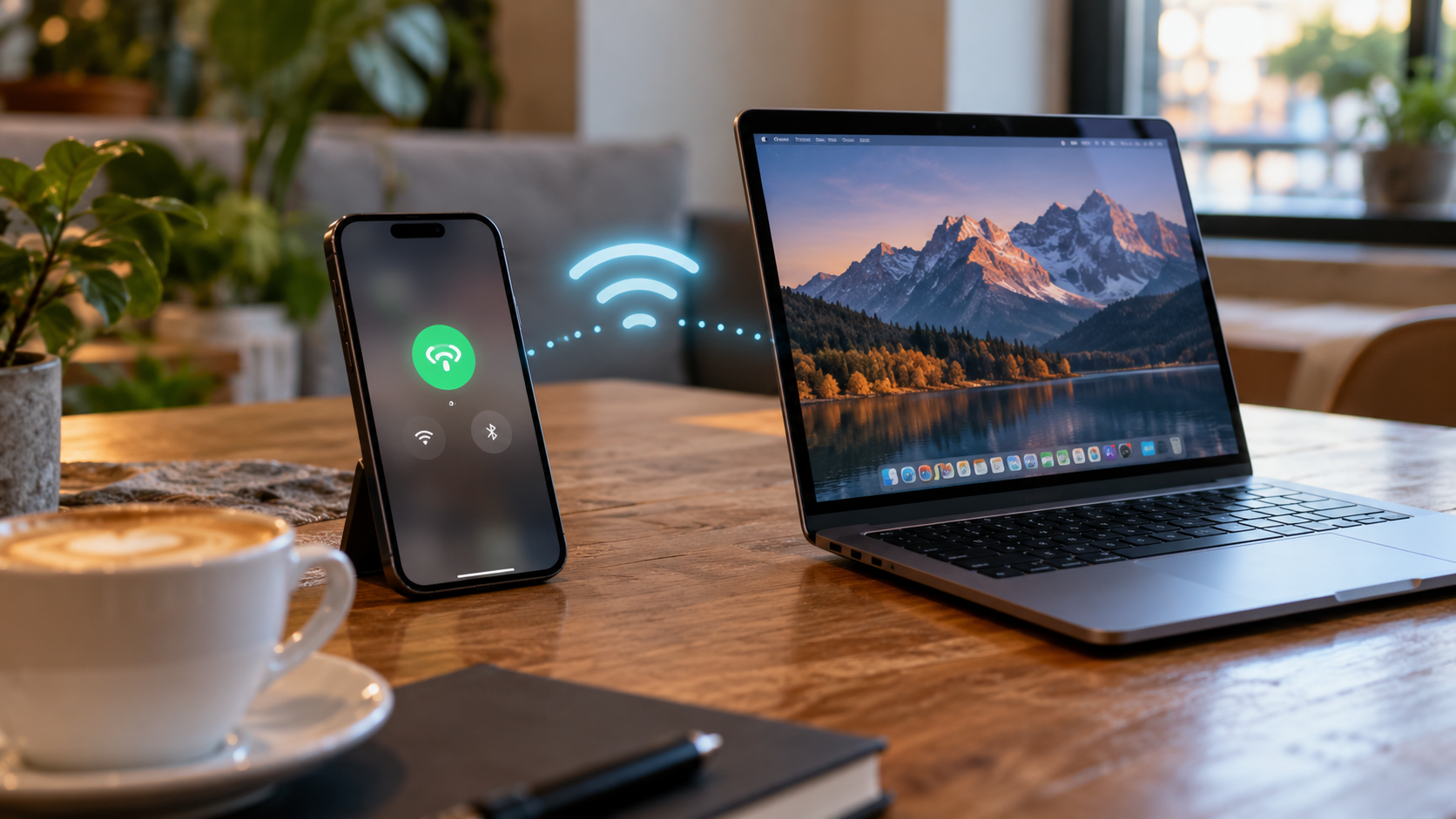
How to use phone as hotspot: start with the least disruptive checks below and identify the underlying cause before changing settings or deleting important files. These instructions focus on devices and services commonly used in the United States.
Set up a Wi-Fi hotspot on Android: phone hotspot
To use your phone as a hotspot on Android, turn on cellular data and enable the mobile hotspot in network settings. Set a strong password before connecting a laptop or tablet.
First enable mobile data and confirm that websites load on the phone. Open Settings > Network & internet > Hotspot & tethering, or the equivalent menu on your handset. Samsung often places the feature under Connections > Mobile Hotspot and Tethering. Turn on the hotspot and set a strong Wi-Fi password.
On the laptop, select the new network from the Wi-Fi menu, enter the password, and test an ordinary website. If an older device cannot see the hotspot, choose the 2.4 GHz band when that option is available. Avoid sharing a network without a password.
A phone hotspot uses your carrier’s data allowance and may be subject to plan-specific tethering limits in the US.
Turn on Personal Hotspot on iPhone
An iPhone can act as a phone hotspot through Personal Hotspot when the cellular plan supports it. Enable Allow Others to Join and use the displayed Wi-Fi password on your computer.
On iPhone, open Settings > Personal Hotspot, or find it under Cellular if your iPhone uses that menu. Enable Allow Others to Join and review the Wi-Fi password. Then connect from your computer just as you would to another Wi-Fi network.
If Personal Hotspot is missing, check your cellular plan and carrier settings. Some US carrier plans restrict hotspot data independently from ordinary on-device data. The Maximize Compatibility option on supported iPhones can help older Wi-Fi hardware discover the connection.
If the mobile hotspot option is absent, check the carrier account rather than resetting your iPhone.
Use USB tethering when Wi-Fi is unreliable
USB tethering lets a phone hotspot connect directly to a compatible computer instead of relying on Wi-Fi. Android and iPhone support vary by computer, cable, and required software.
A supported Android phone can often share mobile data with a Windows computer over a data-capable USB cable. Connect the phone, enable USB tethering in the hotspot menu, and wait for Windows to recognize the network interface. A charge-only cable may not work.
iPhone USB tethering support depends on the computer's operating system and software configuration. Not all Android-to-Mac USB tethering combinations are supported in the same way. For a quick backup connection, Wi-Fi is usually the simplest cross-platform method.
A mobile hotspot over USB may be preferable for one laptop but does not automatically share internet with every TV.
Connect a smart TV to the hotspot
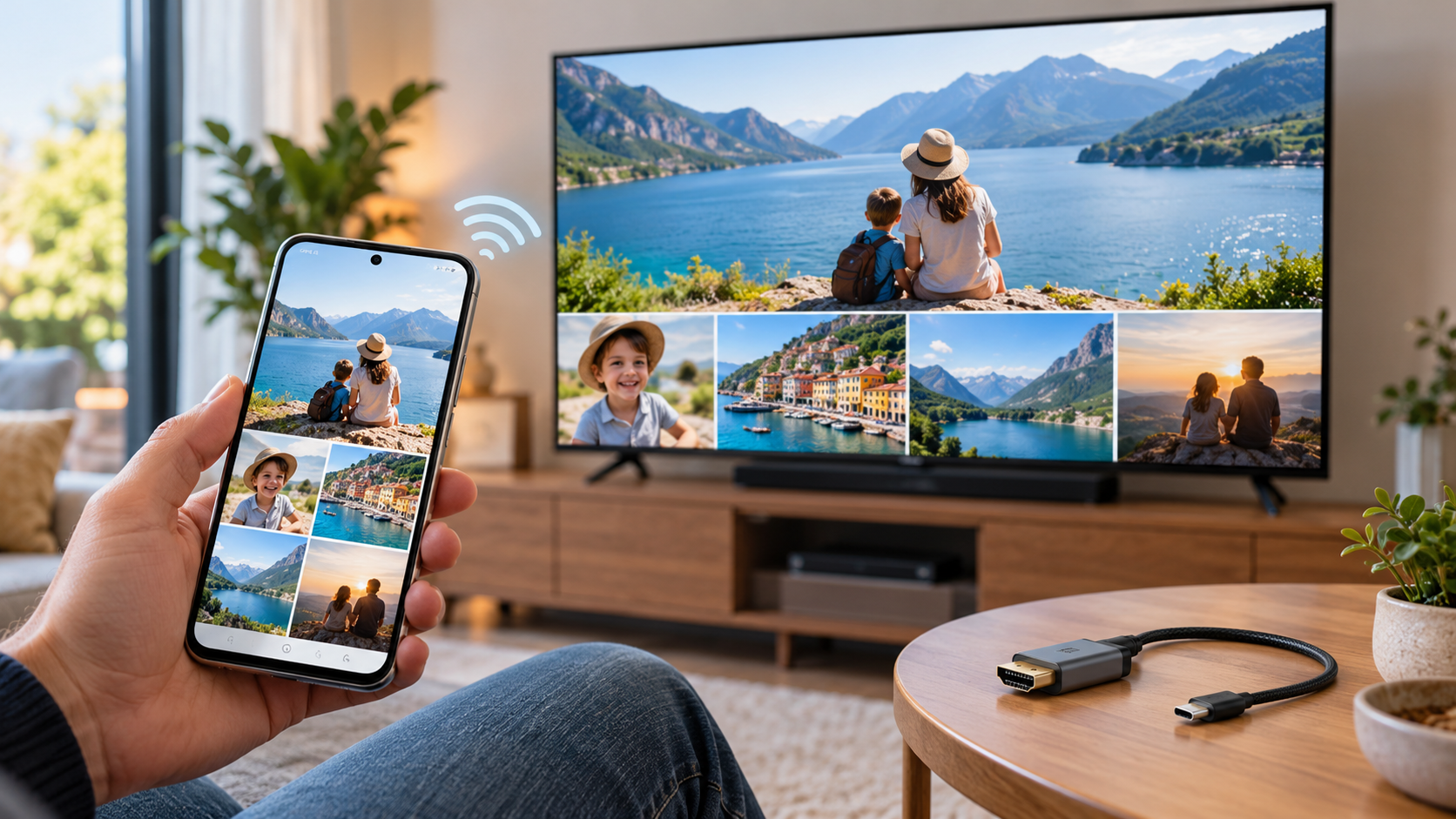
A smart TV can use a phone hotspot if it can join the phone’s Wi-Fi network. Streaming large amounts of high-definition video may quickly consume hotspot data.
Open the TV's network settings and find the hotspot's Wi-Fi network. Enter the password and test the TV's built-in app or browser. Streaming on the large screen can use far more data than email or browsing, particularly at high resolutions.
Check your carrier's remaining high-speed hotspot allowance before starting a movie. Streaming applications may offer reduced picture quality. A TV without built-in Wi-Fi may require compatible additional hardware and cannot always connect directly.
Before using a phone as a hotspot for TV, check the plan’s high-speed data threshold and playback quality.
Fix connected devices with no internet
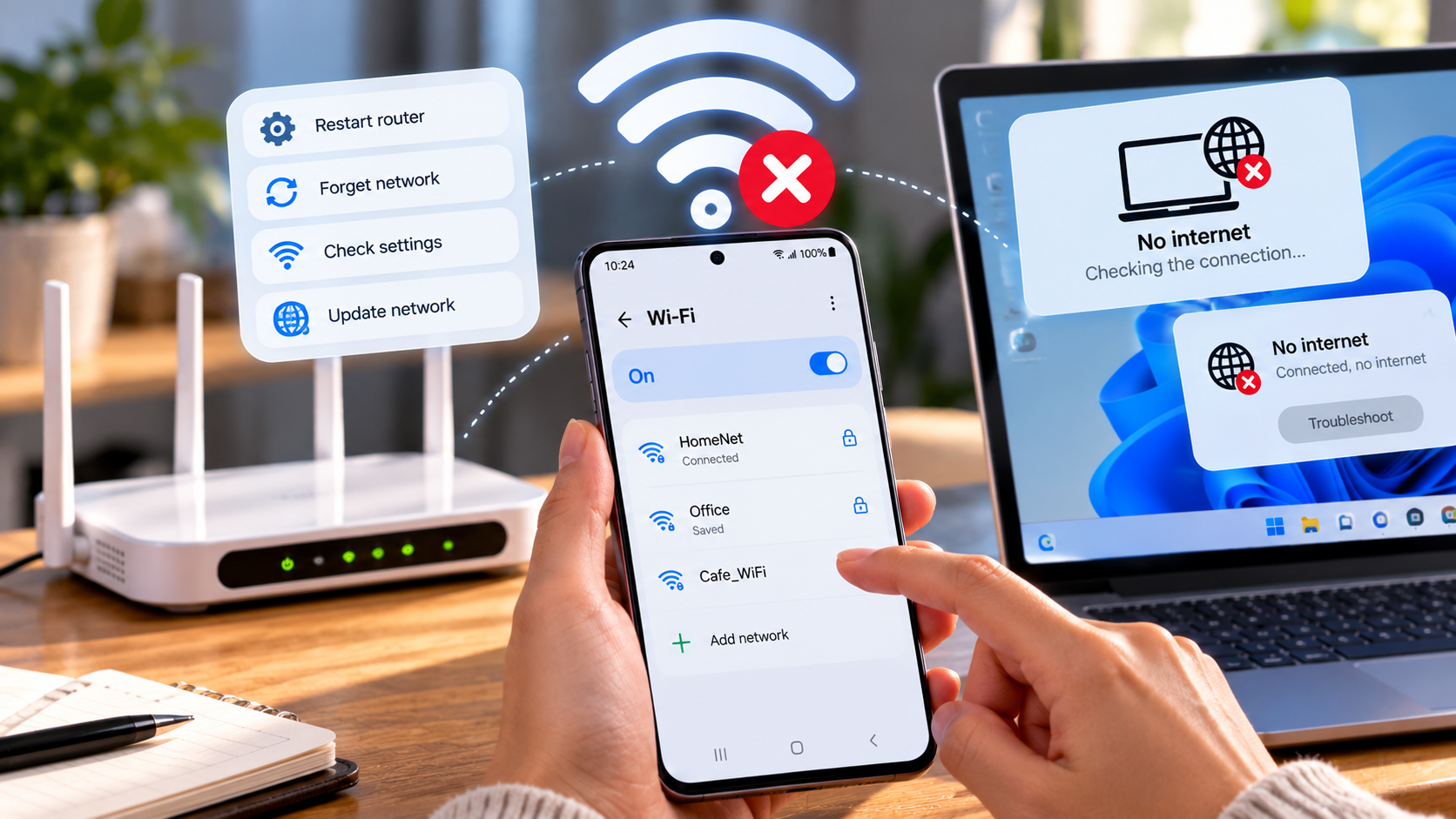
If devices connect to your phone hotspot but websites do not load, test cellular internet on the phone itself first. Then check the hotspot password, band compatibility, and carrier restrictions.
Start by disabling Wi-Fi on the phone and verifying that its cellular data actually works. If not, the laptop is not the source of the problem. Check signal, the mobile data setting, account status, and whether the carrier permits tethering on your plan.
If cellular data works but the laptop cannot browse, re-enter the hotspot password, reconnect after forgetting the network, and try an alternate Wi-Fi band. Test a second device to identify which side fails. Restart the hotspot before resetting the phone's entire network configuration.
An active mobile hotspot icon does not prove that the carrier is supplying usable data.
Control battery use and data costs
Using a phone as a hotspot increases battery usage and may warm the device during sustained traffic. Turn off unneeded connections and pause large background updates on the connected computer.
A phone acting as a hotspot runs both a mobile connection and Wi-Fi radio, so it can drain its battery and become warm. Keep it ventilated and stop tethering when the connection is no longer needed. Avoid direct sun or a covered charging phone.
On Windows, mark the hotspot connection as metered to discourage some background downloads. Pause game updates and large cloud backups. Hotspot allowances, video throttling, and extra charges vary by US carrier and plan, so confirm current terms rather than assuming unlimited phone data means unlimited tethering.
Keep the phone hotspot in a ventilated place and avoid charging it under blankets.
Quick troubleshooting comparison
A mobile hotspot is often the easiest way to connect several devices, while USB tethering can serve one compatible computer. Choose the method that fits the equipment and plan.
For readers researching how to use phone as hotspot, the safest next action depends on the device model, software release, and symptoms. Review the specific section above before applying a general fix to your own setup.
The following comparison helps match a common symptom to the first sensible check. Exact menu names and results depend on your device, software version, and account settings. Work from the least disruptive option toward more involved diagnosis.
Using a phone hotspot responsibly also means checking security, signal strength, and remaining data.
| Situation | Likely issue or method | Recommended first step |
| Wi-Fi hotspot | Laptop, tablet, smart TV | Battery use and password security |
| USB tethering | One compatible computer | Data cable and software compatibility |
| Bluetooth tethering | Light tasks on supported devices | Usually slower throughput |
Step-by-step checklist
Use this order to avoid changing multiple settings at once. A methodical check makes it easier to recognize which change solved the issue and which steps are still necessary. Save important data before any step that could remove files or account settings.
- Verify that mobile data works on the phone.
- Enable hotspot and set a secure password.
- Connect one device and open a test webpage.
- Check carrier hotspot limits and remaining allowance.
- Disable hotspot when finished to conserve battery.
Frequently asked questions
Some Android devices can repeat an existing Wi-Fi connection, but this is model-dependent. Standard cellular hotspot use requires an active supported mobile connection.
A practical answer to how to use phone as hotspot should preserve your files, account access, and working settings. If basic checks fail, use official manufacturer or service-provider support rather than unverified recovery tools. Check the password, wireless band, maximum client count, and whether the hotspot is active. Forgetting the network and reconnecting often resolves stored configuration errors.