


Phone not detecting SIM card: start with the least disruptive checks below and identify the underlying cause before changing settings or deleting important files. These instructions focus on devices and services commonly used in the United States.
Distinguish No SIM from SOS Only and No Service: SIM card detection
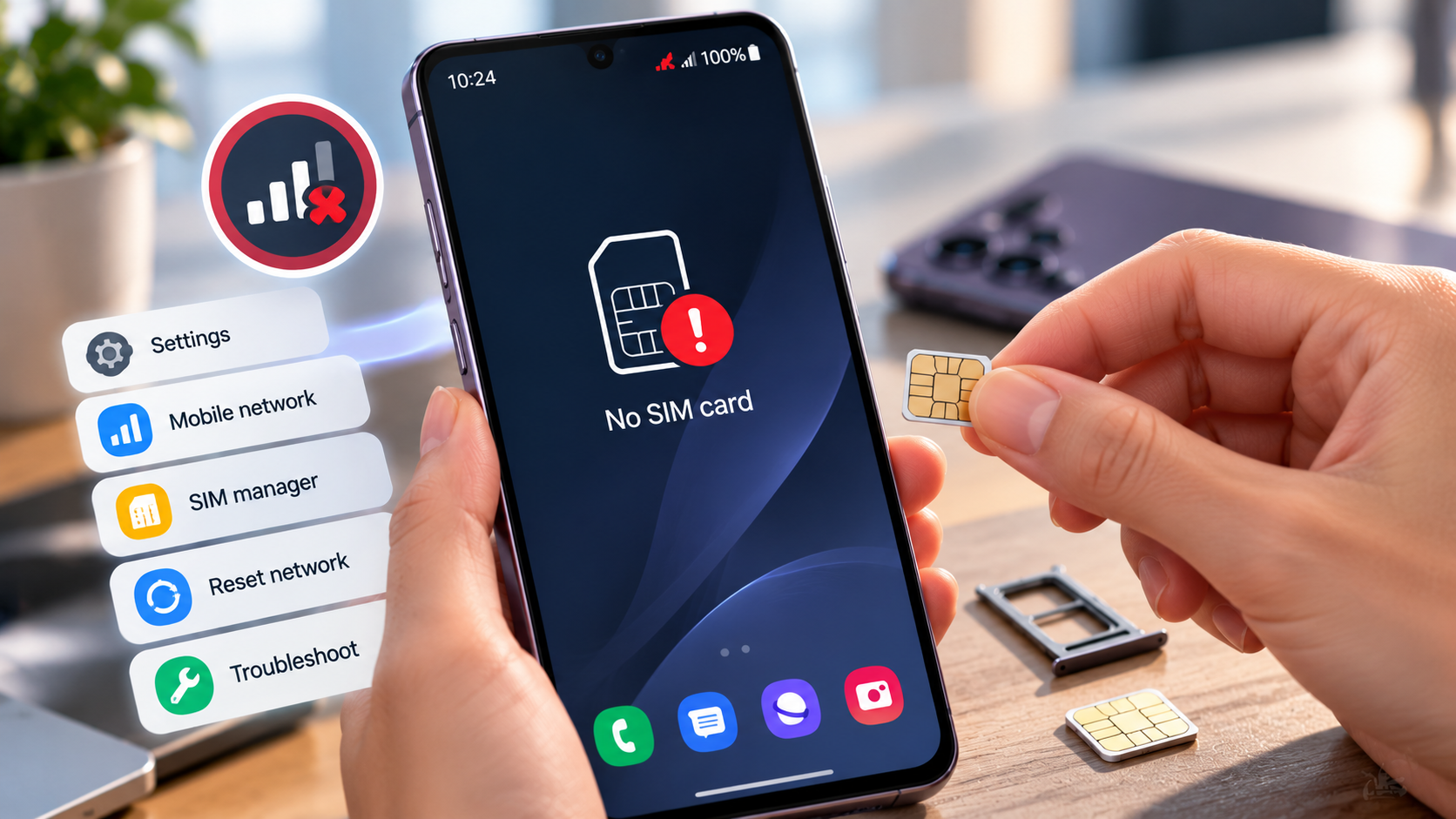
A phone not detecting a SIM card is different from a phone that detects the SIM but cannot register on a network. Read the exact error message before changing settings.
No SIM or SIM Not Detected generally means the device is not recognizing a physical card or usable profile. No Service and SOS Only may mean the phone recognizes a line but cannot register normally with the carrier. These alerts lead to different troubleshooting steps.
Start by checking Airplane Mode, restarting the phone, and reviewing the cellular line settings. If your phone supports dual SIM or eSIM, make sure the intended line is enabled. Do not erase an eSIM profile simply because the signal temporarily disappears.
SIM card detection errors may involve the tray, the card, or the cellular modem rather than an outage.
Inspect a physical SIM and its tray safely
A phone not detecting its physical SIM should be powered down before carefully inspecting the tray. Reinsert the card in the correct orientation and avoid bending contacts or forcing the tray.
Power off the phone before removing the physical SIM if the manufacturer recommends it. Use the official tray-eject tool and inspect the card for cracks, bent edges, or obvious damage. Re-seat the card in the correct orientation without forcing the tray.
Do not scrape contacts with metal tools or use household cleaners. If the tray is jammed, stop rather than pushing harder. An incorrectly sized SIM adapter can damage the reader; a carrier store can replace a damaged card while handling account verification.
A damaged SIM card should be replaced through the carrier instead of repaired with tape or improvised shims.
Test whether the card or handset is responsible
Testing the SIM in another unlocked compatible phone can distinguish card failure from handset failure. Testing a known-working SIM in the original handset adds useful evidence.
If you have access to another compatible unlocked handset, test the suspect SIM in it. You can also test a known working SIM in the original phone, subject to carrier and device compatibility. If several cards fail in one phone, the reader or modem deserves attention.
If one SIM fails across multiple compatible phones, contact the carrier for an account check or replacement. Network coverage and carrier provisioning can still cause No Service when the phone recognizes the card correctly. In the US, an older carrier-locked phone may not work with a SIM from a different provider.
If SIM card detection fails with multiple working cards, an internal phone fault becomes more plausible.
Review eSIM and carrier settings
An eSIM issue is not fixed by removing a physical SIM tray. Confirm that the digital line remains installed and enabled, then ask the carrier whether activation completed.
On iPhone, open Settings > Cellular and check whether the eSIM line is present and enabled. Android has comparable SIM management settings that vary by brand. If a line disappeared during a device transfer, follow your carrier's official activation process.
Deleting an eSIM may require a new activation code or carrier assistance to restore service. Do not share eSIM QR codes or verification codes with third parties. US carrier apps and support can provide account-specific provisioning steps and confirm whether a number transfer has completed.
Do not delete an eSIM profile casually because SIM reactivation may require another carrier-issued code.
Check for updates before resetting networking
A phone not detecting a SIM card after an update may need a carrier-settings or software check. Network reset is a later option because it can erase saved connection settings.
After a software update, check for newer system patches and applicable carrier settings updates. A network settings reset may clear stored Wi-Fi networks and other connection preferences, but it cannot repair a broken physical SIM slot. Back up passwords and connection details before using that option.
If the phone has been dropped, exposed to water, or has a bent tray, hardware service is more appropriate than repeated resets. If the IMEI is missing from system information, a technician may need to check the modem. Avoid unauthorized repair shops asking for account passwords.
Before attempting a SIM-related reset, save Wi-Fi details and confirm the consequences for your particular device.
When to call the carrier or book repair
Call your carrier if SIM card detection fails across compatible devices or your number has an activation restriction. Seek repair if the phone fails with multiple confirmed-working cards or has visible damage.
Contact your carrier if the physical SIM fails in other phones, the account is suspended, or the eSIM activation has not completed. Contact the device manufacturer or qualified service provider if a working card cannot be detected in the handset. Document the error message and the results of your cross-device tests.
Before repair, back up photos and important documents and review warranty coverage. A carrier may require identity verification before issuing a replacement SIM or activating an eSIM. Never rely on an unknown online service promising to reactivate a SIM without verification.
In the US, a carrier-store SIM replacement may preserve your number after identity verification.
Quick troubleshooting comparison
A SIM issue can often be narrowed down without a factory reset by comparing devices and error messages. Start with airplane mode, restart, physical inspection, and carrier status.
For readers researching phone not detecting SIM card, the safest next action depends on the device model, software release, and symptoms. Review the specific section above before applying a general fix to your own setup.
The following comparison helps match a common symptom to the first sensible check. Exact menu names and results depend on your device, software version, and account settings. Work from the least disruptive option toward more involved diagnosis.
A phone not detecting SIM card service is not automatically proof that an expensive hardware repair is required.
| Situation | Likely issue or method | Recommended first step |
| No SIM / SIM not detected | Card, reader, or profile issue | Reseat and cross-test SIM |
| No Service | Registration or coverage failure | Check carrier and signal |
| SOS Only | No normal service on current line | Check coverage, account and line status |
| eSIM inactive | Activation or line setting | Contact official carrier support |
Step-by-step checklist
Use this order to avoid changing multiple settings at once. A methodical check makes it easier to recognize which change solved the issue and which steps are still necessary. Save important data before any step that could remove files or account settings.
- Restart and confirm Airplane Mode is off.
- Check whether the correct SIM/eSIM line is enabled.
- Inspect or cross-test the physical SIM when applicable.
- Verify service status with the US carrier.
- Seek qualified repair if multiple working cards fail.
Frequently asked questions
Carriers commonly support replacement SIM cards while preserving a verified account number. Requirements differ by provider and may involve in-store identity verification.
A practical answer to phone not detecting SIM card should preserve your files, account access, and working settings. If basic checks fail, use official manufacturer or service-provider support rather than unverified recovery tools. Not necessarily. The phone may lack ordinary carrier coverage or activation while still being able to access certain emergency services. Check network and account status first.