



How to recover deleted photos: start with the least disruptive checks below and identify the underlying cause before changing settings or deleting important files. These instructions focus on devices and services commonly used in the United States.
Start with Trash or Recently Deleted: deleted photo recovery
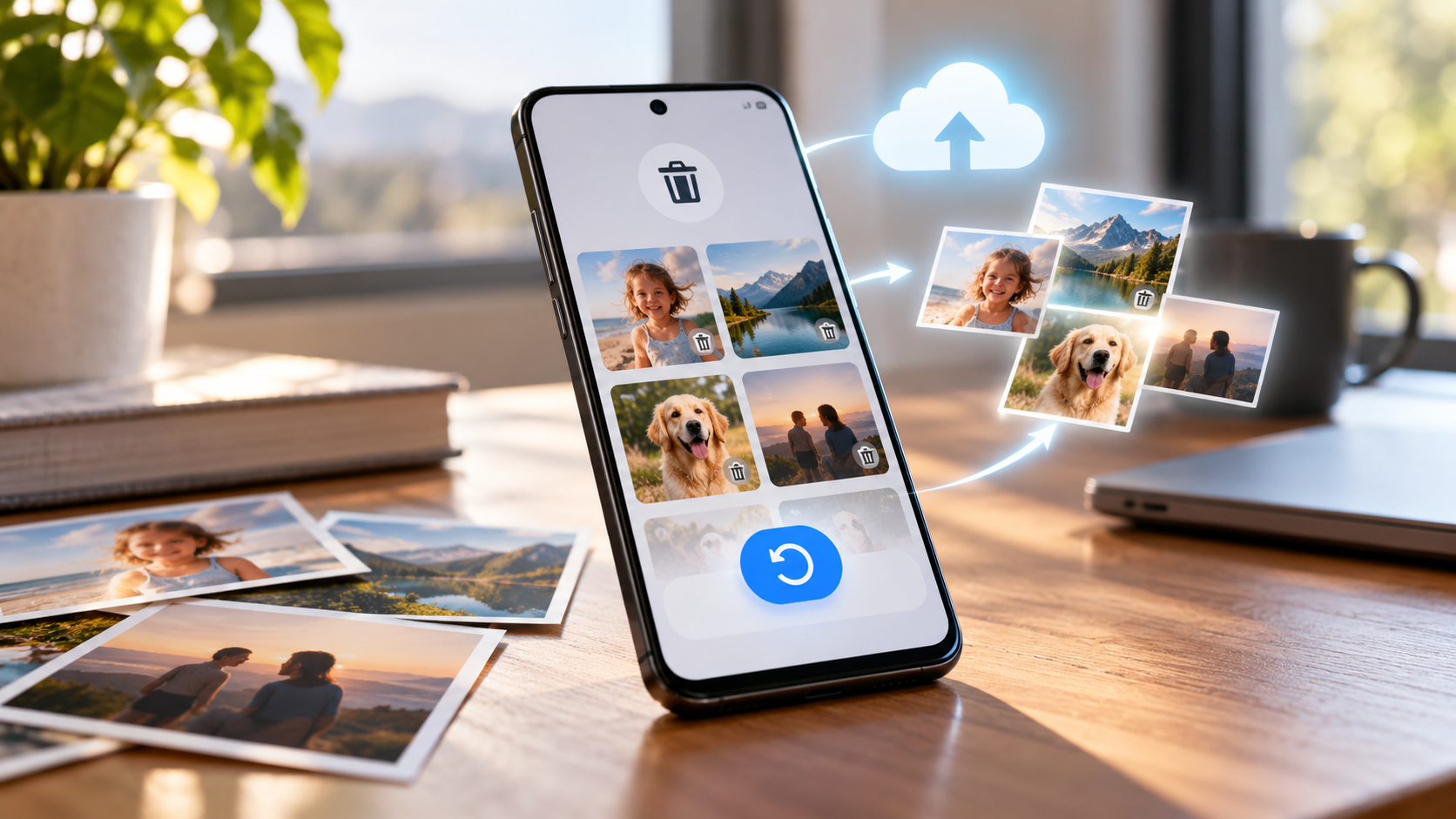
To recover deleted photos, look in the gallery’s Trash or Recently Deleted section before using recovery tools. Photos may remain there only for a limited time.
Open the photo app where you last saw the image and look for Trash or Recently Deleted. Files stored there can often be restored directly without installing anything else. Check the correct account and album before assuming a missing image is permanently erased.
Cloud photo deletion can synchronize across devices. If you deleted a picture in a synchronized library, the same change may appear on a laptop or tablet. Do not erase additional files or reset a device while trying to find an original.
Deleted photo recovery is easiest when the original file is still retained by the service.
Restore pictures using Google Photos
Google Photos may recover deleted photos from Trash while they remain within its retention rules. Check the correct Google Account and whether backup was enabled.
Sign in to the correct Google account in Google Photos and open Collections > Trash, or the equivalent location in your app version. Select the item and choose Restore if that action is available. Google's retention policy distinguishes certain backed-up items from those that were not backed up, and permanently deleted items generally cannot be restored from Trash.
Check Google's current help page rather than assuming the same retention period for every device and situation. A picture might also be in Archive rather than Trash, or in a different Google account. Search by date and location before using a third-party recovery service.
Photo recovery from Google Photos cannot be promised once an item has been permanently deleted.
Recover photos on an iPhone or through iCloud
On iPhone, recover deleted photos through the Photos app’s Recently Deleted collection when the item is still available. Check iCloud Photos using the same Apple Account for synced images.
In Apple's Photos app, open Recently Deleted under Utilities and authenticate if prompted. Select the photos and use Recover. Apple typically keeps recently deleted images for a limited window, after which they may be permanently removed.
Sign in to iCloud.com with the same Apple Account to check cloud photos and Recently Deleted. Restoring an entire iPhone from an older backup may replace newer data, so inspect the individual photo options first. Save a current backup before any full-device recovery.
Deleted photo recovery should begin before restoring an entire iPhone backup, which can replace newer data.
Check Samsung Gallery and removable storage
Samsung Gallery may offer a Trash folder to recover deleted photos, separate from Google Photos. If images were on a removable card, avoid writing new files until the card has been evaluated.
Samsung Gallery and some other Android galleries have their own Recycle Bin in addition to Google Photos Trash. Open both because local and cloud image management are not always identical. A photo copied to an SD card may not have the same backup status as an image in phone storage.
If a memory card is damaged, avoid formatting it immediately or continuing to write new files. A specialist may sometimes examine removable media, but there are no guaranteed results. Modern encrypted internal phone storage is much less forgiving after true permanent deletion.
Photo recovery from a damaged memory card has different limits from restoring a cloud copy.
Look for photos that were not actually deleted
Some apparently missing pictures do not require deleted photo recovery because they are archived, hidden, or stored under another account. Search by date and check old phones and messaging attachments.
Search Archive, hidden albums, messenger attachments, Downloads, and other signed-in cloud accounts. A date mismatch or incomplete synchronization can make a picture appear missing when it still exists. On a new phone, cloud thumbnails may appear before full-resolution files download.
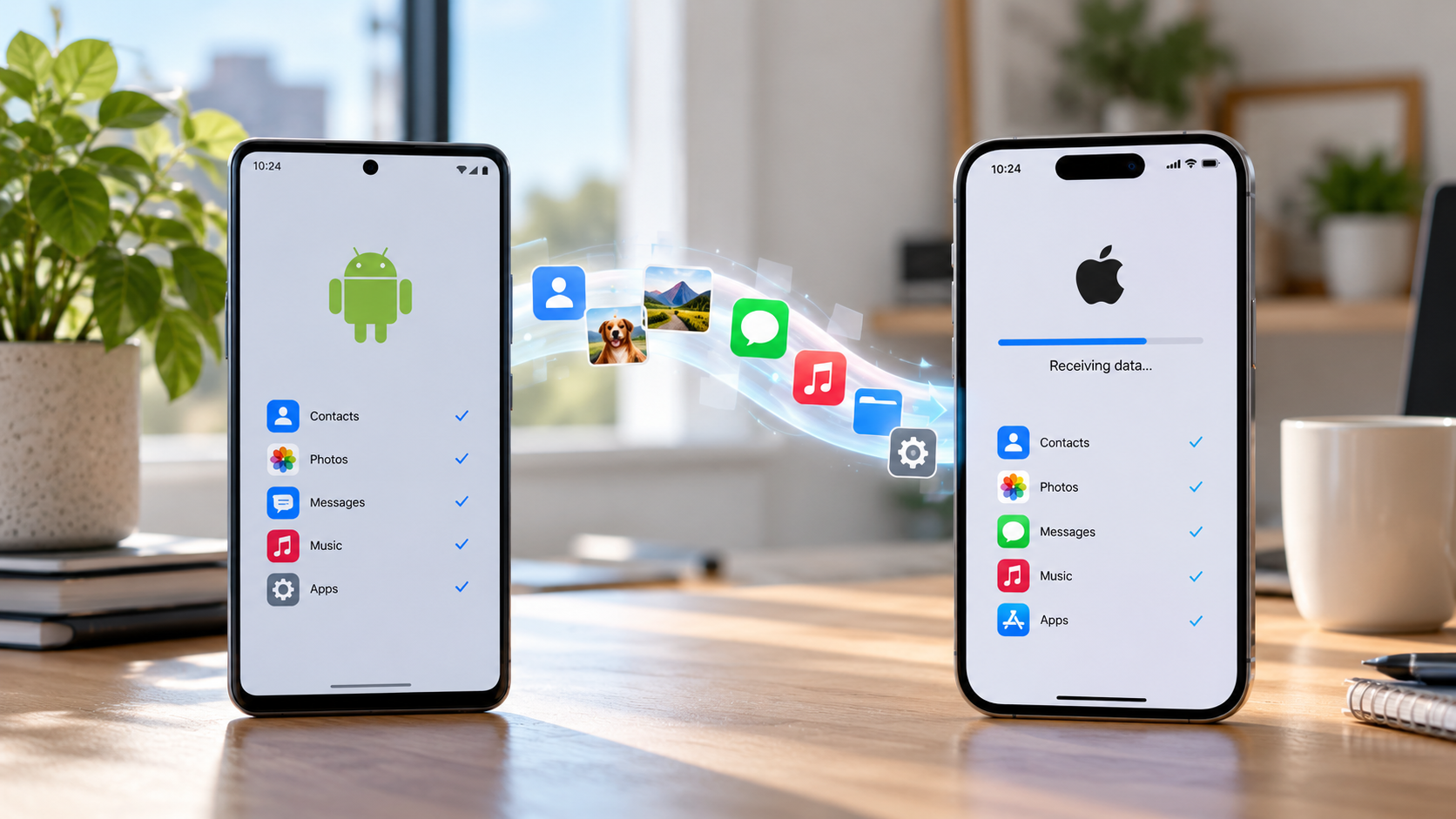
If you recently transferred data, keep the old device until you have checked random files from different dates and folders. Do not trust thumbnails alone as proof that originals are safely stored. Verify that photos open at usable resolution.
Before paying for photo recovery, confirm that the images were actually deleted rather than simply moved.
Be realistic about recovery apps and backups
Apps claiming to recover deleted photos after permanent removal may show only cached thumbnails. Encryption and overwritten storage can prevent meaningful restoration.
Recovery apps that promise to restore every permanently deleted photo often overstate what modern smartphone encryption allows. Some merely display thumbnails left in a cache. Be skeptical of requests for extensive photo-library access, account passwords, or payment before any recoverable file is identified.
Maintain automatic backups and at least one independent copy of especially important photos. Understand the difference between removing a local copy and deleting an image from a synchronized library. The first may free space; the second could erase the picture everywhere.
Deleted photo recovery is not guaranteed even when a professional data specialist is involved.
Quick troubleshooting comparison
A reliable photo recovery plan checks Trash, cloud backups, other devices, and removable storage in sequence. Verify the restored original before deleting any other copy.
For readers researching how to recover deleted photos, the safest next action depends on the device model, software release, and symptoms. Review the specific section above before applying a general fix to your own setup.
The following comparison helps match a common symptom to the first sensible check. Exact menu names and results depend on your device, software version, and account settings. Work from the least disruptive option toward more involved diagnosis.
To recover deleted photos in the future, maintain a separate backup that does not depend on one synced library.
| Situation | Likely issue or method | Recommended first step |
| Google Photos | Trash, Archive, correct account | Recovery depends on item retention |
| iPhone Photos | Recently Deleted, iCloud.com | Available during recovery window |
| Samsung Gallery | Gallery Recycle Bin and Google Photos | Depends on model and backup |
| SD card | Other copies and card condition | Specialist assessment may help |
Step-by-step checklist
Use this order to avoid changing multiple settings at once. A methodical check makes it easier to recognize which change solved the issue and which steps are still necessary. Save important data before any step that could remove files or account settings.
- Check the photo app Trash or Recently Deleted folder.
- Verify the cloud account and archived albums.
- Search other devices and messenger attachments.
- Avoid resetting or overwriting the suspected storage.
- Set up multiple verified backups for future photos.
Frequently asked questions
Usually not through the service once a file is permanently deleted. Check separate backups and other devices, but beware software that guarantees complete recovery.
A practical answer to how to recover deleted photos should preserve your files, account access, and working settings. If basic checks fail, use official manufacturer or service-provider support rather than unverified recovery tools. Google Photos may have a cloud copy without a local original on the phone. Check synchronization and account settings before deleting anything from the cloud library.