



How to speed up Windows 11 laptop: start with the least disruptive checks below and identify the underlying cause before changing settings or deleting important files. These instructions focus on devices and services commonly used in the United States.
Identify the actual bottleneck in Task Manager: Windows 11 laptop performance
To speed up a Windows 11 laptop, inspect CPU, memory, and disk usage in Task Manager before installing anything. The busiest resource points toward the most effective fix.
Press Ctrl + Shift + Esc to open Task Manager and compare CPU, Memory, Disk, and Network activity. High resource use during an active game or large file transfer can be normal. When a little-known app continuously consumes resources while the laptop is idle, investigate that application.
Sort processes by resource usage rather than ending everything at once. Do not terminate unfamiliar Windows services or turn off security software in pursuit of speed. Make a note of which resource stays near saturation and whether performance changes after a reboot.
A slow laptop during a Windows update does not necessarily have a lasting performance problem.
Disable unnecessary startup applications
Disabling unnecessary startup apps can speed up a Windows 11 laptop that takes too long to reach a usable desktop. Leave security software and essential hardware utilities enabled.
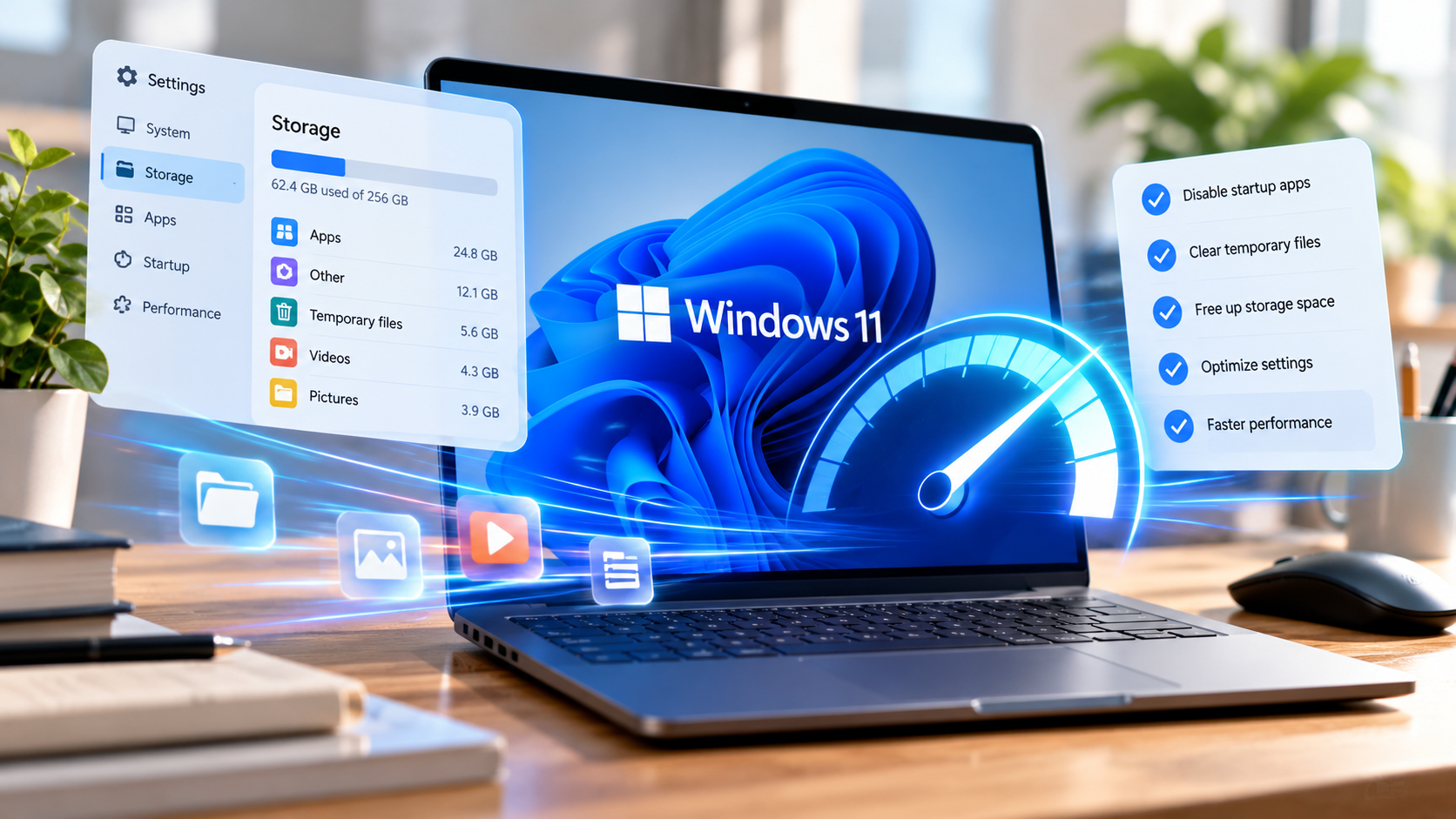
Open Settings > Apps > Startup or the Startup apps page inside Task Manager. Disable automatic launching for nonessential game launchers, chat clients, and other programs that you prefer to open manually. This may reduce boot time and background resource consumption.
Avoid turning off driver utilities, accessibility software, or security tools unless you understand their purpose. Restart and compare time to desktop after changes. A faster boot is useful evidence, but startup adjustments will not fix every application-level slowdown.
Measure startup time after each change so you know whether the slow laptop improved.
Clean up storage with built-in Windows tools
Freeing disk space can improve Windows 11 laptop performance when the system drive is nearly full. Use Storage settings and built-in cleanup tools rather than registry cleaners.
Go to Settings > System > Storage and review Temporary files and Storage Sense. Delete only categories you recognize; check Downloads and Recycle Bin before emptying them. Keeping free space is especially helpful on small SSDs used for both Windows and personal files.
Registry cleaners are not a recommended universal performance fix and can damage program configuration. Focus on uninstalling genuinely unused applications and removing repeatable downloads. If Disk usage stays high after cleaning, examine background tasks and storage health.
A slow laptop with abundant free disk space may need a different diagnosis.
Update Windows and trusted drivers
Installing trusted updates can help speed up a Windows 11 laptop when a known bug or driver issue affects performance. Use Windows Update and the hardware manufacturer’s official support pages.
Use Settings > Windows Update to install available stable updates and restart when prompted. Check the laptop maker's support page for applicable firmware and drivers. Updates may improve compatibility or fix known issues, but installing random driver packages from advertising sites creates unnecessary risk.
If the slowdown began immediately after a change, check update history and the manufacturer's known-issues notices. Back up important data before firmware work. Avoid rolling back numerous drivers at once because that obscures the cause.
Avoid third-party driver bundles when troubleshooting a slow laptop.
Choose a sensible power mode and manage heat
Power settings and blocked cooling vents can reduce Windows 11 laptop performance under load. Select a balanced mode that suits the task and check whether the fan and vents are obstructed.
In Settings > System > Power & battery, compare power modes available for the laptop. Battery-saving profiles can intentionally lower peak performance. Switching to a faster mode may help with demanding work but also increases heat, noise, and battery use.
Dust, blocked vents, and blankets covering air intakes can cause thermal throttling. Test the laptop on a hard surface, monitor fan behavior, and investigate severe overheating. A faster power profile will not compensate for a failing cooling system.
A slow laptop that heats up during demanding work may be throttling to protect its components.
Decide whether an SSD or more RAM is worthwhile
Adding an SSD or memory may speed up a Windows 11 laptop when hardware is the limiting factor. Check the exact model for soldered RAM and supported drive formats before buying parts.
If the computer still runs Windows from a mechanical hard disk, a compatible SSD can significantly improve boot and application load times. If RAM is regularly exhausted, additional supported memory may improve multitasking. Neither upgrade will automatically make a weak processor excel at all workloads.
Check the exact model and manufacturer's specifications before buying parts. Some thin laptops have soldered RAM or difficult-to-replace storage. Compare the upgrade cost with device age and the remaining useful life of the laptop.
A slow laptop already equipped with adequate RAM and a healthy SSD may benefit little from upgrades.
Check browsers, malware, and background processes
Browser extensions and unexpected background processes can degrade Windows 11 laptop performance even when Windows itself is healthy. Inspect resource usage and run a trusted security scan.
A browser with dozens of open tabs or demanding extensions can make the entire laptop feel slow. Remove extensions you do not use and inspect each application's resource impact. Run a legitimate scan with Windows Security, especially if slowdowns coincide with unexpected pop-ups.
Do not download one-click optimizers that promise guaranteed percentage improvements. Measure launch times or normal workload performance after each reversible change. Reinstalling Windows belongs near the end of a careful diagnosis, after backups and simpler remedies.
To speed up a Windows 11 laptop safely, avoid disabling core Windows services without understanding their purpose.
For readers researching how to speed up Windows 11 laptop, the safest next action depends on the device model, software release, and symptoms. Review the specific section above before applying a general fix to your own setup.
Quick troubleshooting comparison
The following comparison helps match a common symptom to the first sensible check. Exact menu names and results depend on your device, software version, and account settings. Work from the least disruptive option toward more involved diagnosis.
| Situation | Likely issue or method | Recommended first step |
| Slow startup | Many startup programs | Disable nonessential startup items |
| High memory usage | Open tabs or insufficient RAM | Reduce workload or upgrade RAM |
| Constant disk activity | Background tasks or slow storage | Review processes and disk health |
| Slow when hot | Thermal throttling | Improve ventilation and seek service |
Step-by-step checklist
Use this order to avoid changing multiple settings at once. A methodical check makes it easier to recognize which change solved the issue and which steps are still necessary. Save important data before any step that could remove files or account settings.
- Open Task Manager and identify the saturated resource.
- Review startup applications and disable unneeded launches.
- Use Storage Sense and review downloads.
- Install appropriate Windows and manufacturer updates.
- Inspect ventilation and compare power modes.
- Evaluate SSD/RAM only after checking compatibility.
Frequently asked questions
They are not a reliable general fix and can create configuration problems. Use Microsoft tools and diagnose the apps or hardware actually causing delays.
A practical answer to how to speed up Windows 11 laptop should preserve your files, account access, and working settings. If basic checks fail, use official manufacturer or service-provider support rather than unverified recovery tools. For a machine booting from an HDD, an SSD often delivers a larger improvement in responsiveness. If memory is routinely full, compatible RAM may be the priority.