

How to transfer data from Android to iPhone: start with the least disruptive checks below and identify the underlying cause before changing settings or deleting important files. These instructions focus on devices and services commonly used in the United States.
Prepare both devices before transferring: Android to iPhone transfer
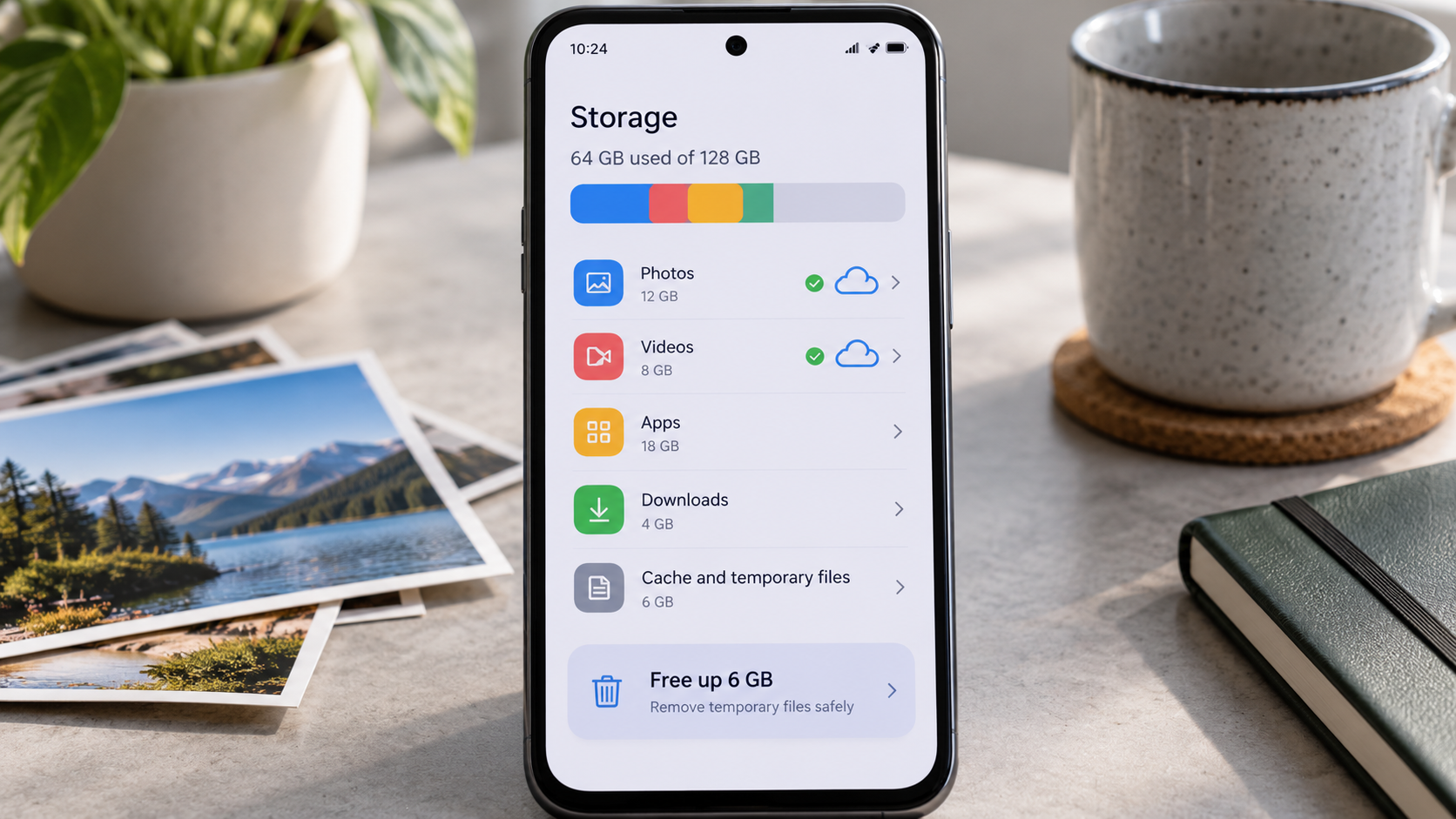
To transfer data from Android to iPhone, back up the source phone and check that the destination has enough space. Keep account passwords and verification codes accessible during setup.
Charge both phones or connect them to power, confirm there is enough free space on the iPhone, and connect to reliable Wi-Fi where required. Keep the Android phone intact until photos, messages, and accounts have been checked on the new device. Back up important data separately.
Review your Google login, password manager, authenticator apps, and recovery codes. If a bank or sign-in service still sends verification texts to the old device, keep access to that phone number during setup. Some apps require fresh authorization regardless of the transfer method.
An Android to iPhone transfer can miss app-specific files even if contacts and photos migrate successfully.
Use Apple’s official migration method
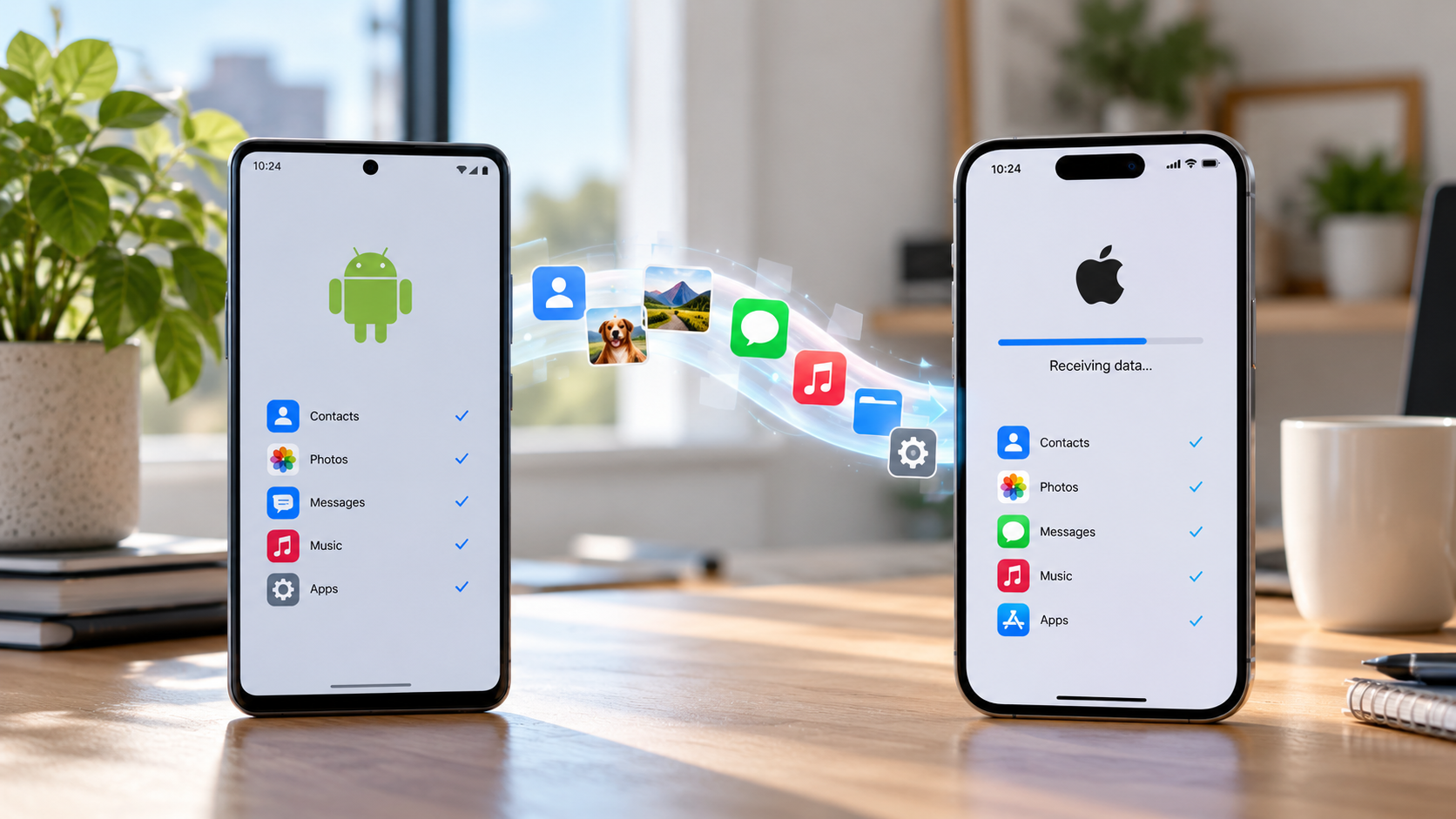
Apple’s Move to iOS app can transfer data from Android to iPhone during initial iPhone setup. Follow prompts on both devices and keep them powered and nearby.
During initial iPhone setup, select the option for transferring from Android and follow the current Apple instructions. Apple's Move to iOS app supports many Android phones, while some supported newer Android configurations may offer another official transfer path. On-screen instructions should take precedence over outdated tutorials.
Keep the phones close and avoid interrupting the Android transfer process. Available wired or wireless methods depend on the versions and hardware. If the iPhone is already set up, the full automated migration workflow may require erasing it; make a current iPhone backup before considering that step.
If the iPhone is already configured, this phone migration method may require erasing it after backing up current data.
Move contacts, calendars, and email
To transfer data from Android to iPhone for contacts and calendars, sign into the appropriate Google account or use a supported import method. Verify that the source records are not stored only on the old SIM.
Contacts stored in your Google account can often appear on iPhone after you add the same account and enable contact synchronization. Confirm that your Android contacts are not stored only on the SIM or inside local device storage. A vCard export offers another option for supported contact transfers.
Check a sample of entries with addresses, notes, and international phone numbers. Duplicate contacts can occur when several accounts sync simultaneously. Leave the Android contacts untouched until the iPhone address book is complete.
A phone migration can create duplicate contacts when multiple sync accounts are enabled.
Transfer photos and videos
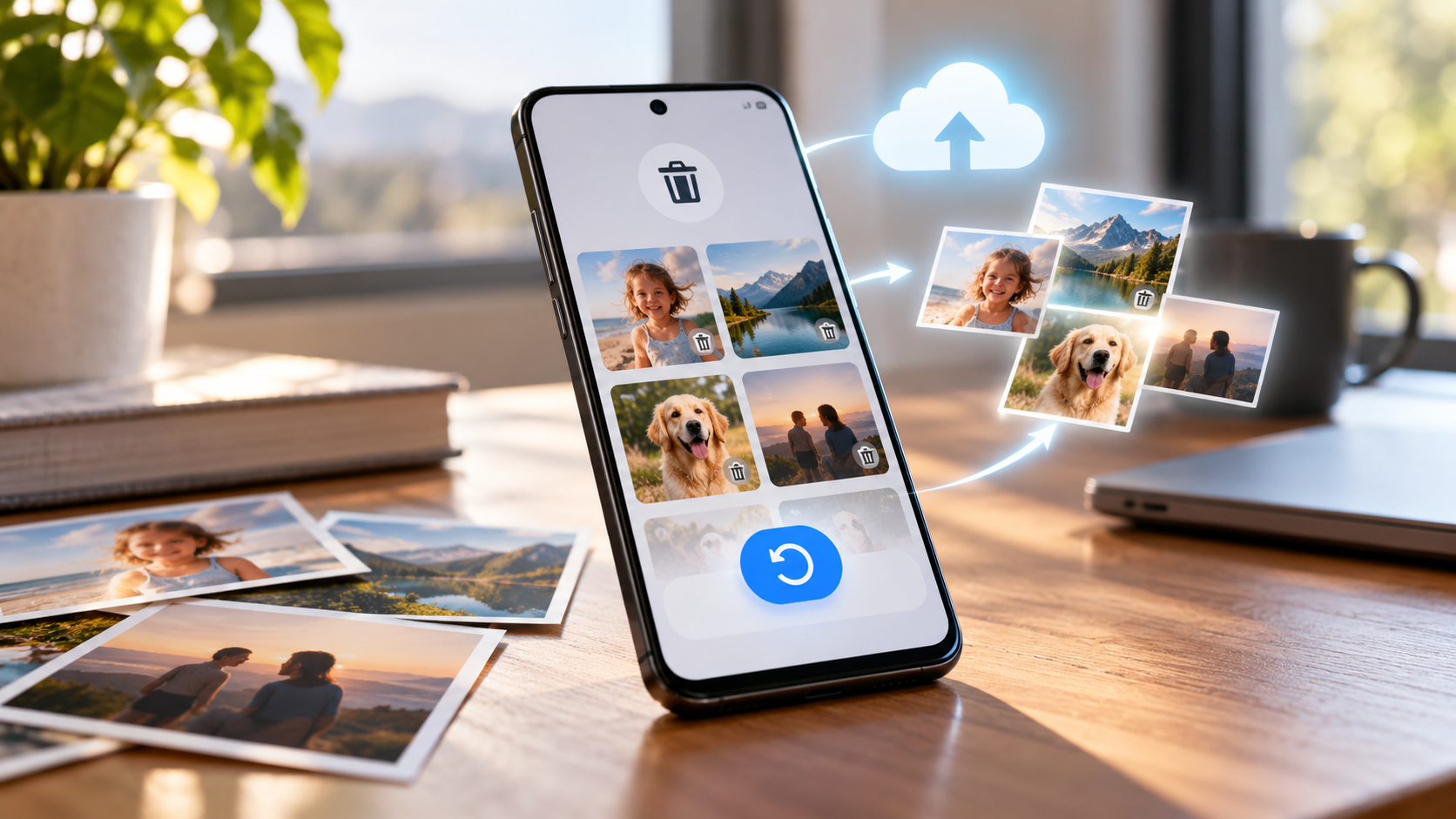
Photos and videos can transfer from Android to iPhone using Move to iOS, cloud services, or a computer. Confirm that full-resolution originals are available before wiping the old phone.
Use the official initial transfer, Google Photos, or a computer-based method appropriate to your devices. With a cloud method, verify that the backup finished and that the same account is signed in on the new phone. A visible thumbnail does not always mean the full original is stored locally.
Large video collections may take longer, and transfer estimates can vary greatly with connection quality. Open sample files from several dates and confirm usable video playback. Do not trade in or erase the old Android phone before this verification.
A successful Android to iPhone transfer should include opening samples from different albums and dates.
Move WhatsApp and important app data
WhatsApp data needs its officially supported Android to iPhone transfer procedure rather than an assumption that Google Drive backups restore into iCloud. Confirm compatibility and the phone-number requirements before starting.
WhatsApp supports an official Android-to-iPhone migration flow under specified conditions, including compatible versions and phone-number requirements. Check current WhatsApp and Apple instructions before starting because the migration sequence can depend on initial iPhone setup.
A Google Drive WhatsApp backup does not simply restore as an iCloud backup. Banking apps, games, paid Android purchases, local documents, and secure authentication tools may require separate procedures. Third-party transfer utilities can create privacy risks and should not be trusted with sensitive accounts without careful assessment.
A phone migration is incomplete until crucial chats and attachments are checked on the new device.
Handle SIM, eSIM, and two-factor authentication
During an Android to iPhone transfer, prepare eSIM activation and two-factor authenticators separately. Financial and security apps may require fresh sign-in or device approval.
US iPhone configurations can differ in physical SIM support, so verify the exact model and your carrier's eSIM activation requirements. Keep access to phone calls, authentication codes, and recovery methods throughout the move. If a transfer includes a number port, wait for carrier confirmation that service is active.
Reconfigure authenticator apps using each provider's official export or recovery process. Losing two-factor authentication access can be far more disruptive than leaving behind an image file. Sign in successfully to important services on iPhone before wiping Android.
Do not reset the old Android until your new phone can receive verification codes and access essential accounts.
Verify the transfer before selling the old phone
Verify your Android to iPhone transfer by reviewing contacts, media, messages, downloaded documents, and important apps. The old phone should remain available until those checks pass.
Compare contacts, calendars, photos, message history, and downloaded documents on both phones. Log into email, banking, government, and cloud accounts. Confirm that your mobile number receives calls and verification texts on the intended device.
Only after you have verified the results should you follow Android's official device wipe procedure and remove the phone from applicable device-protection accounts. A trade-in deadline is not a reason to skip backups or risk an inaccessible account.
A careful phone migration prevents an otherwise successful switch from causing avoidable account lockouts.
For readers researching how to transfer data from Android to iPhone, the safest next action depends on the device model, software release, and symptoms. Review the specific section above before applying a general fix to your own setup.
Quick troubleshooting comparison
The following comparison helps match a common symptom to the first sensible check. Exact menu names and results depend on your device, software version, and account settings. Work from the least disruptive option toward more involved diagnosis.
| Situation | Likely issue or method | Recommended first step |
| Contacts and calendar | Move to iOS or Google sync | Correct account and duplicates |
| Photos and videos | Migration tool, cloud, or computer | Originals and playback |
| Supported official transfer flow | Phone number and setup requirements | |
| Banking and authentication | App-specific reactivation | Codes and recovery access |
Step-by-step checklist
Use this order to avoid changing multiple settings at once. A methodical check makes it easier to recognize which change solved the issue and which steps are still necessary. Save important data before any step that could remove files or account settings.
- Back up Android and charge both devices.
- Check iPhone available storage and transfer compatibility.
- Use the official migration process during setup.
- Verify photos, messages, accounts, and two-factor codes.
- Activate SIM/eSIM and receive a test message.
- Erase Android only after successful verification.
Frequently asked questions
Some data can be moved individually through accounts or a computer. Full official migration may require resetting the iPhone, so protect any new iPhone data first.
A practical answer to how to transfer data from Android to iPhone should preserve your files, account access, and working settings. If basic checks fail, use official manufacturer or service-provider support rather than unverified recovery tools. No. iOS versions must be available through the App Store, and app-specific files, licenses, and purchases do not always transfer. Check critical apps individually.