


How to free up storage on phone: start with the least disruptive checks below and identify the underlying cause before changing settings or deleting important files. These instructions focus on devices and services commonly used in the United States.
Find out what is taking up space: phone storage
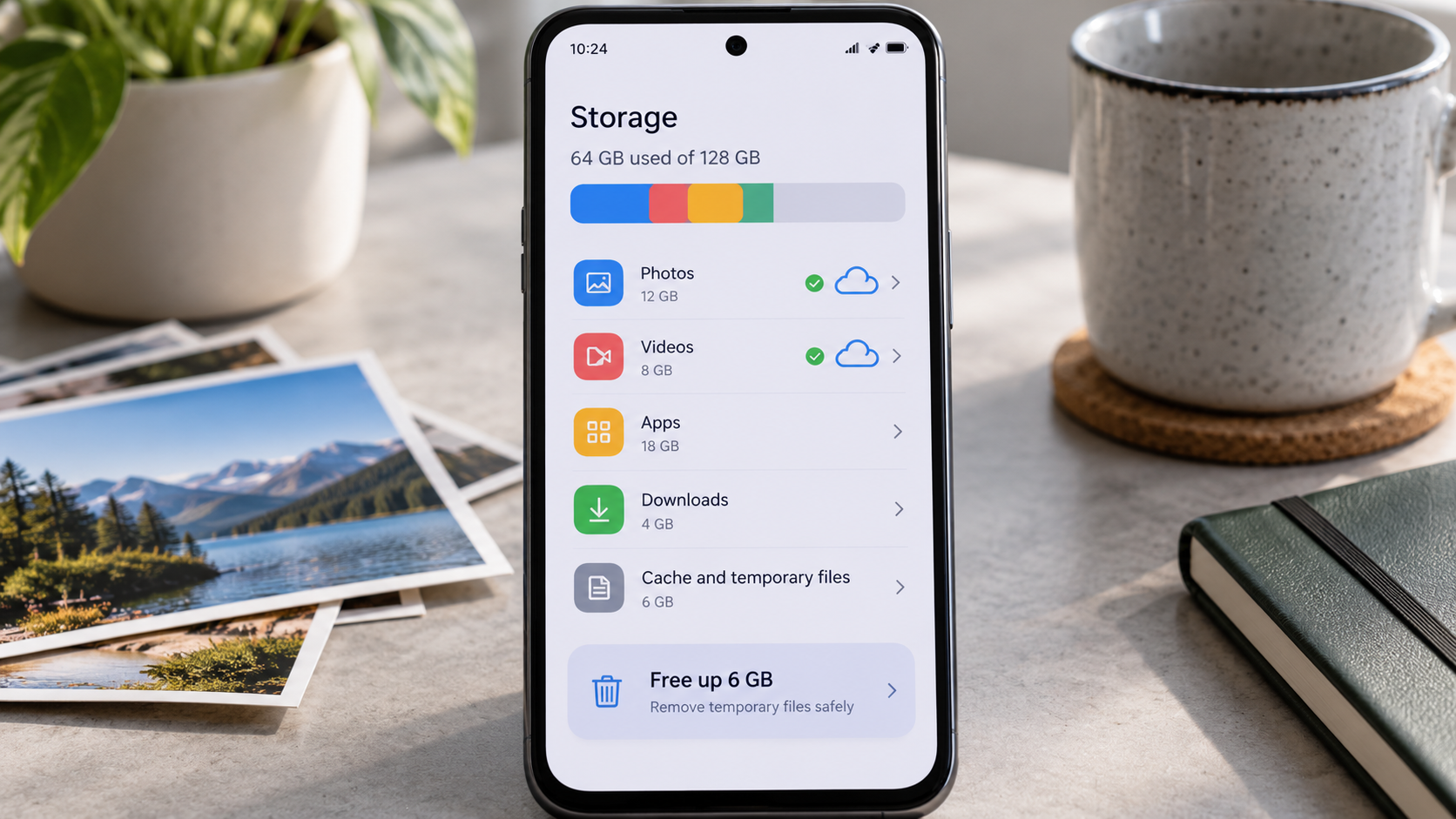
To free up storage on your phone, open the built-in storage breakdown and identify the largest categories first. Deleting one unused offline video can reclaim more space than clearing many tiny files.
On most Android devices, open Settings > Storage; Samsung may place the information under Device care. On iPhone, open Settings > General > iPhone Storage. Wait for the breakdown to load and look for the categories using the most space, including photos, videos, applications, downloads, and system data.
Internal storage is not the same as RAM. If your phone says it cannot take a photo or install an update because space is low, repeatedly force-closing applications is not a storage fix. Start with the largest category rather than clearing hundreds of tiny files.
Storage space marked as “Other” cannot always be removed safely because it may include app data and operating-system files.
Clear app cache without erasing app data
Clearing an app cache can free up phone storage without wiping the account or permanent files in many Android apps. Clearing storage or app data is a different action and may reset the app.
On supported Android phones, open Settings > Apps, choose a large application, and look for Storage & cache > Clear cache. This removes temporary resources that the app may download again. It can free space immediately, although cached data often returns during normal use.
Clear storage or Clear data is different: it may erase locally stored content, signed-in sessions, and settings. iPhone does not provide one universal button for every app cache; use the app's built-in settings or iOS's Offload App feature where appropriate. Always check what remains before deleting an app.
Phone storage on iPhone is managed differently: use individual app controls or Offload App when appropriate.
Manage Telegram, WhatsApp, and downloaded media
Downloaded media can quickly consume phone storage, especially in group chats and offline streaming apps. Check each app’s storage manager and delete only copies you no longer need.
Open Telegram's Settings > Data and Storage > Storage Usage to review downloaded photos, videos, and files. Clearing Telegram's local cache generally leaves eligible cloud chats intact, but content may need to be downloaded again. WhatsApp manages storage differently, and some media can exist only in a local conversation or backup.
Review Downloads and any offline video, podcast, map, or music libraries. Downloads from streaming apps can occupy gigabytes; remove titles you can re-download later. Preserve original documents, voice recordings, and attachments that do not have independent copies.
To free up phone storage in a messaging app, distinguish cached downloads from locally stored originals and backup files.
Protect photos before deleting them
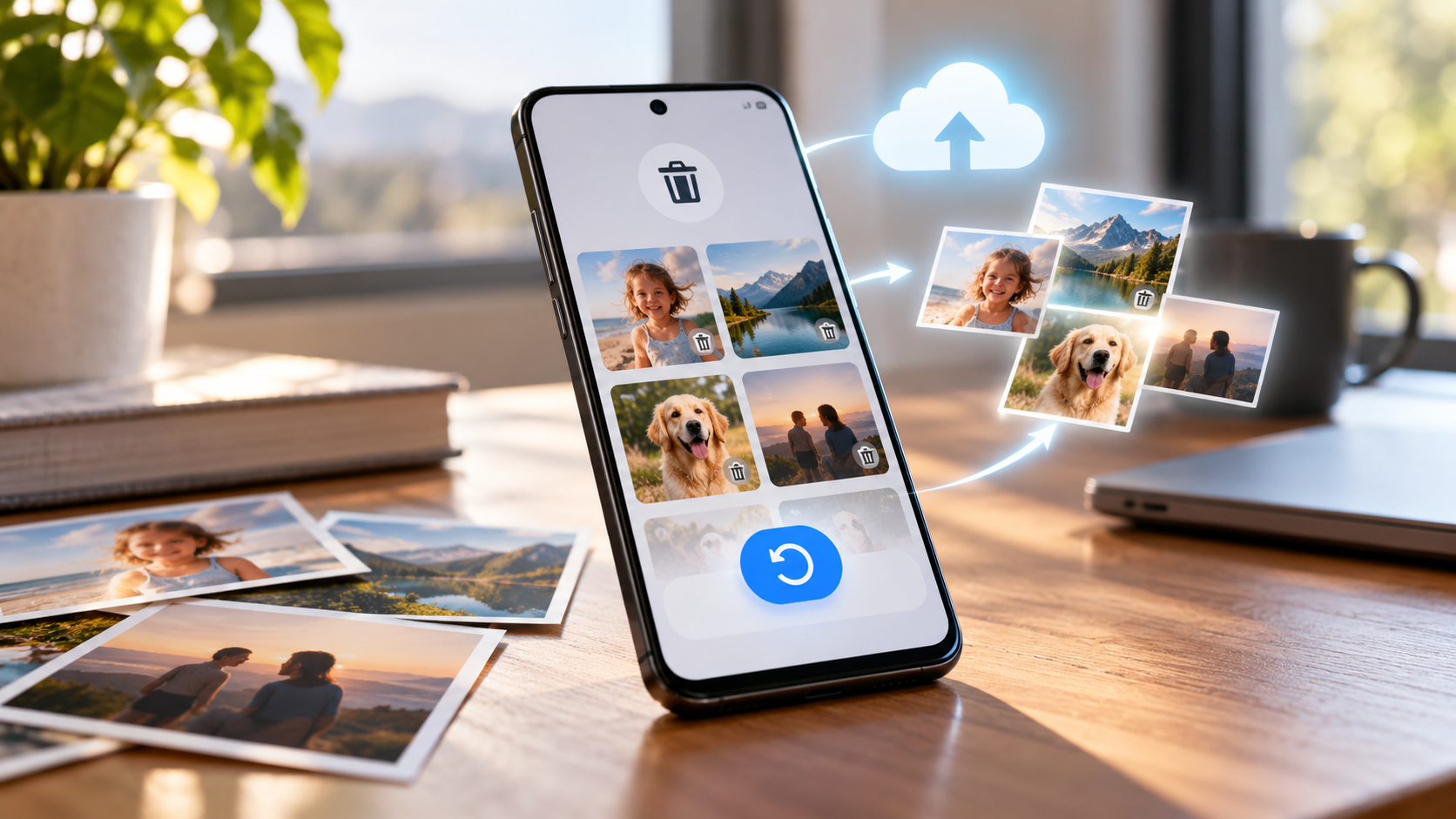
Freeing up phone storage should not begin with bulk photo deletion until cloud backups are confirmed. Open a sample of backed-up originals using the correct account before removing device copies.
Verify that Google Photos or iCloud Photos has actually completed synchronization and that you can sign in to the correct account. Google Photos offers a dedicated Free up space function for eligible backed-up local items. Deleting images from a synchronized cloud library can also remove them from other devices, so do not confuse the two actions.
Review long videos, screen recordings, duplicate exports, and bursts of failed photos. Also check Recently Deleted or Trash: depending on the service, deleted items can continue to use storage until removal is finalized. Empty that folder only after confirming that no irreplaceable file is there.
A synced photo library can delete content across devices, so the way you free up storage matters as much as the amount freed.
Prevent storage from filling up again
To keep phone storage from filling again, limit automatic media downloads and review saved offline content regularly. High-resolution video and repeated message attachments are common sources of renewed pressure.
Turn off unnecessary automatic media downloads in messaging apps, reduce offline downloads, and review camera recording quality. A few long 4K recordings can occupy more room than hundreds of documents. Check app-specific storage after a week to see which one is expanding fastest.
Avoid miracle cleaner apps that claim they can remove an exact number of gigabytes without showing what will be deleted. Android and iOS already include basic storage-management tools. A modest amount of free space helps updates and photography work reliably, although the ideal reserve varies by device.
A regular storage check helps identify a growing category before the phone blocks updates or new photos.
What should never be deleted blindly?
Unknown system folders are not a safe shortcut to more phone storage. Delete files only when you understand their source, and back up irreplaceable information first.
Do not erase unknown system folders, authentication data, local message backups, or app directories simply because they are large. Files labeled Other or System Data may combine several types of resources and cannot always be safely removed manually. If an item's purpose is unclear, research it before acting.
A reset is rarely warranted for ordinary low-storage warnings. First remove reproducible downloads, review caches, and move verified copies of photos and videos to an appropriate backup destination. This protects your information while solving the actual storage shortage.
Free up storage through built-in settings rather than apps promising dramatic cleanup with no explanation.
Quick troubleshooting comparison
A phone storage checklist should prioritize downloads, offline media, app caches, and verified photo backups in that order. Each action has a different recovery risk.
For readers researching how to free up storage on phone, the safest next action depends on the device model, software release, and symptoms. Review the specific section above before applying a general fix to your own setup.
The following comparison helps match a common symptom to the first sensible check. Exact menu names and results depend on your device, software version, and account settings. Work from the least disruptive option toward more involved diagnosis.
After you free up phone storage, revisit the storage screen to confirm the space was actually released.
| Situation | Likely issue or method | Recommended first step |
| App cache | Clear cache using supported app settings | May need to download content again |
| Downloads | Review and delete unneeded files | Check important PDFs first |
| Cloud photos | Use supported free-space tools | Sync deletion could erase cloud copies |
| App data | Back up before removing | Can lose sign-ins or local messages |
Step-by-step checklist
Use this order to avoid changing multiple settings at once. A methodical check makes it easier to recognize which change solved the issue and which steps are still necessary. Save important data before any step that could remove files or account settings.
- Open the phone storage breakdown.
- Sort downloads and media by file size.
- Remove unused offline shows and maps.
- Clear cache in a few unusually large apps.
- Verify cloud backups before deleting original photos.
Frequently asked questions
Yes. Remove downloads, offline media, and disposable caches first. Uninstall unused apps after checking their locally saved data.
A practical answer to how to free up storage on phone should preserve your files, account access, and working settings. If basic checks fail, use official manufacturer or service-provider support rather than unverified recovery tools. No. A cache typically contains temporary files. Clearing app data may remove user settings and locally stored content, so use it only with a backup and a clear reason.