

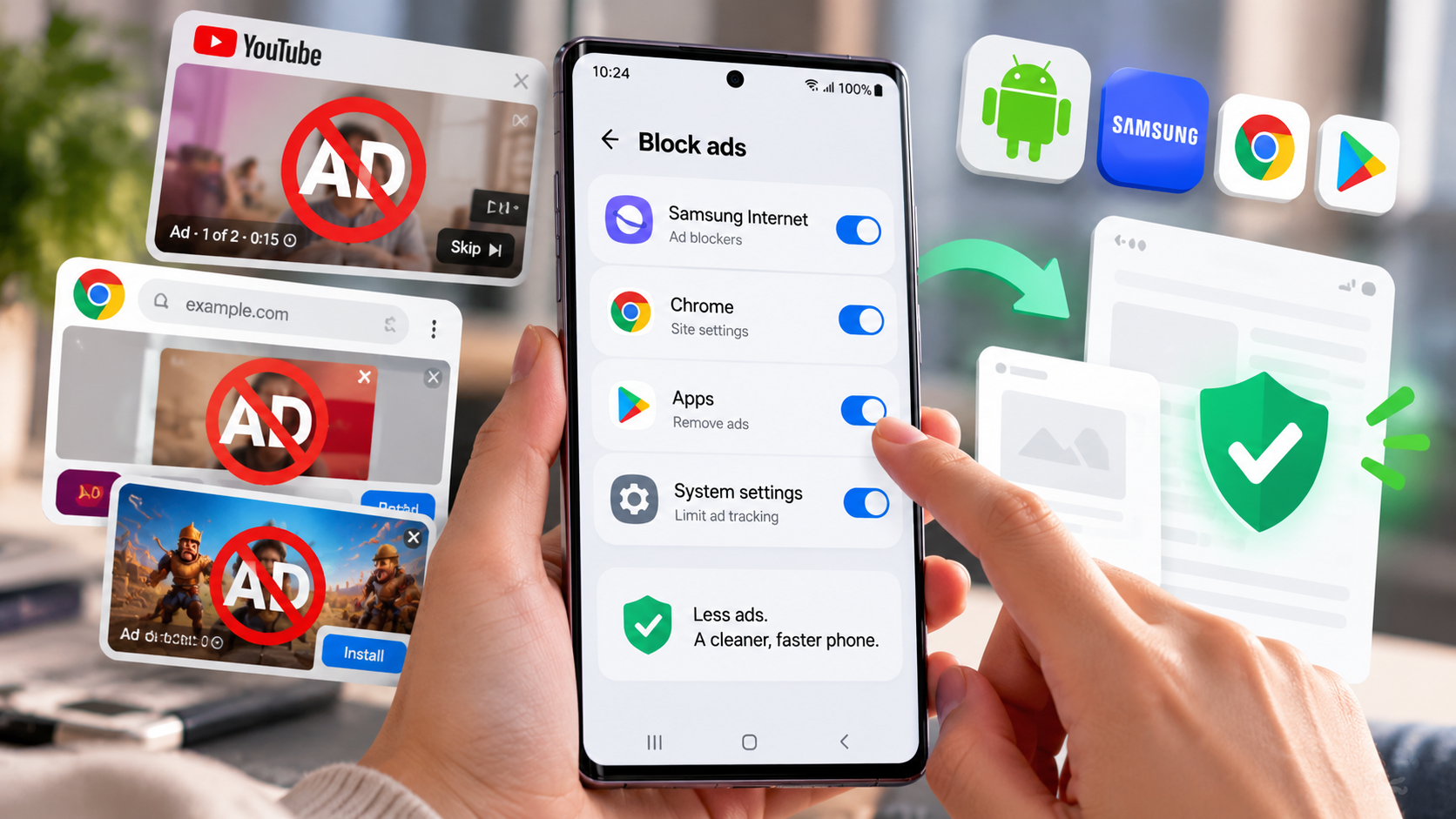
How to stop ads on Android phone: start with the least disruptive checks below and identify the underlying cause before changing settings or deleting important files. These instructions focus on devices and services commonly used in the United States.
Identify where the ads are coming from: Android ads
To stop ads on an Android phone, first identify whether the message comes from a website notification, an installed app, or a legitimate in-app ad. That distinction determines which control can actually remove it.
Before changing settings, determine whether the advertisement appears inside a free app, in Chrome, in the notification shade, or on top of your home screen. Ads embedded in a free game are not necessarily malware; notification alerts from unfamiliar websites are a different problem. A pop-up that appears when no app is open deserves additional investigation.
Press and hold an unwanted notification to identify its sender. If a full-screen ad appears unexpectedly, review recently installed apps and whether any have permission to display over other apps. Do not tap alarming messages that claim your phone has been infected; those warnings are frequently designed to provoke downloads or payments.
Android ads that show up outside a browser deserve closer inspection than banners displayed only inside a free game.
Disable Chrome pop-ups and website notifications
To stop ads on Android in Chrome, revoke notification permissions for unfamiliar sites and check the browser’s pop-up and redirect settings. This prevents unwanted website alerts but will not remove paid placements inside unrelated apps.
In Chrome on Android, open the three-dot menu, select Settings, then Site settings. Check Notifications and remove permission for websites you do not recognize. Under Pop-ups and redirects, keep unwanted pop-ups blocked. The exact labels can change between Chrome releases, but both controls are in site settings.
Stopping Chrome notifications prevents permitted websites from pushing alerts onto the phone. It does not remove every advertisement embedded inside ordinary webpages. If the alerts come from Firefox, Samsung Internet, or another browser, review that browser's notification settings or Android's per-app notification controls instead.
If Android ads continue after closing Chrome, look at the notification sender rather than repeatedly clearing the browser history.
Remove suspicious apps and overlay permissions
Unexpected ads on Android can be caused by an app allowed to display content over other apps. Review recently installed apps and their overlay permissions before removing anything.
Open Android Settings, select Apps, and inspect recently installed programs. In Special app access, review the Display over other apps permission, particularly for unfamiliar wallpaper, flashlight, launcher, or cleaning utilities. Disable a suspicious overlay and test whether ads stop before removing the app.
Some accessibility tools, navigation apps, and calling features legitimately use special access. Avoid revoking every permission indiscriminately. If an unwanted app is clearly responsible, uninstall it from Android settings, restart the phone, and confirm the problem is gone.
An Android ad that covers the home screen is more suspicious than one shown inside an ad-supported app.
Check Samsung and other Android brands
Some Android ads come from manufacturer apps, while others come from third-party software and site notifications. Samsung and other brands organize these controls differently, so confirm which app generated the message.
On a Samsung Galaxy phone, start at Settings > Notifications > App notifications to locate the sender. Samsung Internet has separate privacy and pop-up options; use its own controls if the ads originate there. The manufacturer logo on a phone does not mean every advertisement comes from the manufacturer.
On Pixel, Motorola, Xiaomi, and other Android models, settings names can differ. Check the application's own recommendation settings where available and avoid tutorials that tell you to disable unidentified system components. Updates may move menus, so use the Settings search box when instructions do not match your phone.
If Android advertising appears on the lock screen, examine the lock-screen and notification settings of its source app.
Run Play Protect and use Safe mode if needed
Android ad problems that persist after permission changes warrant a Play Protect scan and review of recent installations. Safe mode can help determine whether a downloaded app is involved, although procedures vary by device.
Open the Google Play Store, tap your profile image, and open Play Protect to scan installed apps. Keep Play Protect enabled. If unwanted ads continue after removing obvious offenders, Android Safe mode can help establish whether a third-party app is involved; the method of entering Safe mode varies by manufacturer.
Do not install unverified APK cleaners or give a newly downloaded ad blocker administrator access to the device. A factory reset should be a last resort after a verified backup, not the first response to a browser notification. Persistent pop-ups alongside overheating or unexpected data use may require professional support.
A security check is more useful for intrusive Android ads than installing an unknown cleaning app.
Can you eliminate every ad?
Not every ad on Android can be removed with system settings because free apps may include ads as part of their service. Turning off personalized advertising changes targeting rather than guaranteeing an ad-free phone.
Android privacy controls generally affect personalization and permissions, not the existence of advertising in all free apps. Some applications offer a legitimate ad-free subscription or paid upgrade. Network-level filtering or private DNS can reduce some ads but may interfere with apps or expose browsing metadata to a third-party provider.
A safer approach is to remove the precise source of disruptive ads rather than promise universal blocking. For ordinary content advertising, use the website's or application's legitimate options and review the privacy implications of any blocker before installing it.
An official paid ad-free plan may be a safer option than granting extensive permissions to an untested blocker.
Quick troubleshooting comparison
Classify Android ads by whether they arrive as alerts, redirects, overlays, or in-app banners before choosing a fix. Matching symptoms to their source reduces accidental changes to settings that are working normally.
For readers researching how to stop ads on Android phone, the safest next action depends on the device model, software release, and symptoms. Review the specific section above before applying a general fix to your own setup.
The following comparison helps match a common symptom to the first sensible check. Exact menu names and results depend on your device, software version, and account settings. Work from the least disruptive option toward more involved diagnosis.
A useful Android ad check is to compare what happens with Chrome closed and with recently downloaded apps temporarily disabled.
| Situation | Likely issue or method | Recommended first step |
| Ads in notification shade | Website or app permission | Long-press notification and block sender |
| Full-screen ads outside apps | Third-party app or overlay | Inspect recent installations and overlay access |
| Ads inside a free game | In-app advertising | Check for an official ad-free option |
| Chrome redirects | Site permissions or unwanted app | Review Chrome settings and Play Protect |
Step-by-step checklist
Use this order to avoid changing multiple settings at once. A methodical check makes it easier to recognize which change solved the issue and which steps are still necessary. Save important data before any step that could remove files or account settings.
- Identify the app or site associated with the ad.
- Block unwanted notifications and pop-up permissions.
- Check recently installed apps and overlay access.
- Run Google Play Protect and install available security updates.
- Back up important data before any disruptive reset.
Frequently asked questions
Previously allowed websites can still send browser notifications, and other apps may display ads over the home screen. Look at notification history and special app permissions to determine which is responsible.
A practical answer to how to stop ads on Android phone should preserve your files, account access, and working settings. If basic checks fail, use official manufacturer or service-provider support rather than unverified recovery tools. No. It changes how advertising is targeted but does not remove commercial messages from all free apps and websites. Blocking the offending app or site permission addresses intrusive ads more directly.