

Wi-Fi connected but no internet: start with the least disruptive checks below and identify the underlying cause before changing settings or deleting important files. These instructions focus on devices and services commonly used in the United States.
Test a second device to locate the problem: Wi-Fi without internet
When Wi-Fi is connected but there is no internet, test the same network on another device first. That separates a device-specific failure from a router or ISP problem.
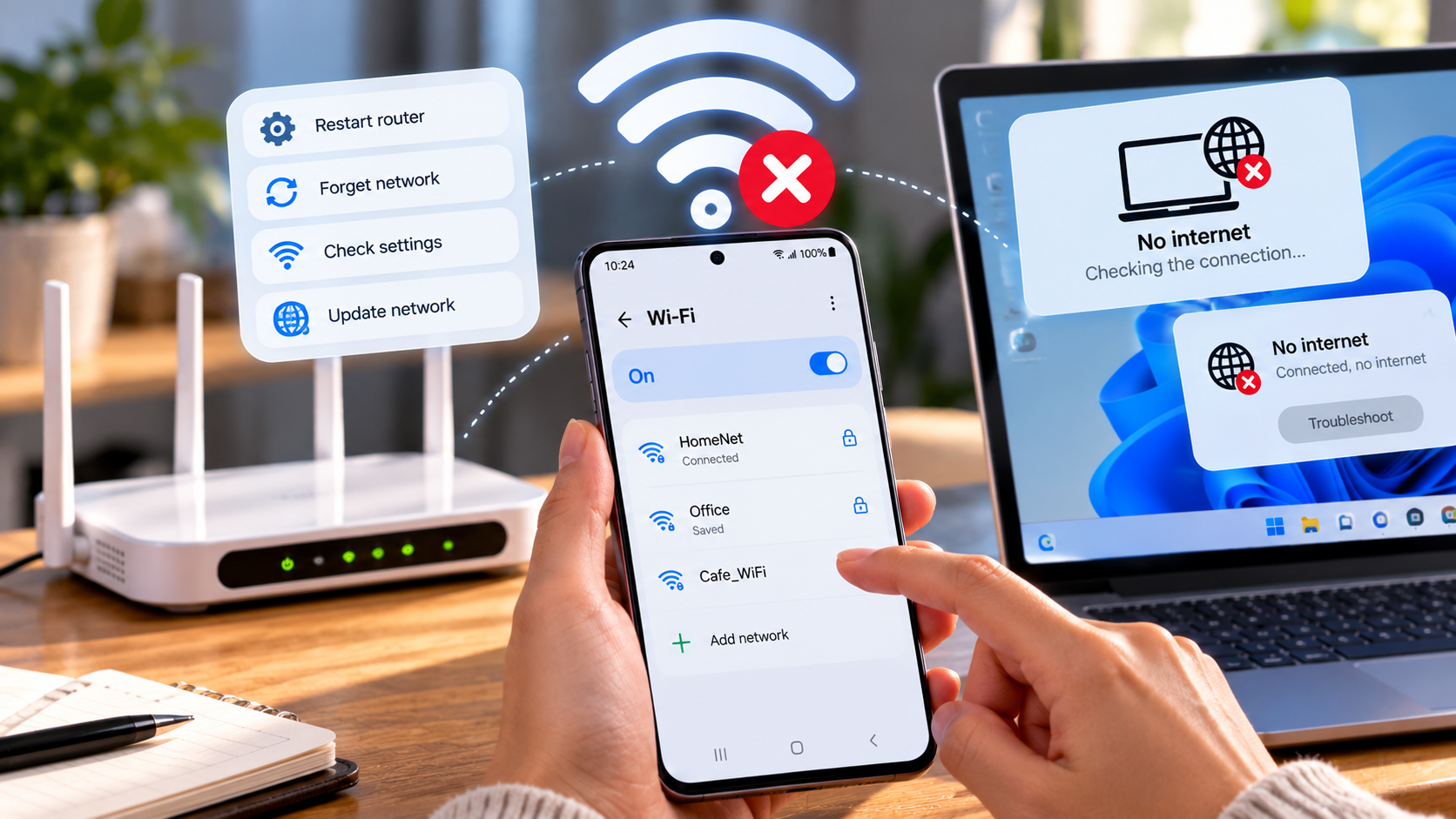
When Wi-Fi shows connected but no internet, your device has joined a local wireless network but cannot necessarily reach outside services. Test a website on another phone or laptop on the same Wi-Fi. If every device fails, investigate the router, modem, and internet service provider first.
If only one device fails, try a different website and, when practical, a different Wi-Fi network. A single unavailable service does not prove that the entire connection is down. This comparison prevents unnecessary changes to a working router.
Wi-Fi without internet can show full signal bars because signal strength says nothing about upstream access.
Restart the router without resetting it
Restart the router when Wi-Fi is connected but no internet is available across multiple devices. Power cycling is not the same as pressing the factory-reset button.
Unplug the router's power, wait about 30 seconds, then reconnect it. Allow time for the router and any separate cable modem or fiber terminal to start. Check their internet or WAN status lights against the manufacturer's documentation.
A reboot is not the same as pressing the recessed factory Reset button. A factory reset may erase ISP or Wi-Fi settings and disconnect every device until the network is configured again. Do not factory-reset equipment you do not know how to restore.
An internet connection may take several minutes to return while a separate modem reconnects.
Check your US internet provider and modem
If Wi-Fi is connected but internet access is missing on every device, check the modem and US ISP outage notices. A provider interruption cannot usually be repaired by resetting a phone.
Look at the ISP's outage page or account app using cellular data if available. In the United States, cable, fiber, DSL, and fixed wireless services can fail for different reasons; your Wi-Fi router can remain powered even when the upstream internet connection is down.
If all devices fail and the modem indicates a loss of service, gather the modem model, status lights, and time the outage began before contacting support. Do not disclose router administrator passwords or one-time account codes to unsolicited callers.
For cable or fiber service, inspect the relevant connection indicators using the provider’s instructions.
Fix a single Android or iPhone connection
When only an iPhone or Android phone reports Wi-Fi connected but no internet, forget and rejoin the network after confirming the password. Test another network to determine whether the phone can connect normally elsewhere.
Toggle Wi-Fi off and back on, confirm the network password, and move near the access point. If other devices work, forget and reconnect to the problematic network. Check whether a VPN or custom DNS profile is preventing traffic; disable it briefly only as a troubleshooting test.
A network settings reset can delete saved Wi-Fi details and other connection settings, so it belongs after basic tests. If an older phone cannot see the network at all, verify compatibility with the router's radio band and security settings.
A device-specific internet connection issue may involve VPN or private DNS settings.
Troubleshoot Windows 11 Wi-Fi
Windows 11 can display Wi-Fi connected but no internet when an adapter joins the router yet cannot reach outside services. Check network status and the adapter driver before using a broad network reset.
In Windows 11 open Settings > Network & internet and inspect the current connection. Check Airplane mode and whether the Wi-Fi adapter appears in Device Manager. Run the supported built-in network troubleshooting features and install approved adapter drivers from the PC manufacturer when appropriate.
If the problem began after a driver update, examine update history before replacing multiple drivers. Network reset is more disruptive than a normal reconnect because it removes network configurations. Use it only after saving the information required to reconnect.
Windows internet connection troubleshooting should begin with reversible steps.
Test DNS, VPN, and weak signal carefully
VPN, DNS, and weak coverage can produce symptoms resembling Wi-Fi connected but no internet. Test a different site, move closer to the router, and temporarily disable VPN only for diagnosis.
A phone showing strong Wi-Fi bars only confirms its radio connection to the access point. DNS errors, ISP outages, and captive portals can still prevent ordinary browsing. Try multiple services, test without an optional VPN, and look for a required public-network sign-in page.
If service works beside the router but not in a distant room, interference or weak coverage may be the issue. Router placement can help, but changing DNS will not fix a broken cable or an ISP-wide outage. Change one variable at a time to identify the actual cause.
Wi-Fi without internet in one room may actually be severe local interference rather than an ISP outage.
Quick troubleshooting comparison
Use a systematic internet connection checklist rather than changing multiple router settings at once. First locate the failure, then power cycle, check service status, and test one client.
For readers researching Wi-Fi connected but no internet, the safest next action depends on the device model, software release, and symptoms. Review the specific section above before applying a general fix to your own setup.
The following comparison helps match a common symptom to the first sensible check. Exact menu names and results depend on your device, software version, and account settings. Work from the least disruptive option toward more involved diagnosis.
Document whether Wi-Fi is connected but no internet remains after each step so support can act on the results.
| Situation | Likely issue or method | Recommended first step |
| Every device offline | ISP, modem, or router | Check modem lights and outage status |
| Only one phone offline | Device settings or VPN | Reconnect and compare networks |
| Slow in distant room | Signal or interference | Test near router |
| One site unavailable | Site or DNS issue | Try other sites and networks |
Step-by-step checklist
Use this order to avoid changing multiple settings at once. A methodical check makes it easier to recognize which change solved the issue and which steps are still necessary. Save important data before any step that could remove files or account settings.
- Open two different websites on two devices.
- Check modem, router, and WAN indicator lights.
- Perform a normal power restart, not a factory reset.
- Inspect ISP outage information through cellular data.
- Troubleshoot the single failing device if others work.
Frequently asked questions
Bars indicate signal strength between the device and router, not the status of the router’s link to your ISP. Check the upstream connection and a second device.
A practical answer to Wi-Fi connected but no internet should preserve your files, account access, and working settings. If basic checks fail, use official manufacturer or service-provider support rather than unverified recovery tools. A factory reset may erase settings and make the problem harder to solve. Try a regular restart and check the ISP before using Reset.