

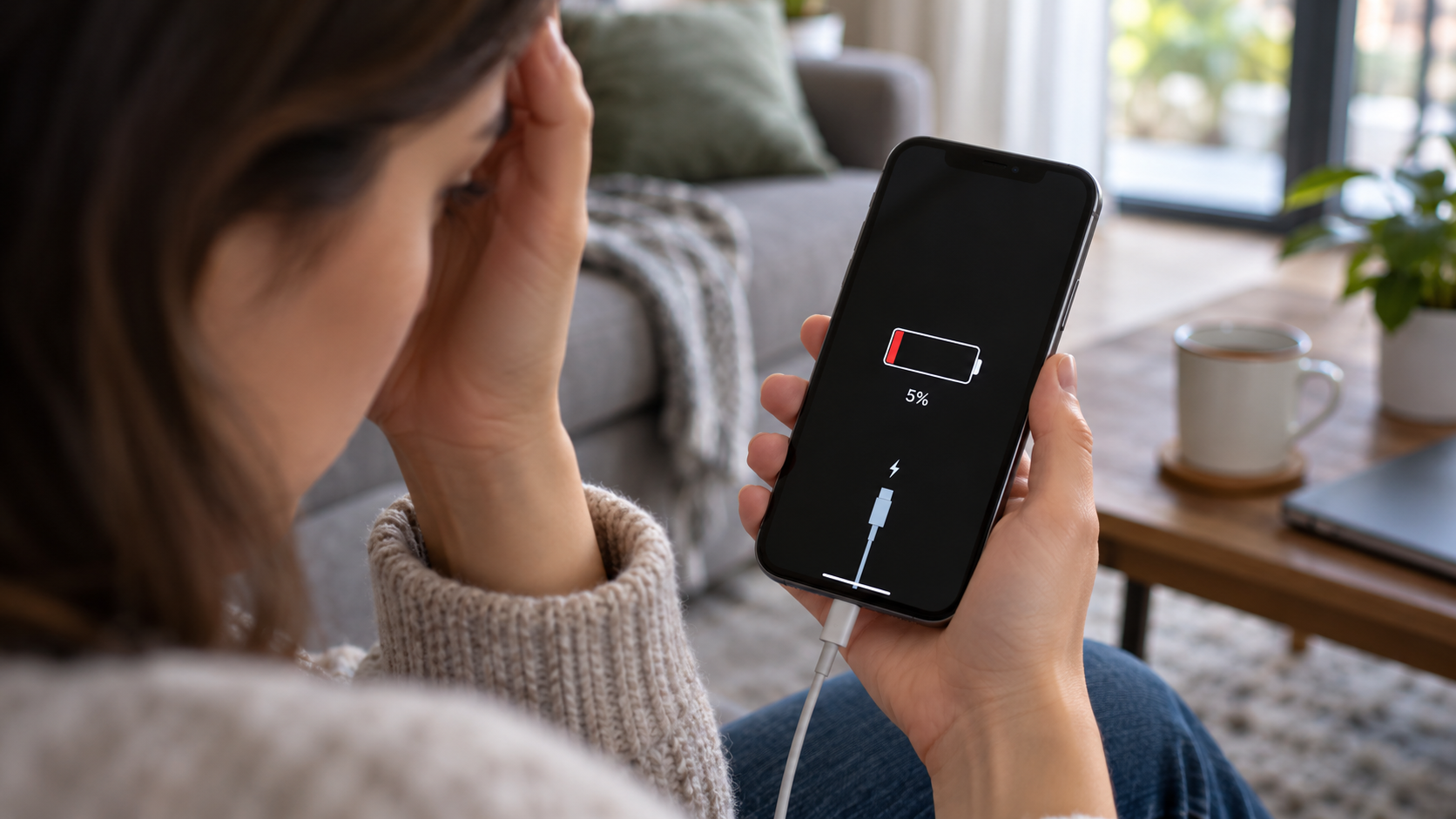
Why is my phone battery draining fast: start with the least disruptive checks below and identify the underlying cause before changing settings or deleting important files. These instructions focus on devices and services commonly used in the United States.
Check battery usage before changing anything: phone battery drain
When your phone battery is draining fast, battery usage charts help reveal whether the display, a background app, or network activity is responsible. Compare app activity with actual screen time instead of relying on one percentage.
Open Settings > Battery on iPhone or the comparable Battery usage screen on Android. Compare the time the screen was on with background activity and the apps consuming power. A navigation app used for several hours should have high usage; an unfamiliar app staying busy overnight is more suspicious.
Screenshots taken on two comparable days can be more useful than a single battery percentage. Keep conditions similar, including brightness, cellular signal, and the time spent streaming video or gaming. Battery-life estimates are sensitive to usage patterns.
Battery drain from an app used for hours is not the same as unexplained background activity overnight.
Understand screen brightness and refresh rate
A bright display and long screen-on time can accelerate phone battery drain during normal use. Lowering brightness and reviewing always-on display settings are practical first tests.
A bright screen uses substantial power during active use, particularly when you spend hours watching videos or browsing. Try adaptive brightness, a shorter screen timeout, and a review of Always-On Display settings. On phones with a 120 Hz panel, an adaptive refresh-rate option often balances smoothness and efficiency.
Dark mode can reduce power consumption on some OLED screens, but its effect depends on brightness and the content displayed. There is no universal savings figure. If screen-on time is high, display adjustments may matter more than force-closing background apps.
Battery life changes should be compared under similar conditions, especially on phones with high-refresh-rate displays.
Poor cell signal and background connections
Weak cellular coverage can make a phone battery drain fast even when you barely touch the device. The modem may work harder while reconnecting or uploading data.
Weak reception makes a phone work harder to maintain its connection, especially inside large buildings, in rural areas, and during travel. Switching repeatedly between cellular networks can also increase power use. Stable Wi-Fi can help in some environments, though results vary by device and network.
Check whether Personal Hotspot, GPS navigation, cloud uploads, or an active video call is running without your realizing it. Do not disable emergency communication features solely to save a little battery. Fixing unstable reception is often more effective than toggling arbitrary developer settings.
Battery drain on a commute may reflect changing signal strength rather than a failing battery.
Heat, charging habits, and battery aging
Heat can worsen battery drain and speed long-term lithium-ion battery aging. Move the phone away from direct sunlight and stop demanding tasks when it overheats.
Lithium-ion batteries gradually lose usable capacity with age and charge cycles. High temperatures can accelerate wear, so avoid leaving a phone in a hot parked car or direct sunlight. If the device becomes unusually hot while charging, stop demanding tasks and allow it to cool in a safe location.
Never put the phone in a refrigerator or use a damaged charger. Optimized charging and supported charge limits may help slow long-term wear. Fully discharging a modern phone every day is not a recommended battery-maintenance routine.
A swollen battery or distorted case needs professional attention, not battery-saving software.
Check battery health on iPhone and Android
Battery health indicators can explain some phone battery drain on supported iPhones and Android devices. Availability varies by manufacturer, and an app’s estimate is not necessarily a laboratory measurement.
Compatible iPhones show battery health information under Settings > Battery, though the precise navigation depends on iOS version. Android battery-health features vary by manufacturer and model. Third-party apps may estimate capacity but cannot always measure physical degradation accurately.
Unexpected shutdowns at a reported remaining charge, major changes in endurance, or severe heating can indicate a hardware problem. A swelling battery, distorted back cover, or unusual smell requires stopping use and getting professional service. Do not puncture or attempt to flatten a battery.
Persistently short battery life together with unexpected shutdowns may justify a professional battery assessment.
Diagnose overnight drain after an update
Phone battery drain after an update may reflect temporary indexing or syncing that ends later. Check the battery chart over several comparable nights before changing many settings at once.
A new phone or recently updated operating system may spend time syncing photos, transferring data, and indexing files. Check whether the drain improves once those tasks finish. Review nighttime activity over several nights rather than deciding from one unusual reading.
If the problem persists, restrict background activity for one suspicious app at a time and compare results. Install legitimate bug-fix updates and check the manufacturer diagnostics. A factory reset cannot repair a physically worn-out battery and should not be your first experiment.
If battery draining fast continues with abnormal heat, look for runaway apps or hardware problems.
Quick troubleshooting comparison
Battery drain checks work best when you change one variable at a time. Record starting charge, screen activity, network conditions, and usage for a fair comparison.
For readers researching why is my phone battery draining fast, the safest next action depends on the device model, software release, and symptoms. Review the specific section above before applying a general fix to your own setup.
The following comparison helps match a common symptom to the first sensible check. Exact menu names and results depend on your device, software version, and account settings. Work from the least disruptive option toward more involved diagnosis.
This prevents normal differences in battery life from being mistaken for proof that one setting fixed the problem.
| Situation | Likely issue or method | Recommended first step |
| Battery falls during games | Graphics and screen workload | Reduce brightness and demanding settings |
| Drain during road trips | Poor cellular reception and GPS | Check signal and navigation |
| Large overnight loss | Background sync or an app | Review battery activity history |
| Unexpected shutdown | Aging battery or temperature | Seek device diagnosis |
Step-by-step checklist
Use this order to avoid changing multiple settings at once. A methodical check makes it easier to recognize which change solved the issue and which steps are still necessary. Save important data before any step that could remove files or account settings.
- Capture battery usage statistics on a typical day.
- Identify the highest background consumer.
- Test one app restriction at a time.
- Compare similar usage and reception over several days.
- Seek service for swelling, severe heat, or unexpected shutdowns.
Frequently asked questions
Initial setup can involve backups, app downloads, and indexing. This may be temporary, but persistent abnormal drain warrants inspection of battery usage and updates.
A practical answer to why is my phone battery draining fast should preserve your files, account access, and working settings. If basic checks fail, use official manufacturer or service-provider support rather than unverified recovery tools. Yes. Power saving can limit background tasks and certain visual or performance settings. It extends usage under some conditions but does not restore worn battery capacity.