

How to connect phone to TV: start with the least disruptive checks below and identify the underlying cause before changing settings or deleting important files. These instructions focus on devices and services commonly used in the United States.
Choose streaming or screen mirroring first: phone-to-TV connection
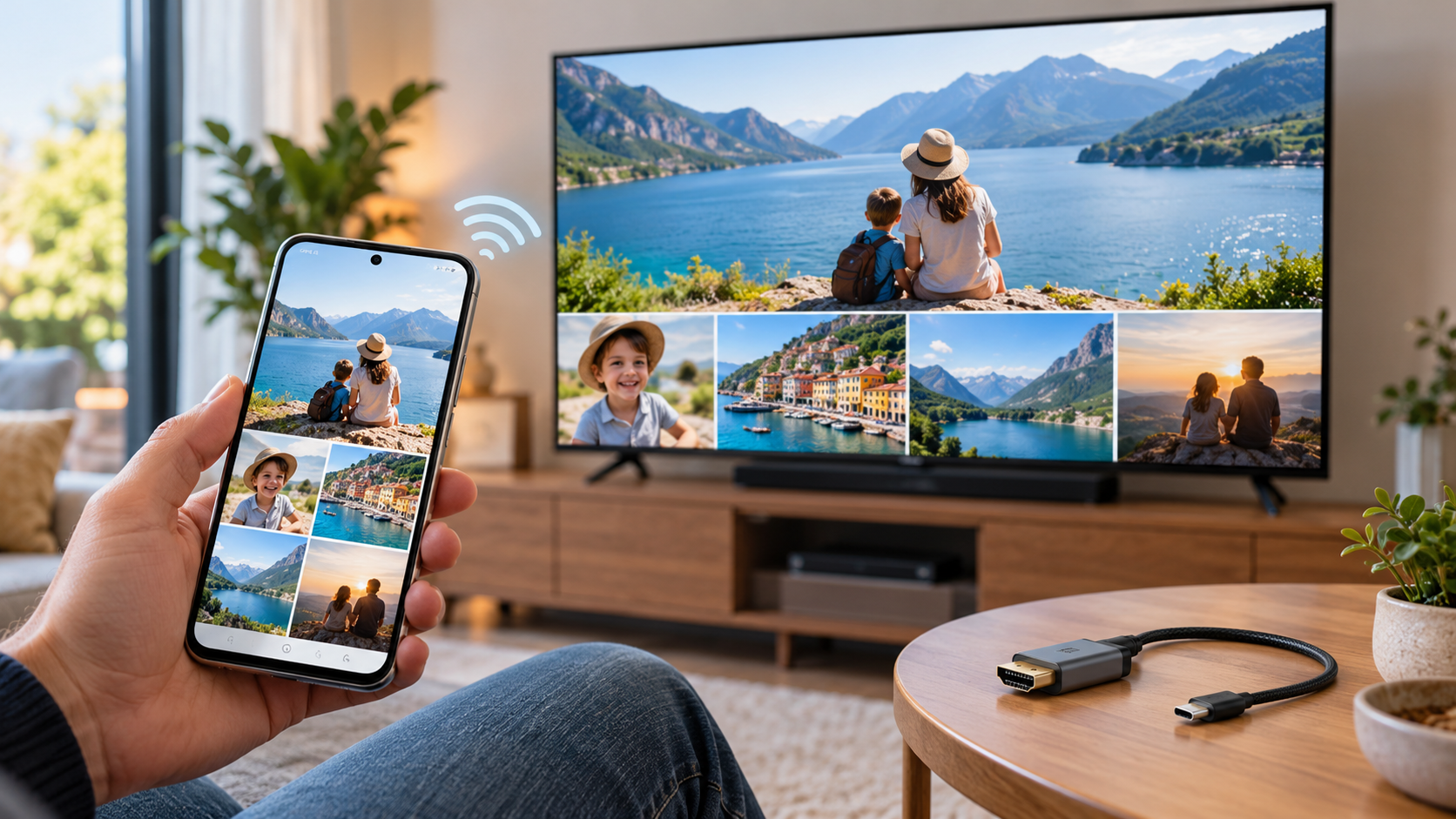
To connect a phone to a TV, decide whether you need to send one video or mirror the entire display. The best method depends on the phone, television, and supported casting standard.
Streaming a supported video app to a TV is not the same as mirroring the entire phone display. A Cast or AirPlay session can send selected media while the phone remains useful for other tasks. Screen mirroring duplicates the interface and may show private notifications.
Before buying an adapter, check what the television and phone already support. The Smart TV label alone does not guarantee Google Cast, AirPlay, or Miracast compatibility. An HDMI input offers other choices if the TV lacks those features.
A phone-to-TV connection that works for YouTube may not support mirroring every protected streaming app.
Cast from an Android phone
Android devices can connect a phone to a TV through Google Cast when the app and receiving device support it. Check that both devices meet the network requirements for the service.
Connect the phone and compatible television or streaming receiver to the required network. In an app supporting Google Cast, tap the Cast icon and select the receiver. Confirm that the TV or attached streaming device supports the feature; not every smart television includes it.
For full-screen mirroring, Android phones may offer Cast, Screen Cast, or brand-specific features. Samsung's Smart View is one example. The two devices must support compatible mirroring methods, and some protected video apps prohibit screen duplication.
Screen mirroring is a separate capability and should not be assumed from the Smart TV label.
Use AirPlay from iPhone
An iPhone can connect to a phone-to-TV setup through AirPlay on a compatible television or Apple TV. Select Screen Mirroring in Control Center or use an app’s AirPlay control.
For a compatible AirPlay-enabled television or Apple TV, place the devices on the appropriate Wi-Fi network. Open Control Center on the iPhone and choose Screen Mirroring, or use the AirPlay control inside a supported media app. Enter the onscreen code when the TV requests it.
Direct media playback is often preferable when you do not need to reveal the full screen. Disable distracting notifications before sharing your entire iPhone display with others. TVs that lack AirPlay require a supported external streaming device or another connection method.
AirPlay screen mirroring may reveal notifications, so enable an appropriate focus mode before presenting.
Connect with HDMI, USB-C, or Lightning
HDMI can connect a phone to a TV only when the phone and adapter support video output. A USB-C connector does not automatically guarantee DisplayPort video capability.
A wired connection requires a compatible phone video output, adapter, and TV HDMI input. USB-C is only a connector shape: some Android phones cannot output video through USB-C at all. Check the exact device's support for DisplayPort Alt Mode or other supported video output before purchasing a cable.
iPhone adapter requirements depend on model and connector type. Plug the adapter into the phone, connect HDMI, and select the matching TV input. If there is no picture, test the input, cable, adapter power, and video compatibility rather than assuming that every USB-C adapter should work.
For an HDMI phone-to-TV connection, verify the handset model and cable before purchasing an adapter.
Use a non-smart television
An older television may support a phone-to-TV connection through a compatible HDMI streaming device. A basic TV USB port generally cannot mirror a phone just by attaching a charging cable.
A television without modern streaming features can often be expanded with a compatible streaming box or dongle plugged into HDMI. The accessory may need power, Wi-Fi, and its own setup process. Very old TVs with only analog inputs require more specialized conversion hardware.
A TV USB port commonly reads photos or video from storage devices and does not necessarily accept a live phone video signal. Connecting two USB sockets with a basic cable usually will not mirror the display. HDMI-based accessories are often simpler when the TV has that input.
Screen mirroring to an analog-only set may require additional converters and may not perform reliably.
Troubleshoot no signal, black screen, or missing sound
When a phone-to-TV connection fails, check the selected HDMI input, network, casting compatibility, and any content-protection limitations. Audio with a black image can indicate an unsupported mirroring method.
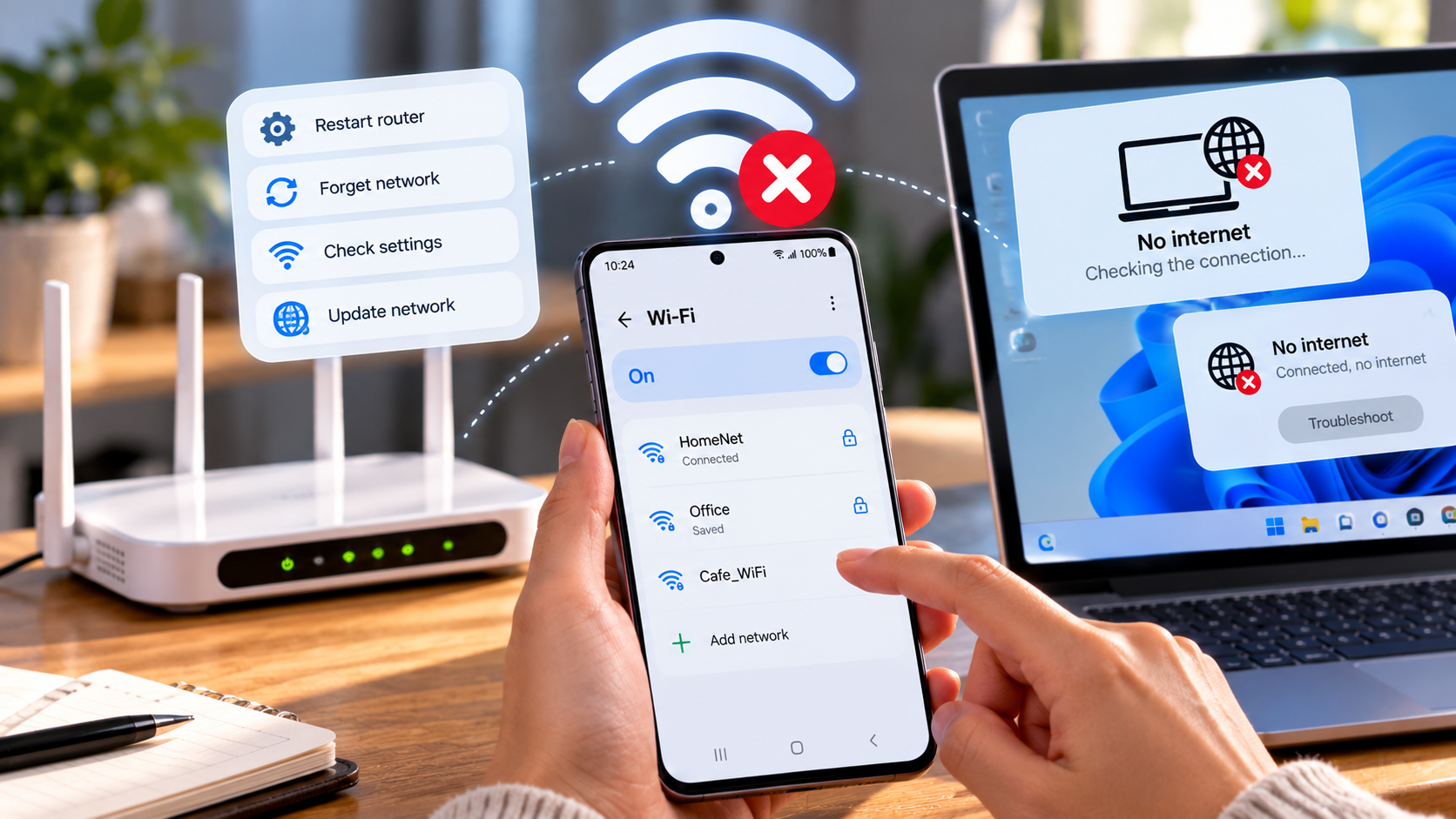
If the TV is not listed, check that the devices are on the required network and that the TV supports the same casting standard. Restart the devices and inspect any network isolation or VPN settings. Some guest Wi-Fi networks keep client devices from discovering each other.
If sound plays but video is black, digital rights management restrictions may block screen mirroring in a streaming app. Use the service's official TV app or supported Cast/AirPlay feature. For wired setups, verify the TV's selected HDMI input and the phone's video-out support.
For screen mirroring problems, test a photo or an unrestricted app before assuming the display is broken.
Manage privacy and quality
Screen mirroring can display private alerts and may introduce delay compared with direct streaming. Choose the method that fits your privacy and quality needs.
Mirroring may expose text messages, notifications, and other personal details to everyone in the room. Enable Do Not Disturb or a suitable Focus mode when demonstrating your screen. Check volume on both the source application and TV if audio behaves unexpectedly.
Wireless mirroring can have noticeable delay during gaming or real-time interaction. A supported wired HDMI connection may offer a more predictable experience, but only if the phone actually supports video output. Choose the method based on your content and hardware, not marketing labels.
A phone-to-TV connection is often more stable when the video app directly supports the receiving device.
For readers researching how to connect phone to TV, the safest next action depends on the device model, software release, and symptoms. Review the specific section above before applying a general fix to your own setup.
Quick troubleshooting comparison
The following comparison helps match a common symptom to the first sensible check. Exact menu names and results depend on your device, software version, and account settings. Work from the least disruptive option toward more involved diagnosis.
| Situation | Likely issue or method | Recommended first step |
| Google Cast | Supported Android, apps, and receivers | Receiver needs Cast support |
| AirPlay | iPhone and compatible TV or Apple TV | Requires AirPlay compatibility |
| Screen mirroring | Compatible Android and television | May expose notifications |
| HDMI adapter | Phones with supported video output | USB-C alone is insufficient |
Step-by-step checklist
Use this order to avoid changing multiple settings at once. A methodical check makes it easier to recognize which change solved the issue and which steps are still necessary. Save important data before any step that could remove files or account settings.
- Confirm the exact television and phone models.
- Choose Cast, AirPlay, mirroring, or compatible HDMI.
- Put devices on the required Wi-Fi network if wireless.
- Test a sample video or photo and check sound.
- Review notification privacy before mirroring the screen.
Frequently asked questions
Some phones support wired HDMI video through compatible adapters, and certain wireless mirroring standards work without a typical home Wi-Fi network. Check both models.
A practical answer to how to connect phone to TV should preserve your files, account access, and working settings. If basic checks fail, use official manufacturer or service-provider support rather than unverified recovery tools. The phone might not support video output through USB-C. Verify its specification, adapter compatibility, cable, and selected HDMI input.