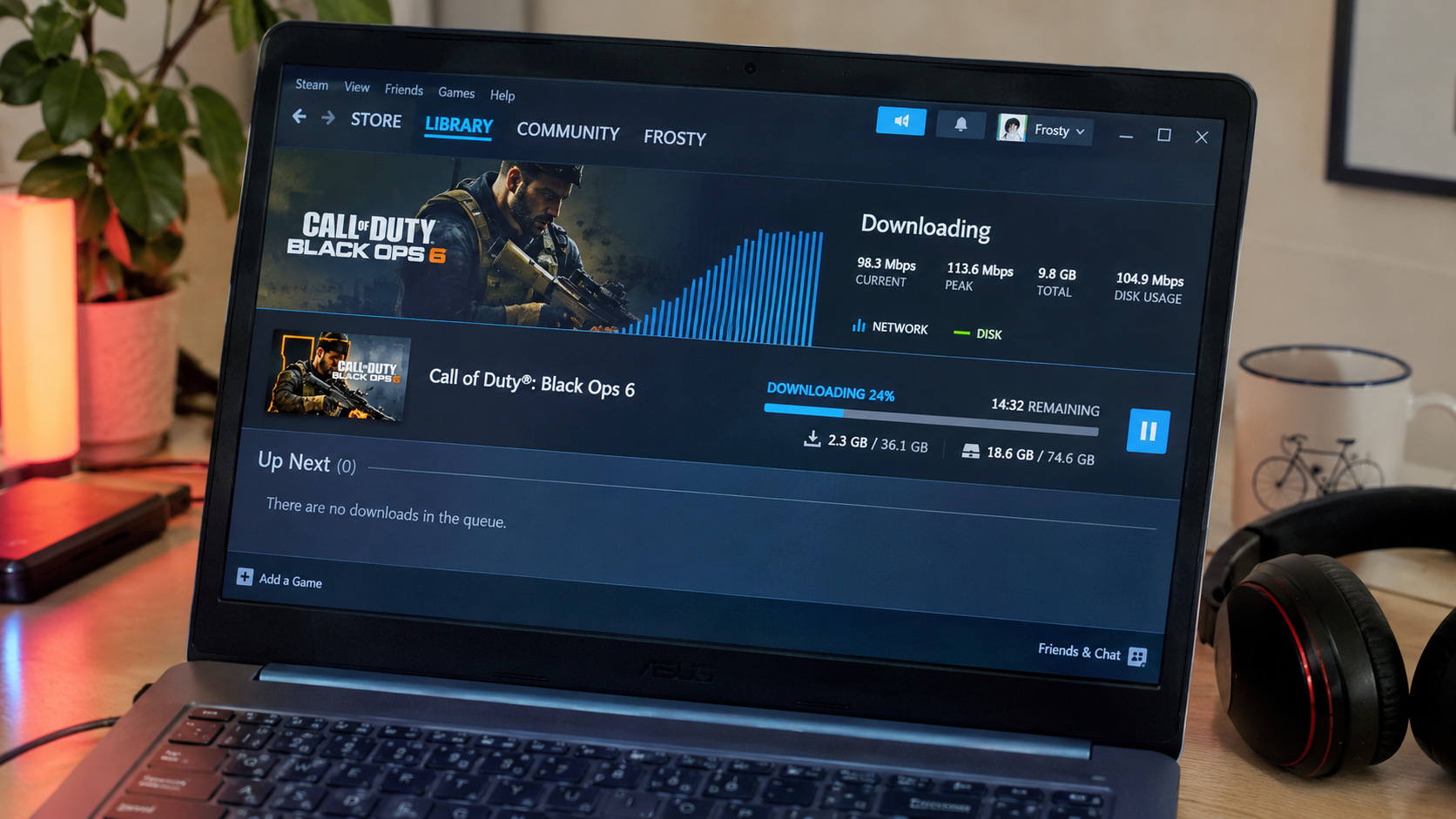




A large Steam download can bring a busy home network to its knees. One computer starts installing a game, and suddenly a family member's video call freezes, Netflix begins buffering, or an online match becomes nearly unplayable. The internet connection still works, but Steam may be using almost all the available bandwidth.
The quickest way to stop Steam downloads from slowing down Wi-Fi is to open Steam > Settings > Downloads and enable Limit Download Speed. Choosing a reasonable cap gives other devices more room to browse, stream, and play online without forcing the game download to stop completely.
This becomes particularly useful ahead of the Steam Winter Sale, running from December 17, 2026, through January 4, 2027. New purchases, large installations, and game updates can compete for the same home connection during a period when several people may be gaming, working, or streaming at once.
A download limit is usually enough to solve the immediate problem. If the connection still struggles, several other Steam settings and router features can help.
How to Stop Steam Downloads From Slowing Down Wi-Fi in Minutes
The fastest solution is to reduce Steam's download speed rather than pause every installation. Steam includes a built-in bandwidth control that works without additional software or changes to Windows network settings.
Set a Steam Download Speed Limit
Open Steam's download settings and choose a speed that leaves enough bandwidth for other activities. The setting controls Steam game downloads and updates, making it a useful first step on shared connections.
Follow these instructions on a Windows PC:
- Open Steam. Launch the desktop application and sign in if necessary.
- Open Settings. Select Steam in the upper-left corner and choose Settings.
- Select Downloads. Find the download settings in the left-hand menu.
- Find Limit Download Speed. Enable the option or select the corresponding bandwidth-limit control.
- Choose a maximum speed. Start with approximately half of the download bandwidth available on the computer.
- Check the Download Manager. Start or resume a download and confirm that the limit is active.
- Test another device. Open a video stream, join a call, or play an online game to see whether the connection improves.
The exact control may appear as a switch, input field, or selection menu depending on the Steam client version. The active limit should be visible in the Download Manager.
The important detail is that Steam's speed limit affects Steam transfers, not every application running on the computer. Windows updates, cloud backups, and other game launchers can continue using bandwidth independently.
What If the Steam Download Limit Does Not Work?
First, confirm that Steam is displaying the expected speed units and that the selected limit is actually enabled. A value entered in megabytes per second is very different from the same number expressed in megabits per second.
Pause and resume the download after changing the setting if the displayed transfer rate does not respond. Observe the average network speed for a short period rather than judging the result from a single momentary spike.
If the connection remains slow even with Steam paused, another application or a network problem may be responsible.
Why Steam Downloads Can Make the Entire Wi-Fi Network Slow
Steam downloads can slow a household connection because large transfers compete with other devices for available internet bandwidth and wireless network capacity. When the connection becomes saturated, ordinary activities may experience delays even though they require much less data.
A game download favors transferring substantial amounts of information as quickly as possible. Video calls and multiplayer games have different requirements: consistent delivery and low latency matter more than maximum download speed.
There are two common bottlenecks:
- Internet bandwidth saturation. Steam uses most of the available connection speed, leaving less capacity for other devices.
- Wi-Fi congestion. Heavy wireless traffic competes for airtime on the local network, particularly when several devices share the same access point.
These problems can occur together, but they are not identical. A fast internet plan does not guarantee smooth performance if the wireless connection between the computer and router is weak or congested.
How to Check Whether Steam Is Really the Problem
The simplest diagnostic test is to compare the network while Steam is downloading and while it is paused. This helps distinguish competition for bandwidth from unrelated Wi-Fi or internet problems.
Use this short test:
- Pause Steam downloads. Open the Download Manager and pause active transfers.
- Test the connection. Run a speed test on another device and check whether websites or video calls work normally.
- Resume Steam. Let the download reach a reasonably steady transfer rate.
- Repeat the test. Check the same device while Steam continues downloading.
- Enable a speed limit. Reduce Steam's transfer rate and compare the results again.
For more consistent results, use the same device, location, and network connection throughout the comparison. Avoid running multiple speed tests simultaneously because they can compete for bandwidth themselves.
If other devices become responsive when Steam pauses, download saturation is a strong possibility. If the entire network remains slow, check for other traffic or an underlying router problem.
Some symptoms also reveal where the slowdown begins.
| Symptom | Likely explanation | First action |
| Video calls freeze during Steam downloads | Bandwidth congestion or increased latency | Lower Steam's download limit |
| Online games develop lag spikes | Network queues or Wi-Fi contention | Reduce the limit and test latency |
| Every wireless device slows down | Shared Wi-Fi or internet bottleneck | Test Ethernet and router controls |
| Steam slows down but other devices work | Steam server, storage, or local PC issue | Check Steam's network and disk activity |
| Internet remains slow after Steam pauses | Another application, router, or ISP issue | Inspect network usage and test another device |
| Downloads randomly fall to 0 B/s | Steam may be installing or patching files | Compare network speed with disk activity |
The table highlights why changing Steam's download region is not automatically the right response. A region change may help an unusually slow Steam transfer, but it does not directly solve a shared connection that is already overloaded.
What Steam Download Speed Limit Should You Set?
A practical starting point is approximately 50% of the connection's measured download speed, followed by adjustments based on the household's needs. This is a troubleshooting guideline rather than a universal requirement, and a less restrictive cap may work perfectly on an uncongested network.
The important measurement is the speed that the computer actually receives, not just the number advertised by the internet provider. A household paying for 300 Mbps may achieve substantially less over a weak Wi-Fi connection.
Steam Download Limits for 25, 50, 100, 300, and 500 Mbps Internet
The following starting values reserve approximately half of the measured download capacity for other network activity. They are particularly useful when choosing an initial Steam bandwidth limit for shared Wi-Fi.
| Measured download speed | Suggested Steam limit | Equivalent bandwidth |
| 25 Mbps | 1.5 MB/s | 12 Mbps |
| 50 Mbps | 3 MB/s | 24 Mbps |
| 100 Mbps | 6 MB/s | 48 Mbps |
| 300 Mbps | 18 MB/s | 144 Mbps |
| 500 Mbps | 30 MB/s | 240 Mbps |
These are example starting limits, not guaranteed solutions. Actual results depend on available wireless capacity, network congestion, router behavior, and how many devices are active.
For example, a household with a measured 100 Mbps connection could begin with a 6 MB/s Steam limit. If video calls remain stable and websites respond quickly, the limit can be raised gradually to reduce the time required to install games.
If latency becomes problematic again, return to the previous stable setting.
Mbps vs. MB/s – Why Steam Download Speeds Look Different
Steam can display download rates in megabytes per second, while internet service providers usually advertise megabits per second. One byte contains eight bits, making the numerical difference significant.
The basic conversion is:
Mbps ÷ 8 = MB/s
A 100 Mbps connection therefore has a theoretical maximum transfer rate of approximately 12.5 MB/s. This does not account for network overhead or other conditions that can reduce real-world performance.
A Steam download running at 10 MB/s is already transferring approximately 80 Mbps of data. On a 100 Mbps connection, that leaves relatively little bandwidth for everything else.
Check the units displayed beside Steam's limit before entering a number. Some client settings may present bandwidth in bits rather than bytes, and confusing the two can produce a limit eight times higher or lower than intended.
How Much Bandwidth Should You Leave for Gaming and Streaming?
The right amount depends on the activity and the stability of the connection. Online multiplayer games often use relatively little bandwidth compared with large downloads, but they are sensitive to latency spikes and packet loss.
Video calls and streaming also need sufficient consistent throughput. A stable connection can handle these activities more comfortably than one that repeatedly operates at full capacity.
For a household with several active devices, begin with the conservative limits above. Increase Steam's speed only after confirming that gaming, streaming, and calls remain responsive.
Leaving unused bandwidth does not automatically eliminate lag. Network congestion can also involve upload traffic, wireless interference, and excessive buffering inside network equipment.
Stop Steam Updates From Starting at the Worst Time
Steam allows automatic game updates to be restricted to selected hours. Scheduling them outside busy periods can prevent unexpected downloads from competing with evening gaming sessions, remote work, or video streaming.
This is particularly useful when a household regularly uses the internet heavily at predictable times.
Schedule Steam Downloads and Automatic Updates Overnight
Steam's automatic-update schedule can reduce unnecessary daytime bandwidth use without requiring every download to be managed manually. The restriction applies to automatic updates rather than acting as a universal block on all Steam transfers.
To configure the schedule:
- Open Steam Settings. Select Steam > Settings > Downloads.
- Locate the automatic-update schedule. Find the option labeled Only auto-update games between or equivalent wording.
- Enable the schedule. Select a period when the household typically uses less bandwidth.
- Choose the time window. For example, allow automatic updates between 1:00 a.m. and 7:00 a.m.
- Review the download queue. Confirm that pending updates are scheduled as expected.
- Keep a reasonable speed limit. An overnight schedule does not prevent downloads from saturating the connection during those hours.
The schedule does not necessarily stop downloads started manually. Launching a game that requires an update can also override normal automatic-update timing.
A sensible combination is to schedule routine updates overnight while retaining a moderate global download cap. This prevents an unexpected update from monopolizing the connection whenever it runs.
Stop Individual Steam Games From Updating Automatically
Steam also provides update controls for individual games. This is useful when an infrequently played title repeatedly downloads substantial patches that are not immediately needed.
Open the Steam Library, select the game's Properties, and navigate to Updates. The available options include keeping the game updated or updating it when launched.
Choosing the launch-only setting can defer routine downloads until the game is needed. However, the required update may still need to finish before the game can be played.
For multiplayer titles that require a current version, postponing updates can therefore create an inconvenient delay later. Frequently played games are better candidates for scheduled updates than indefinite postponement.
Prevent Steam Downloads From Causing Gaming Lag
Reducing Steam download speed or pausing downloads during gameplay is the most effective first response when large transfers interfere with online games. Multiplayer performance depends heavily on stable latency, so an unrestricted download may cause noticeable problems even when an internet speed test looks impressive.
Steam normally pauses downloads when a game launches. Its settings also allow downloads during gameplay, but enabling this option can create competition for network resources.
Check Steam's Downloads During Gameplay Setting
Steam's gameplay download setting determines whether game downloads continue while another game is running. If online matches suffer from lag spikes, allowing unrestricted downloads in the background is usually unnecessary.
Open Steam > Settings > Downloads and find Allow Downloads During Gameplay. Leave this option disabled if network stability during gameplay matters more than background download progress.
Some games also provide individual download-during-gameplay settings. Check the relevant game's properties if Steam behaves differently than expected.
This adjustment affects downloads on the gaming computer. It will not stop a second household computer from using the shared internet connection.
Why Ping Gets Worse When Steam Is Downloading
Ping can increase during Steam downloads because network equipment may queue packets when the connection is heavily loaded. This added delay is often associated with a condition called bufferbloat.
A connection may deliver excellent download speeds while producing inconsistent response times under load. That makes it possible for a game to lag during a large download despite having more than enough nominal bandwidth for multiplayer traffic.
To investigate, compare latency with Steam paused and then running. A network test that measures latency under load can provide more information than download speed alone.
If a moderate Steam cap produces a noticeable improvement, retain it. If latency remains high with plenty of unused bandwidth, router traffic management or wireless interference may be the more important issue.
Use Router Settings to Stop Steam From Slowing Down Everyone's Wi-Fi
Router-level bandwidth management is useful when Steam's built-in limit is not enough or when multiple devices regularly compete for the connection. Supported routers may offer Quality of Service (QoS), device priorities, bandwidth limits, or more advanced traffic-management features.
These controls do not increase the internet plan's total speed. Instead, they help decide how existing capacity is shared.
Set a Device Bandwidth Limit on Your Router
A device-level limit can prevent the gaming computer from consuming most of the household's internet bandwidth. Unlike Steam's own limit, this may affect all internet traffic from that computer.
The exact interface depends on the router manufacturer and model.
A typical configuration involves the following steps:
- Open the router's management interface. Use its official administration address or companion application.
- Sign in with authorized administrator credentials. Avoid changing equipment managed by another person without permission.
- Locate traffic-management settings. Look for QoS, Bandwidth Limiter, Device Priority, or similar controls.
- Identify the gaming computer. Match the correct connected device before applying restrictions.
- Set a reasonable bandwidth cap. Choose a value below the measured connection speed.
- Apply the changes. Save the configuration and allow the router to update its settings.
- Test the network again. Compare Steam downloads, gaming latency, and other devices' performance.
A device limit is useful when Steam is not the only bandwidth-intensive application on the computer. However, it may also restrict video calls, browser downloads, and other activities on that PC.
Router interfaces differ considerably, and some models do not support per-device speed caps. Consult the manufacturer's instructions rather than assuming every QoS menu offers the same controls.
Should You Enable QoS for Steam Downloads?
QoS can improve performance on busy networks when it is configured to prioritize latency-sensitive traffic. Video calls, multiplayer games, and interactive applications often benefit more from timely packet delivery than bulk downloads do.
However, a poorly configured QoS system can reduce throughput or introduce new connection problems. Some routers prioritize traffic automatically, while others require accurate download and upload speed values.
Do not automatically give Steam downloads the highest priority. Doing so may make the same household congestion problem worse.
For compatible routers, traffic management using Smart Queue Management (SQM) can help control latency under load. Its availability and effectiveness depend on the hardware, firmware, and configuration.
If changing QoS settings makes the network worse, restore the previous configuration before experimenting further.
Ethernet vs. 5 GHz Wi-Fi – Which Helps More?
Connecting the gaming PC to the router through Ethernet can reduce wireless congestion and remove one source of interference. It is especially helpful when Steam downloads are competing with phones, televisions, and laptops on the same wireless access point.
An Ethernet connection does not create additional ISP bandwidth, though. If Steam is already saturating the internet connection, the download-speed limit may still be necessary.
When a wired connection is unavailable, try using a 5 GHz Wi-Fi network if the router and computer support it. The 5 GHz band often offers greater capacity and less interference than 2.4 GHz at shorter distances, although its coverage through walls may be weaker.
The best choice depends on signal quality and local conditions. A strong 2.4 GHz connection can perform better than a distant, unstable 5 GHz connection.
Check Windows 11 for Other Applications Using Bandwidth
Steam may not be the only application responsible for a slow connection. Windows Update, cloud synchronization, browser downloads, and other game launchers can continue transferring data while Steam is active.
Windows 11 Task Manager provides a useful starting point for identifying the programs generating network activity.
Find Background Downloads in Task Manager
Task Manager can show which applications are currently using network resources. This is particularly helpful when lowering Steam's bandwidth limit fails to restore normal browsing or streaming performance.
To inspect network activity:
- Open Task Manager. Press Ctrl + Shift + Esc.
- Select Processes. Locate the Network column.
- Sort by network usage. Click the column heading to bring active transfers into view.
- Identify recognizable applications. Look for Steam, browsers, cloud storage clients, launchers, or update processes.
- Pause unnecessary transfers. Use each application's normal controls whenever possible.
- Check performance again. Compare network responsiveness after reducing competing traffic.
The Network column shows application activity but does not necessarily provide a complete picture of every transfer on the home network. A router's traffic monitor may be more useful for identifying bandwidth use by other household devices.
If the computer also becomes sluggish during large installations, it may help to identify background resource hogs in Windows 11 before changing unrelated system settings.
Avoid terminating unfamiliar Windows services, disabling security software, or installing third-party bandwidth optimizers. These actions can introduce problems without addressing the actual connection bottleneck.
Can Windows Updates Slow Wi-Fi While Steam Is Downloading?
Yes. Windows updates and other Microsoft downloads may compete with Steam for bandwidth, particularly when several large transfers run simultaneously.
Windows 11 includes Delivery Optimization settings that control how supported updates and applications can share download data with other devices. These controls are separate from Steam's download limit.
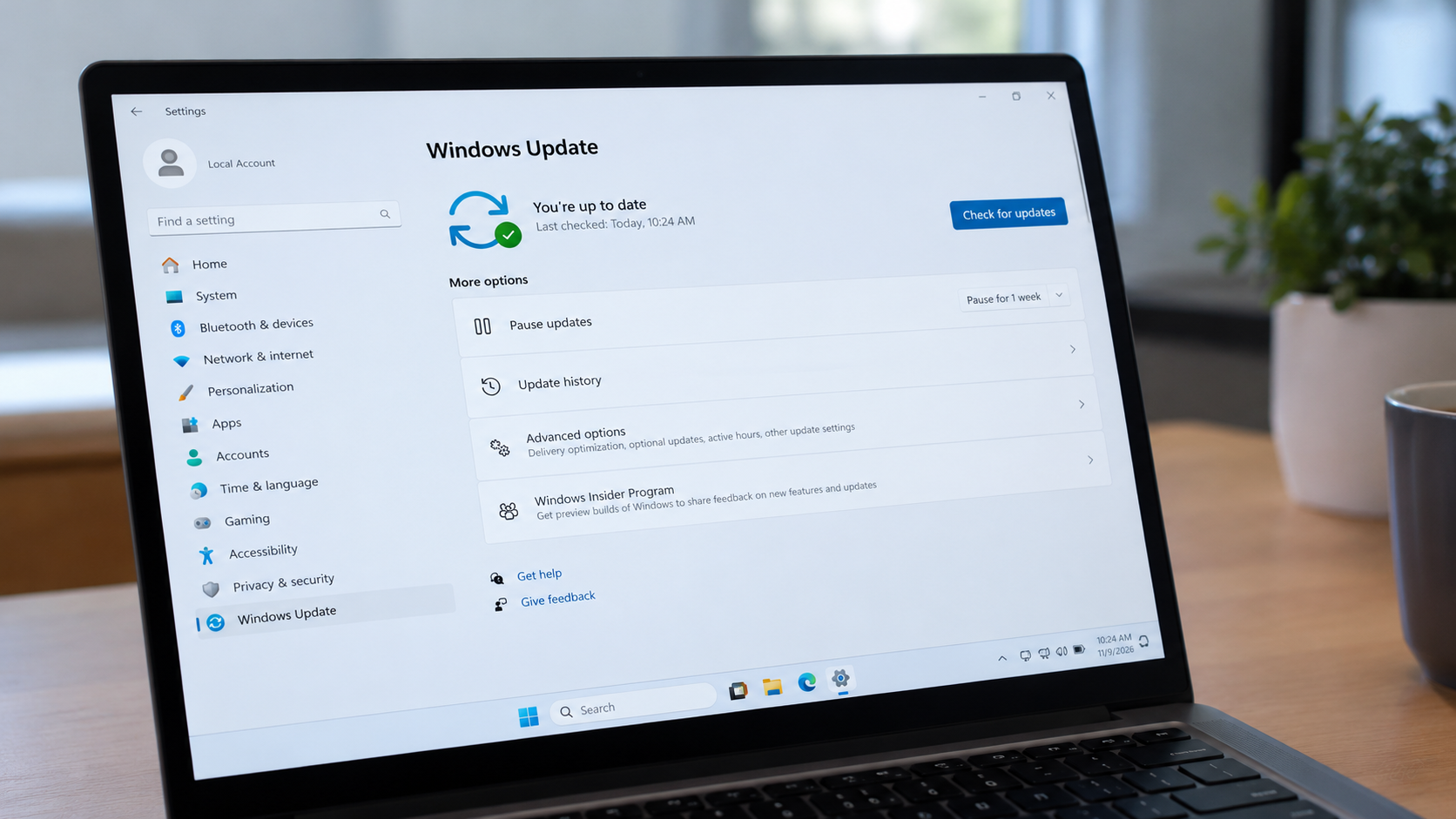
If Windows Update is actively consuming bandwidth, review Settings > Windows Update > Advanced options > Delivery Optimization. Available options can include controlling transfers between devices and adjusting bandwidth behavior.
Changing Delivery Optimization settings will not directly limit Steam. It is useful only when Microsoft-related background transfers contribute to the slowdown.
Use Steam Local Network Transfers When Several PCs Need the Same Game
Steam supports local network game transfers that allow compatible computers to copy existing game installation files without downloading everything again from Steam's internet servers. This can reduce internet data use when multiple household PCs or Steam Decks need the same game.
Local transfers are particularly useful ahead of a seasonal sale when more than one person may be installing the same title.
How Steam Local Network Game Transfers Work
When a Steam client begins installing an eligible game, it can check whether another compatible device on the local network already has the required files. If a suitable device is available and transfers are permitted, Steam can copy game content directly across the LAN.
The feature offers settings such as Only my own devices, Only my friends, and Any user. The default option is designed for transfers between devices using the same Steam account.
There are limitations. The sending device must meet Steam's availability requirements, and local transfers do not copy personal save files or every category of game-related content.
Local network transfers can save internet bandwidth but may still use substantial Wi-Fi capacity. For households with several wireless devices, a wired connection between at least one gaming PC and the router can be helpful.
If local transfers themselves are causing congestion, review Steam's game-file transfer settings under Downloads. The right choice depends on whether saving internet data or reducing local network traffic matters more.
Steam Download Speed Drops to Zero but Wi-Fi Still Works
A Steam download that repeatedly falls to 0 B/s is not necessarily a bandwidth problem. Steam may temporarily pause receiving data while the computer unpacks, patches, installs, or verifies existing game files.
The Downloads page can help distinguish local storage activity from a network connection failure. Compare the Network and Disk Usage indicators rather than assuming every pause means the router has stopped working.
If Steam continues writing files to storage, the installation may be progressing normally. When both network and disk activity remain inactive and the download makes no progress, additional troubleshooting is appropriate.
The guide to Steam downloads that stop at 0 B/s covers storage bottlenecks, stalled installations, cache problems, and practical fixes without unnecessary game reinstalls.
A bandwidth limit is not a reliable fix for a failing SSD, damaged installation, or persistent disk write error. Diagnose the resource causing the slowdown before changing more network settings.
What to Do When Steam Downloads Still Slow Down Wi-Fi
If a Steam speed limit does not improve the household connection, the next step is to determine whether the bottleneck is the internet service, the router, or the wireless connection itself. This prevents unnecessary changes to otherwise healthy Steam settings.
A methodical comparison is more useful than resetting everything at once.
Test the Router and Internet Connection Separately
Begin by checking whether the slowdown affects wireless devices exclusively or also appears on a computer connected through Ethernet. This distinction helps identify whether Wi-Fi performance is part of the problem.
For example, if an Ethernet-connected device remains responsive while phones on Wi-Fi struggle, investigate wireless interference, router load, and access-point performance.
If both wired and wireless devices slow down whenever Steam downloads are active, the shared internet connection or router traffic management may be responsible.
A router restart can resolve certain temporary connectivity problems, but a factory reset should not be an early troubleshooting step. It can erase network credentials and other important configuration details.
When the connection fails even without active downloads, the guide to Wi-Fi connected but no internet explains how to separate device-specific failures from router and provider problems.
Check the Download Region Only When Steam Is Unusually Slow
Steam lets users select the content region used for game downloads. Choosing the current or a nearby region may help when a particular content server is congested.
However, switching to another region will not guarantee better Wi-Fi performance. If Steam is already receiving data fast enough to saturate the household connection, making Steam download faster is unlikely to solve the underlying problem.
Treat download-region changes as a separate troubleshooting step for slow Steam transfers, not as the primary solution when Steam is consuming too much bandwidth.
6 Mistakes That Make Steam Download and Wi-Fi Problems Worse
Several common troubleshooting habits can prolong network congestion or make it difficult to identify the real cause. Most Steam download issues are easier to investigate when changes are made one at a time.
The following mistakes are worth avoiding:
- Using the wrong speed units. Confusing Mbps with MB/s can produce a download limit eight times higher or lower than intended.
- Giving Steam maximum router priority. Prioritizing bulk downloads over video calls and multiplayer traffic may worsen latency.
- Changing several network settings simultaneously. It becomes difficult to determine which adjustment improved or damaged performance.
- Resetting the router unnecessarily. Factory resetting may erase working settings without resolving bandwidth saturation.
- Disabling security tools. Turning off firewalls or antivirus protection is not a general solution for crowded Wi-Fi.
- Ignoring other active downloads. Restricting Steam cannot solve congestion caused primarily by a different application or device.
The most reliable approach is to begin with Steam's own speed limit, test the result, and investigate the router only if necessary. More complicated settings should address a confirmed problem rather than replace basic diagnosis.
How to Prepare Your Steam Downloads for Winter Sale 2026
The Steam Winter Sale begins on December 17, 2026, and ends on January 4, 2027, making December a sensible time to review download settings. Purchasing several large games during a sale can produce substantial downloads, especially on computers with limited existing game libraries.
A few adjustments before the sale can prevent repeated interruptions during busy evenings.
A Practical Steam Download Checklist Before December 17
Start with the changes that take the least effort and preserve normal network performance. The goal is to keep installations moving without leaving other household devices struggling for bandwidth.
- Measure your actual connection speed. Use a realistic speed test with major downloads paused.
- Choose a Steam download limit. Start around half of the measured available speed.
- Test household activities. Check streaming, video calls, and online gaming while Steam downloads.
- Schedule routine automatic updates. Move them to a period when fewer devices need the connection.
- Review downloads during gameplay. Avoid unnecessary background transfers during latency-sensitive games.
- Check router traffic controls. Consider QoS or a device limit if the Steam setting alone is insufficient.
- Use Ethernet where practical. Reduce competition for wireless airtime on crowded networks.
- Review local game transfers. Avoid downloading identical game files repeatedly from the internet when eligible devices can share them locally.
- Restore faster downloads when appropriate. Increase or remove the cap when the household no longer needs reserved capacity.
The same configuration may not suit every time of day. A conservative limit during work and gaming hours, followed by a higher limit overnight, can provide a useful balance between installation speed and network stability.
FAQ About How to Stop Steam Downloads From Slowing Down Wi-Fi
Steam can use much of the available internet bandwidth during large downloads. Other devices may then experience buffering, higher latency, or slow loading times, particularly on congested connections.
Open Steam > Settings > Downloads and enable Limit Download Speed. Choose a cap below the measured connection speed, then test whether other household devices become more responsive.
A starting limit of approximately 6 MB/s, equivalent to 48 Mbps, leaves substantial capacity for other activity. Raise or lower it according to the household's actual network performance.
Yes. Steam's built-in download limit controls its own game downloads and updates without imposing the same restriction on unrelated applications. However, those applications still share the household's available connection bandwidth.
Heavy downloads can increase latency when network queues become overloaded. Lowering Steam's download speed or using suitable router traffic management may reduce these delays.
Ethernet can improve stability and throughput when Wi-Fi is the limiting factor. It will not increase the speed of the internet plan or prevent Steam from saturating a slower ISP connection.
Steam allows automatic game updates to be restricted to selected hours. Manually started downloads and updates required when launching a game can operate outside that schedule.
Not usually. Changing regions may improve a slow connection to Steam's content servers, but it does not solve household bandwidth congestion when Steam is already downloading at a high rate.
It can. A lower download-speed cap reduces the maximum transfer rate, potentially increasing download time, although actual installation time also depends on storage performance and file processing.
Yes. A gigabit internet plan does not guarantee that every device has the same wireless capacity. Congested access points, weaker Wi-Fi links, network queues, and competing traffic can still affect performance.