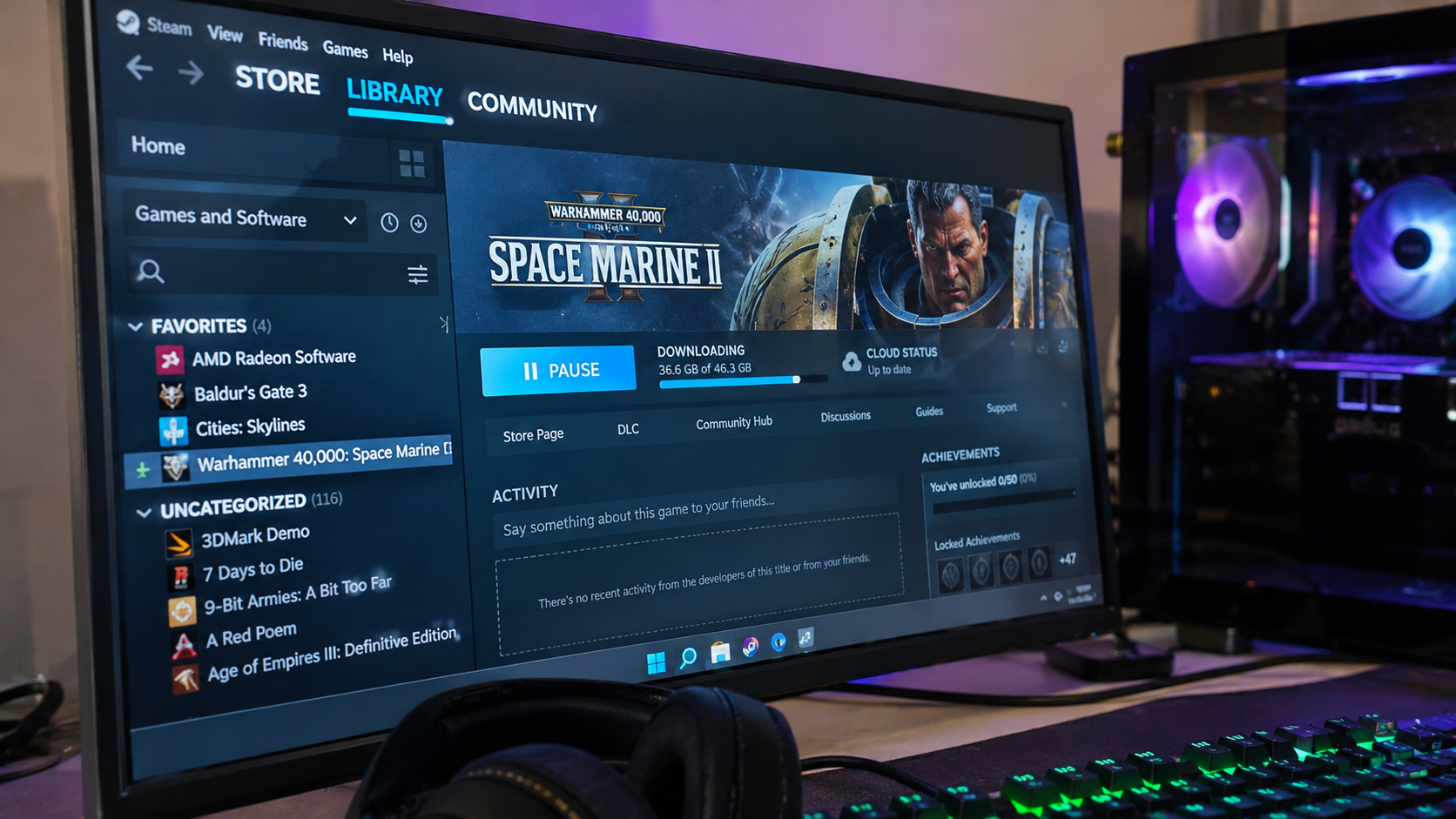




A Steam download stuck at 0 B/s does not necessarily mean the internet connection has stopped working. Steam often pauses network transfers while the computer writes, unpacks, patches, or verifies game files on its storage drive. If disk activity continues, the download may still be progressing even though the network speed shows zero.
The first thing to check is Steam's Downloads page. Compare the network speed with the disk activity graph. If network speed drops to zero while disk usage remains active, the client may simply be processing downloaded files. If both remain at zero and nothing changes, the problem may involve insufficient storage, a stalled client, a permissions error, or the network connection.
This distinction becomes particularly useful ahead of the Steam Winter Sale, scheduled for December 17, 2026, through January 4, 2027. Installing large games or updating an existing library can place considerable pressure on an older hard drive, a nearly full SSD, or a computer running multiple background tasks.
Understanding Steam download disk usage can save time, prevent unnecessary reinstalls, and help identify the actual bottleneck before changing Windows settings.
Why Does Steam Download Speed Drop to 0 B/s While Disk Usage Stays High?
Steam download speed can fall to zero because the client temporarily stops receiving data while installing content already downloaded. This is normal during some game installations and updates, particularly when Steam needs to process compressed files or modify large existing game archives.
Unlike a simple file transfer, installing a game through Steam can involve several operations:
- Downloading compressed game data from Steam's content servers.
- Allocating storage space for the files being installed or updated.
- Unpacking downloaded data into the formats required by the game.
- Patching existing game files and replacing modified content.
- Verifying files to confirm that the installation is complete and consistent.
These operations do not always occur at the same time. Steam may download data quickly, pause the network transfer, process files locally, and then resume downloading.
A short drop to 0 B/s is therefore not automatically a problem. The important question is whether the game installation continues to make measurable progress.
How to Read Steam's Network and Disk Usage Graphs
Steam's Downloads page provides the simplest way to distinguish a slow internet connection from an installation bottleneck. It shows network transfer information and local disk activity, allowing the two processes to be compared.
To inspect the download, follow these steps:
- Open Steam on the computer.
- Select Downloads in the client, or open View > Downloads.
- Find the currently downloading or updating game.
- Check the displayed Network speed.
- Compare it with the Disk Usage graph or indicator.
- Watch whether the downloaded, installed, or remaining data changes over the next several minutes.
A network rate of 0 B/s can be perfectly normal when Steam is still actively writing files. However, if the network, disk activity, and progress indicators all remain unchanged, further troubleshooting is appropriate.
| Steam download behavior | Likely explanation | What to do |
| Network 0 B/s, disk activity high | Unpacking, patching, or installing files | Allow processing to continue |
| Network active, disk activity low | Data transfer may be the current limiting stage | Check network speed and download settings |
| Network and disk both at zero | Paused, queued, stalled, or blocked download | Inspect status and restart the task if necessary |
| Disk activity repeatedly reaches its limit | Storage bottleneck or competing disk workload | Check Task Manager and storage performance |
| Download reaches 100% but installation continues | Final processing or verification | Wait while files are still being processed |
| Disk write or content file error appears | File access, storage, or installation problem | Follow the error-specific repair steps |
The table makes one distinction especially important: zero network activity is not the same as zero installation activity. Troubleshooting should begin with the resource that is actually preventing progress.
How to Check Steam Disk Usage in Windows 11
Windows 11 Task Manager can show whether the drive containing the Steam library is overloaded. It also helps determine whether Steam itself, antivirus software, or another background application is responsible for heavy disk activity.
Steam's own disk graph is useful, but Task Manager provides a broader view of the computer.
Check Disk Activity in Task Manager
The quickest check is to open Task Manager while the Steam download is running. Compare disk activity with CPU, memory, and network usage instead of relying on one percentage.
- Press Ctrl + Shift + Esc to open Task Manager.
- Select the Processes tab.
- Sort applications by the Disk column.
- Look for Steam-related processes and other applications using the drive.
- Open the Performance tab.
- Select the physical disk containing the Steam game library.
- Review its active time, transfer speed, and response time where available.
A disk showing 100% active time is not necessarily transferring data at its maximum advertised sequential speed. It may be occupied by many smaller operations, slow random reads and writes, or requests that take unusually long to complete.
For example, a hard drive can show extremely high active time while transferring relatively little data. An SSD can also become saturated under certain workloads, although the reasons may differ.
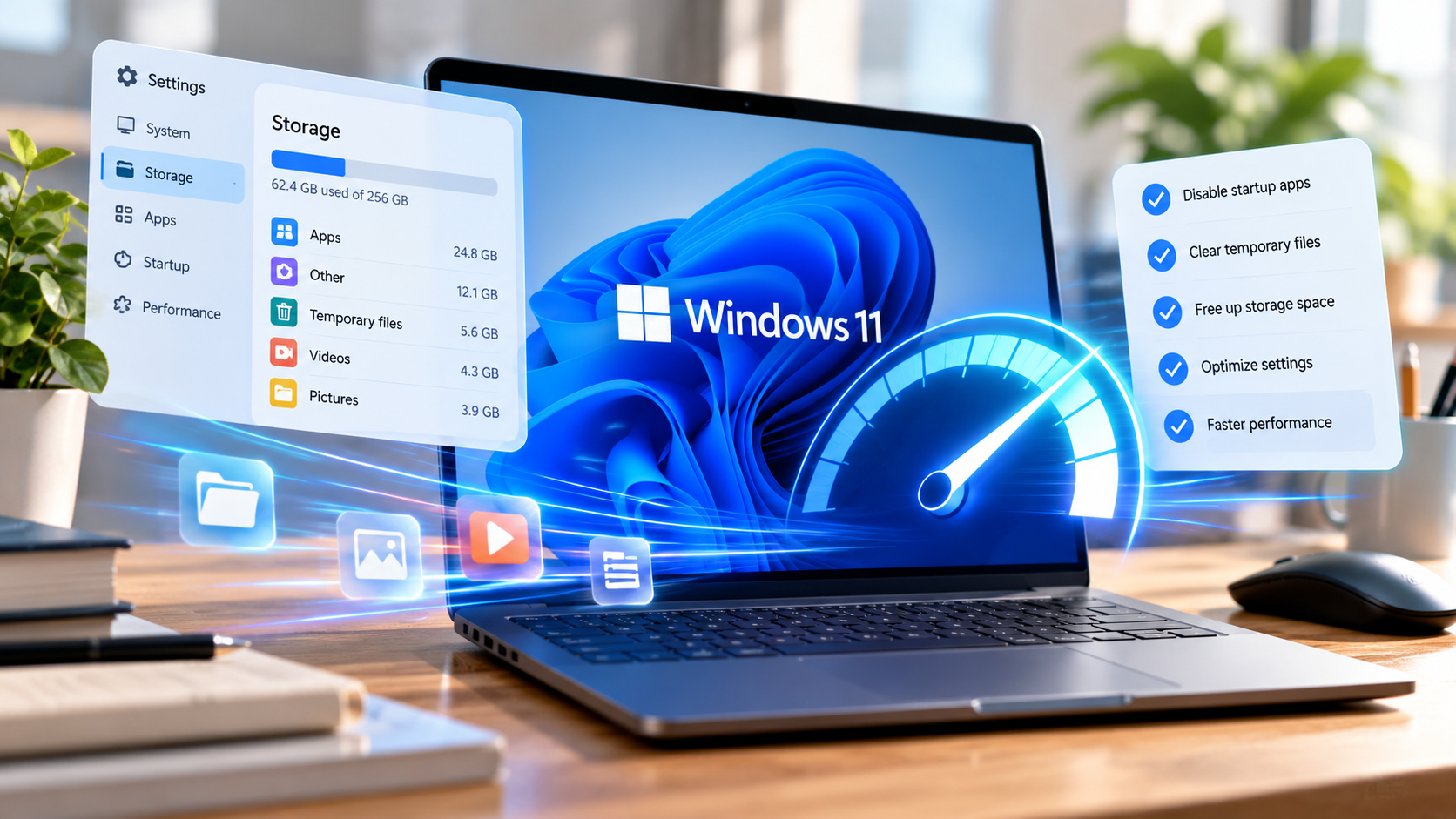
If the entire laptop slows down during downloads, the guide on how to speed up a Windows 11 laptop explains how to identify resource bottlenecks and reduce unnecessary background activity without installing questionable optimization software.
Why Steam Disk Usage and Task Manager Disk Usage Show Different Numbers
Steam and Task Manager may display different figures because they measure different aspects of storage activity. Steam commonly presents disk transfer activity as a data rate, while Task Manager also shows how busy the physical drive is.
A disk writing at 20 MB/s can still show 100% active time if it is fully occupied handling the workload. Conversely, a fast SSD might transfer hundreds of megabytes per second while retaining capacity for additional operations.
A 100% disk reading does not automatically mean the drive is broken. The warning sign is persistent saturation accompanied by extremely slow progress, unusually high response times, system freezes, or storage errors.
Why Steam Downloads Get Stuck Because of HDD or SSD Performance
Storage performance can limit Steam downloads when the drive cannot process incoming data or game updates quickly enough. The problem is especially noticeable during installations that involve decompression and rewriting large quantities of existing files.
Not every storage device handles these operations equally well. A mechanical hard drive, SATA SSD, and NVMe SSD can behave very differently under the same game installation workload.
Why Steam Downloads Are Often Slower on HDDs
Mechanical hard drives are generally slower than SSDs when handling numerous small or scattered file operations. Their moving read/write heads introduce mechanical delays that can become significant during game patching.
Steam updates can repeatedly read existing data, modify it, and write changes back to storage. This process may keep an HDD busy even when the amount of new data being downloaded is relatively small.
A game update that downloads only a few gigabytes may still require substantially more data to be processed locally. The exact amount depends on how the game stores its assets and how the update was packaged.
When Steam repeatedly alternates between downloading and disk processing on an HDD, the drive may simply be unable to sustain both operations at the available network speed.
Why Steam Downloads Can Still Get Stuck on an SSD
An SSD is usually better suited to modern game installations, but it is not immune to slowdowns. A nearly full drive, sustained write activity, heavy background processes, thermal limitations, or hardware problems can reduce performance.
Some SSDs use a faster cache to absorb incoming writes. When that cache is exhausted during a sustained workload, write speeds may fall, sometimes substantially.
The effect depends on the SSD controller, NAND configuration, available capacity, temperature, and drive firmware. It is not accurate to assume that every NVMe SSD will maintain its advertised maximum speed throughout a large game installation.
A slowdown on an SSD should therefore prompt a check of free space, disk activity, competing applications, and drive health before concluding that the internet connection is responsible.
Does CPU Usage Affect Steam Download Speed?
Yes. Steam may rely heavily on the processor when decompressing, validating, or modifying game files. A slow or heavily loaded CPU can delay installation even when the storage drive itself is capable of higher speeds.
If Steam disk usage appears low but CPU utilization is high, check whether the system is busy processing game data. Background tasks, cooling problems, and restrictive laptop power settings can also influence processing performance.
When a gaming laptop becomes unusually hot during installation, verify that its cooling vents are unobstructed and that it is operating in an appropriate power mode. Increasing download speed will not resolve a bottleneck caused by insufficient processing capacity.
How to Fix Steam Downloads Stuck at Zero Without Losing Games
The safest troubleshooting sequence starts with observing progress and checking storage conditions. Only then should more disruptive actions, such as clearing Steam's download cache, repairing a library, or moving a game, be considered.
Most of the following fixes use built-in Steam or Windows controls. There is usually no reason to uninstall Steam, delete game folders, or disable system protections as the first response to a stalled download.
Fix 1 – Wait if Steam Is Still Writing Files to Disk
If Steam shows 0 B/s network speed but disk usage remains active, allow the current installation stage to continue. Interrupting a large patch while files are being rewritten can result in additional verification or repeated work.
Watch the disk graph, progress indicators, and Windows resource activity rather than relying on a fixed waiting period. A large update on a slow hard drive can take much longer to process than a small update on a modern SSD.
If the disk continues working and progress eventually changes, the download was probably not frozen. If activity stops completely and the status remains unchanged for an extended period, move to the next diagnostic step.
Fix 2 – Check Free Space on the Steam Library Drive
Insufficient storage can prevent Steam from downloading, unpacking, or applying game updates. The required space may exceed the size of the data being downloaded because installation and patching can require temporary files or rewritten game archives.
Start with the drive containing the affected Steam library:
- Open File Explorer.
- Select This PC.
- Find the drive containing the game installation.
- Check how much storage is available.
- Open Settings > System > Storage if more detail is needed.
- Remove genuinely unnecessary files or move suitable data to another drive.
Check the Windows system drive as well, particularly if the game is installed elsewhere. Some temporary files and supporting processes may use the system drive.
There is no universal amount of extra space that guarantees every Steam update will succeed. A 5 GB download can require considerably more than 5 GB of available storage during installation, depending on the game and update structure.
Avoid manually deleting unfamiliar Steam folders to create space. The Steam client may still depend on their contents.
Fix 3 – Close Applications Competing for Disk Access
Background applications can slow Steam installation when several processes access the same drive simultaneously. Antivirus scans, cloud synchronization, file indexing, backups, and other game launchers may compete for storage bandwidth.
Use Task Manager to identify which processes are consuming disk resources. Close unnecessary applications normally, and postpone large file transfers or backups if doing so will not interfere with important work.
Security software deserves particular care. Real-time scanning can add overhead when Steam creates or modifies many files, but disabling antivirus protection or excluding the entire Steam library without a clear diagnosis introduces unnecessary risk.
If security software repeatedly blocks a particular game file, review its detection history and consult the security vendor's guidance. Do not assume that every warning is a false positive.
Fix 4 – Pause and Resume the Steam Download
Pausing and resuming is a simple way to retry a genuinely stalled transfer without immediately changing system settings. It is appropriate when Steam shows no meaningful activity and no installation operation appears to be progressing.
Open the Downloads page, pause the affected game, and resume it after a short interval. Confirm that another queued item or scheduled download is not taking priority.
If this does not help, close Steam normally through Steam > Exit, then reopen it. Restarting Windows can also release file locks and clear temporary system conditions that interfere with installation.
Avoid repeatedly forcing Steam to close while it is actively writing game files. Let the current operation complete whenever possible.
Fix 5 – Clear the Steam Download Cache
Clearing the Steam download cache can resolve certain download and installation problems caused by temporary client data. Steam identifies this as a standard troubleshooting option for games that fail to download or start.
The procedure is straightforward:
- Open the Steam client.
- Select Steam > Settings.
- Open Downloads.
- Find Clear Download Cache or the corresponding cache-clearing control.
- Confirm the action.
- Sign back into Steam if prompted.
- Resume or retry the affected download.
Clearing the Steam download cache does not delete installed games. However, it can interrupt the current download state, and some content may need to be fetched again.
Because of that potential interruption, cache clearing is more appropriate for a persistent stall than a download that is merely unpacking files.
Fix 6 – Repair the Steam Library Folder
Steam includes a library repair option for problems involving the storage location used to install games. This is particularly useful when the folder's permissions are damaged or Steam cannot write to the selected library correctly.
To repair the affected library:
- Open Steam > Settings.
- Select Storage.
- Choose the drive containing the problematic game library.
- Open the library's three-dot menu.
- Select Repair Folder.
- Approve the required system permissions if prompted.
- Allow Steam to complete the repair before retrying the installation.
The exact appearance of the Storage page can vary with Steam client updates. The important step is selecting the correct library location rather than repairing an unrelated drive.
This operation is intended to address library-folder problems. It cannot repair a physically failing SSD or HDD, and it will not solve an external network outage.
Fix 7 – Verify the Game Files if One Update Keeps Failing
Verifying game files is useful when a particular installed game repeatedly fails during an update or installation stage. Steam compares the local files with the expected game content and reacquires files that are missing or inconsistent.
For an installed game, use the following steps:
- Open the Steam Library.
- Right-click the affected game.
- Select Properties.
- Open Installed Files.
- Select Verify Integrity of Game Files.
- Allow the verification to finish.
- Retry the update if necessary.
The process can take considerable time for large games, particularly on mechanical hard drives. Some games also maintain local data that may be regenerated or changed during verification.
Verification is not a general fix for poor internet speed. It is most relevant when the problem concerns the integrity of an existing installation.
Fix 8 – Move the Steam Game to a Faster or Healthier Drive
Moving a game to another drive can help when the original library is limited by slow storage, insufficient space, or a drive-specific problem. The most useful comparison is between a known healthy SSD and the storage device currently struggling with installation.
Steam supports multiple library locations and built-in game movement. To use another drive:
- Open Steam > Settings > Storage.
- Add a Steam library on the destination drive if necessary.
- Make sure the destination has enough space.
- Select the installed game in the Storage interface.
- Use the available Move control to transfer the game.
- Confirm the destination and allow the transfer to complete.
Moving an already installed game may take time, depending on its size and both drives' performance. For a new installation, selecting a different library location before downloading can be simpler.
A faster SSD is often beneficial for games involving extensive file reads and updates. However, moving everything to another drive will not resolve a CPU bottleneck, network failure, or corrupted Steam client configuration.
Fix 9 – Check the Drive for Storage Errors
A persistent Steam download problem can indicate a storage issue when the affected drive also produces Windows errors, freezes, or unexpectedly slow file transfers. These symptoms deserve attention beyond the Steam client.
On Windows 11, a basic file-system check is available through File Explorer:
- Open This PC.
- Right-click the affected drive.
- Select Properties.
- Open the Tools tab.
- Find Error checking.
- Select Check and follow Windows instructions.
Some drive-health information is also available through Settings > System > Storage > Advanced storage settings > Disks & volumes, although the details depend on hardware and Windows support.
If Windows reports a serious storage-health warning, back up important data before attempting extensive repairs. Repeated write failures, disappearing drives, or persistent read errors can indicate a problem that requires hardware replacement rather than another Steam download attempt.
What to Do When Steam Shows 100% Disk Usage but Almost No Download Speed
Steam can show little or no network activity while Windows reports 100% disk active time because the storage drive is fully occupied with local file operations. This is especially common when the drive handles many small requests or extensive patching.
The best response depends on whether the drive is working normally under a demanding workload or struggling because of another problem.
| Storage type | Common reason for slowdown | Best first action |
| Mechanical HDD | Slow random reads and writes during patching | Allow processing to finish and reduce background disk activity |
| SATA SSD | Sustained writes, limited free space, competing tasks | Check capacity and disk utilization |
| NVMe SSD | Write-cache exhaustion, sustained workload, thermal or other limits | Check free space, drive health, and sustained performance |
| External USB drive | Interface limits, cable problems, disconnections | Check connection and test a healthy internal drive |
| Any drive with repeated errors | File-system corruption or possible hardware failure | Back up data and investigate storage health |
This comparison does not mean that every slow HDD or SSD is faulty. It identifies which conditions to examine when Steam download disk usage stays unusually high.
Should You Limit Steam Download Speed to Reduce Disk Usage?
Sometimes. When a slower drive struggles to process incoming data, a moderate download speed limit may reduce the frequency or severity of disk saturation.
Open Steam > Settings > Downloads and inspect the available download speed limit. If the internet connection is very fast but a mechanical drive cannot keep up, testing a lower cap may produce a more consistent transfer pattern.
This does not guarantee a shorter installation time. A lower network speed deliberately restricts incoming data, and a heavily loaded CPU or unhealthy drive may still remain the bottleneck.
Compare total installation time rather than relying only on whether the download graph looks smoother. If the capped download takes longer overall, restore the previous setting.
Should You Disable Windows Write Caching?
No, disabling Windows write caching is not a recommended general fix for Steam disk usage problems. Write caching is part of normal storage performance management, and changing the policy can affect performance and data handling.
Unverified instructions that modify drive caching, registry entries, or advanced storage-controller settings can create additional problems. They should not replace basic checks of free space, disk health, and background workloads.
Similarly, there is no need to manually create symbolic links for Steam's temporary download directories as an initial troubleshooting step. Steam's built-in library management is generally easier to maintain and less likely to introduce path or permissions problems.
Steam Download Stuck at 0 B/s With No Disk Activity? Check the Network
If both Steam network activity and disk activity remain at zero, a connection or client configuration problem becomes more likely. The correct next step is to establish whether Steam is paused, the network is unavailable, or the selected content server is struggling.
A genuine network problem generally produces different symptoms from an installation bottleneck. For example, Steam may be unable to begin downloading at all even though the destination drive is healthy and largely idle.
Check Steam Download Region and Speed Limits
Steam automatically selects content servers based on regional settings, but the selected region may occasionally experience congestion or other problems. Testing a nearby region can help determine whether the issue is related to server availability.
The relevant settings are located under Steam > Settings > Downloads.
Check these items:
- Download Region. Confirm that the selected region is appropriate for the current location.
- Download speed limit. Remove an unintended cap or adjust it to an appropriate value.
- Scheduled download restrictions. Check whether downloads are limited to certain hours.
- Download queue. Make sure the intended game is not waiting behind another update.
- Downloads during gameplay. Check whether running a game is pausing background downloads.
After changing a setting, test the same download again. A nearby alternative region is usually a more useful starting point than selecting a distant server without evidence that it performs better.
If changing regions makes no difference and Steam continues showing zero network and disk activity, investigate the internet connection and other client-level causes.
Why Steam Download Speed Looks Slower Than an Internet Speed Test
Steam download speeds are commonly displayed in bytes per second, while internet providers advertise connection speeds in bits per second. Confusing MB/s with Mbps can make an ordinary download appear much slower than expected.
There are eight bits in one byte, so the theoretical maximum download speed in MB/s is approximately the connection speed in Mbps divided by eight.
| Internet connection speed | Approximate theoretical maximum |
| 50 Mbps | 6.25 MB/s |
| 100 Mbps | 12.5 MB/s |
| 200 Mbps | 25 MB/s |
| 500 Mbps | 62.5 MB/s |
| 1,000 Mbps | 125 MB/s |
These values are theoretical conversions, not guaranteed real-world speeds. Protocol overhead, server conditions, network congestion, Wi-Fi quality, and storage performance can reduce actual throughput.
For example, seeing approximately 12 MB/s on a 100 Mbps connection may be entirely reasonable. Steam should not be expected to display 100 MB/s simply because the internet plan advertises 100 Mbps.
Check Wi-Fi, Ethernet, VPN, and Router Problems
A Steam download stuck at zero can result from unstable Wi-Fi, a disconnected internet connection, VPN interference, or other network problems. The easiest distinction is whether other online services work correctly on the same computer.
Open a few websites and check whether another device can access the internet. If multiple devices are affected, the router or internet service provider may be the source of the interruption.
For a broader connection failure, the guide on how to fix Wi-Fi connected but no internet explains how to distinguish a router problem from a device-specific connectivity issue without immediately resetting the network.
For Steam-specific problems, test a wired Ethernet connection when possible. If a VPN is active, temporarily disconnecting it for diagnosis can help determine whether routing or filtering is affecting the download.
Test Another Internet Connection Without Downloading the Whole Game
A different connection can help determine whether Steam's download problem is specific to the home network. A brief test through another trusted Wi-Fi network or a supported mobile hotspot may provide useful evidence.
For example, if Steam begins transferring data normally on a mobile hotspot but repeatedly fails on the home connection, router settings, ISP routing, or other network conditions become more plausible explanations.
The guide on how to use your phone as a hotspot explains the setup options for Android and iPhone, including data usage considerations.
Avoid downloading an entire large game over mobile data merely to diagnose Steam. A short connection test is usually sufficient, and mobile carriers may impose data allowances or additional charges.
Steam Download Stuck at 100% but the Game Is Still Installing
A Steam download reaching 100% does not always mean the game is ready to launch. The client may have completed the network transfer but still need to unpack data, apply updates, validate files, or finish installation tasks.
This behavior is particularly noticeable with games that use large archives or update packages. Steam may need to modify substantial amounts of existing data even when the network download was comparatively small.
If disk activity continues and the installation status changes over time, allow the process to finish. Restarting Steam repeatedly may interrupt useful work and increase the time required to complete an update.
When the installation remains idle with no disk activity, try restarting Steam normally and checking the affected game's files. Persistent failures may require repairing the library folder or investigating file-access errors.
Why a Small Steam Update Can Take Longer Than a Large Download
A small Steam update can take a long time when the game requires extensive patching of existing files. The size of the new downloaded data does not necessarily equal the amount of data that must be read or rewritten locally.
Consider a hypothetical game that downloads a 2 GB patch but stores some of its assets in much larger archives. Applying that patch might require Steam to process many additional gigabytes of existing content.
The precise behavior depends on the game's file structure and update method. The important point is that download size alone cannot reliably predict installation time.
This is why a fast internet connection does not guarantee that every game update will finish quickly.
How to Fix Steam Disk Write Error and Content File Locked Messages
Steam disk write errors and content file locked messages indicate problems with completing file operations, not necessarily problems with internet speed. The most useful diagnosis depends on the specific error and whether the issue affects one game or multiple installations.
Start with a normal Steam restart, check free space, and verify that the library drive is accessible. If the problem continues, use Steam's built-in repair and verification options before attempting more disruptive changes.
| Steam error or symptom | Possible cause | Recommended next step |
| Disk Write Error | Drive access, insufficient space, file-system or hardware problem | Check storage, repair library, inspect drive health |
| Content File Locked | Another process or permissions issue affecting game files | Restart Steam and inspect security or file-access conflicts |
| Corrupt Update Files | Damaged downloaded or installed data | Clear download cache or verify the game |
| Missing File Privileges | Folder permissions or access restrictions | Repair the Steam library folder |
| Download stuck at 100% | Ongoing patching or stalled installation | Check disk activity before restarting |
| Download repeatedly restarts | Interrupted data, cache, storage, or connection problem | Check the error, then test cache and network fixes |
These error categories overlap, so no single remedy is guaranteed. A disk write error on one game may be caused by a corrupted installation, while repeated failures across many games on the same drive may indicate a broader storage problem.
If storage errors persist outside Steam, prioritize protecting personal files and investigating the drive itself.
What if Only One Steam Game Is Stuck Downloading?
When only one Steam game fails, the cause is more likely to involve that game's files, update structure, or installation location than a system-wide internet failure. The other Steam downloads provide a useful comparison.
A game with large packed asset files can spend more time patching than another title with a similar download size. This does not automatically mean either game is malfunctioning.
Check whether the affected game has an unfinished update, limited storage space, a file verification problem, or a game-specific installation error. Verify its installed files where applicable and confirm that it uses the intended Steam library.
If every other download completes normally, avoid making broad network or Windows changes without evidence that they are needed.
Steam Downloads Keep Stopping Every Few Seconds on an SSD
Repeated download bursts followed by short periods of low network activity can occur when Steam alternates between receiving compressed data and processing it locally. On an SSD, this pattern may be normal, especially during large updates.
The problem becomes more concerning when each pause grows longer, installed data stops increasing, or Windows reports storage errors. Monitoring the same download for several minutes can help distinguish ordinary processing from persistent degradation.
Check whether the SSD has adequate free space and whether other applications are competing for disk access. If the computer is a laptop, also check cooling, power mode, and heavy background CPU usage.
An SSD upgrade is not automatically necessary. Identifying the actual bottleneck is more useful than replacing a drive solely because a Steam download graph frequently reaches zero.
Does Steam Download Stuck Disk Usage Happen on Steam Deck, macOS, or Linux?
Yes. Steam downloads can pause during local installation and file processing on Steam Deck, macOS, and Linux as well as Windows. The basic distinction between network transfer and disk activity remains relevant, although troubleshooting tools and storage layouts differ.
On Steam Deck, inspect the Downloads page and available storage, including any microSD card used as a game library. A slower card, insufficient free space, or interrupted connection can affect the installation process.
On macOS, Activity Monitor can help identify whether the computer is busy processing files, while Disk Utility provides storage-related checks. For Linux systems, available system monitors and disk utilities depend on the distribution and desktop environment.
Windows-specific menu paths should not be applied to these operating systems. However, the same practical order still applies: check whether work is progressing, confirm sufficient storage, restart the client when genuinely stalled, and investigate drive or network problems based on the observed symptoms.
Steam Download Troubleshooting Checklist Before the Winter Sale 2026
Before downloading several large games during the Steam Winter Sale, check available storage, network stability, and the destination library. Preparing the computer in advance can reduce interruptions when new games and updates are queued.
The following checklist covers the most useful preventive steps:
- Check free storage. Confirm that the intended game library has sufficient space for installation and temporary files.
- Identify the destination drive. Prefer a healthy SSD for demanding games where practical.
- Check Steam download settings. Review the selected region, queue, and any speed restrictions.
- Update the Steam client. Allow pending client updates to finish before starting large installations.
- Review background applications. Schedule major backups and other large disk operations separately where possible.
- Keep Windows and storage drivers updated. Use trusted operating-system and device-manufacturer update channels.
- Monitor disk behavior. Distinguish ordinary installation activity from persistent storage errors.
- Avoid unnecessary reinstallations. Use Steam's download cache, library repair, and file verification controls when appropriate.
Completing these checks does not guarantee that every game will install at maximum speed. It does, however, reduce the likelihood of confusing normal disk processing with a broken download.
Frequently Asked Questions About Steam Download Stuck Disk Usage
Steam may be unpacking, patching, writing, or verifying files already downloaded. Zero network speed with continuing disk activity often means installation is still progressing. Monitor the game's status before restarting or canceling the download.
First confirm that the download is not paused or queued. Restart Steam, check free space, and review download settings. If the problem continues, clear the download cache, repair the affected library, and test the network connection.
Windows may report 100% disk active time when the drive is fully occupied handling Steam's file operations. This can happen during unpacking or patching, especially on HDDs. Persistent saturation with errors or freezes requires further investigation.
A healthy SSD can reduce storage bottlenecks compared with a mechanical hard drive, particularly during complex game updates. However, it cannot resolve every Steam download problem, including network outages, corrupted client data, or CPU limitations.
Steam may temporarily stop network transfers while processing files, even on a fast NVMe SSD. Heavy writes, limited free space, thermal conditions, and competing workloads can also influence performance. Check disk activity and installation progress before assuming the drive is faulty.
Close unnecessary applications that compete for disk access, ensure adequate free space, and check the destination drive's health. Moving a game to a suitable SSD may help. Limiting download speed can reduce saturation in some cases but may increase total installation time.
No. Steam's download cache clearing option does not remove installed games, although it requires signing back into Steam and may interrupt current download data. It is more suitable for persistent failures than for downloads that are actively patching files.
The network transfer may have finished while Steam continues unpacking, installing, or verifying game content. Allow disk processing to complete. If both disk activity and installation progress stop, investigate the game files and library.
Some game updates modify large existing archives or require extensive local file processing. As a result, the amount of data written or checked on the drive can substantially exceed the download size. Slower storage makes this process more noticeable.
No. A zero disk reading can simply mean Steam is waiting for data, paused, or idle. A failing drive is more likely to show additional symptoms such as repeated write errors, corrupted files, unexpected disconnections, or system storage warnings.
Disabling security protection is not a recommended general solution. Antivirus scanning may affect installation speed, but removing protection creates unnecessary exposure. Review detection logs and use the security provider's guidance if a legitimate Steam file is being blocked.
Reinstallation should usually come after less disruptive troubleshooting. Restart the client, clear the download cache, check the network, repair the affected library, and investigate storage problems first. Uninstalling Steam carelessly can remove local game content.