
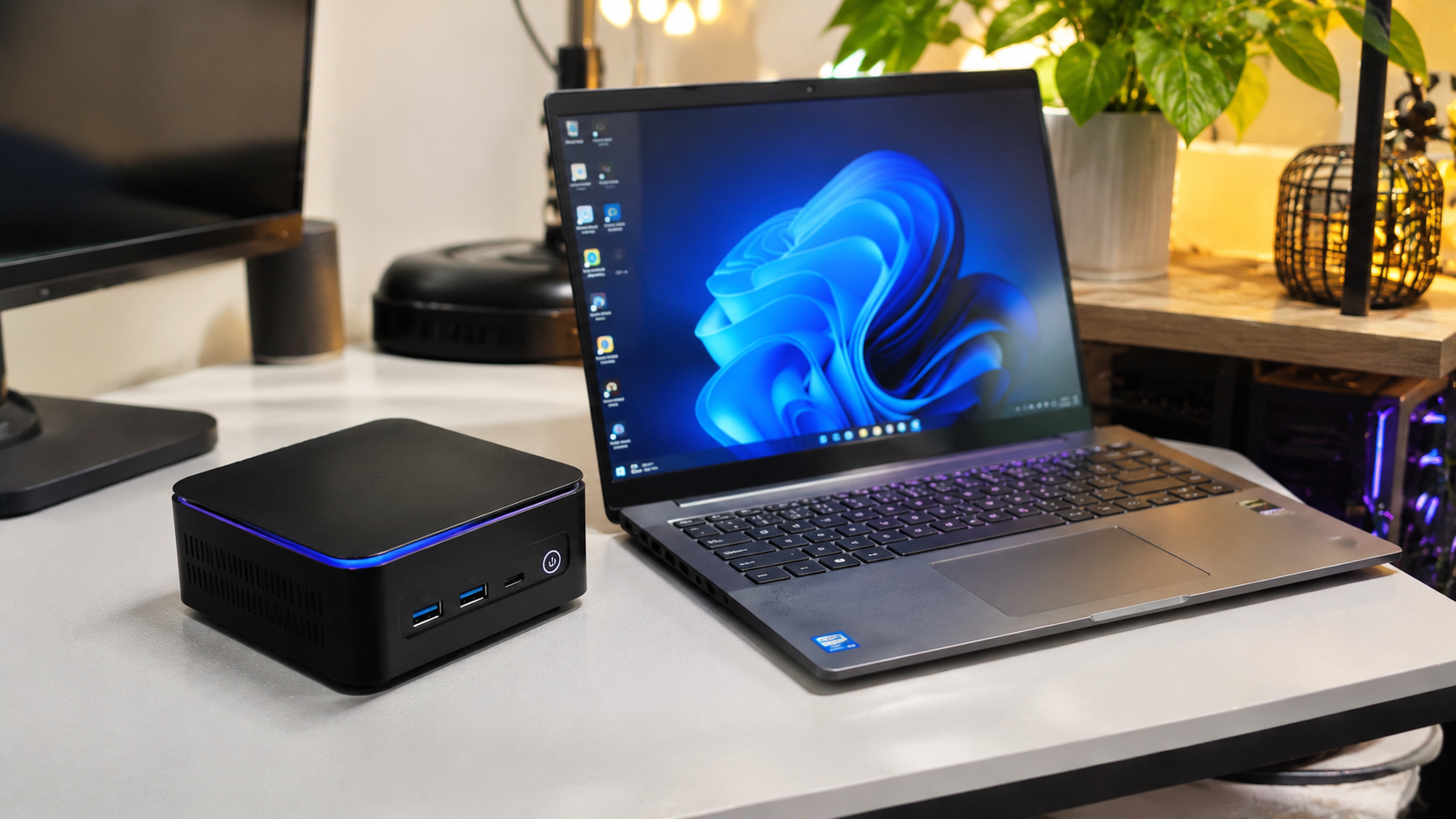



A mini PC is often the better choice in 2027 for someone who works at a permanent desk, already owns a monitor, and wants a compact computer without paying for another screen or battery. A laptop makes more sense for students, remote workers, travelers, and anyone who needs a computer that keeps working when the power goes out.
The deciding factor is not necessarily processor speed or the advertised price. It is the total cost of a computer that can handle your work wherever you need to use it.
That distinction matters as buyers prepare for a new generation of hardware. CES 2027 takes place January 6–9 in Las Vegas, bringing another opportunity for manufacturers to introduce updated computers and components. Meanwhile, rising memory and processor costs could affect the prices and configurations available throughout the year.
The mini PC vs. laptop debate also becomes more complicated when gaming, video editing, multiple monitors, upgrades, and backup power enter the picture. A small desktop can be an excellent investment in one home and an inconvenient compromise in another.
Mini PC vs. Laptop in 2027 – Which Is Better Overall?
A laptop is the more versatile option for most people buying their only computer in 2027. A mini PC can offer better value for a fixed workstation, especially when its owner already has the necessary accessories.
Neither category is automatically faster, cheaper, quieter, or more energy-efficient. Those differences depend on the exact processor, cooling design, memory configuration, connected devices, and everyday workload.
The main advantages become clearer when both options are compared under the same conditions.
| Feature | Mini PC | Laptop |
| Best use | Permanent desk setup | Work at home and on the move |
| Portability | Small and easy to transport, but needs accessories | Complete portable computer |
| Built-in screen | No | Yes |
| Built-in battery | Usually no | Yes |
| Keyboard and trackpad | Usually separate | Included |
| Webcam and microphone | Model-dependent | Usually included |
| Performance | Depends on processor and cooling | Depends on processor, cooling, and power limits |
| Gaming | Usually integrated graphics; some powerful exceptions | Integrated graphics or dedicated GPU |
| RAM upgrades | Available on many models, not all | Limited or unavailable on many thin models |
| Storage upgrades | Often possible | Depends on model |
| Multiple monitors | Often convenient | Usually supported with appropriate ports |
| Power outages | Needs external backup power | Can continue on battery |
| Desk space | Very small computer footprint | Compact, but requires space when open |
| Total cost | Can be lower with existing accessories | Often competitive when starting from zero |
The biggest difference is straightforward: a mini PC is designed to become part of a workstation, while a laptop is already a complete workstation. Buying a computer for the right environment matters more than choosing one form factor because it appears more powerful.
Is a Mini PC Cheaper Than a Laptop in 2027?
A mini PC can be cheaper than a laptop with comparable computing capabilities, but the savings can disappear when the complete workstation is included in the calculation.
Budget mini PCs frequently look attractive because the product listing only shows the computer itself. Many require a separate monitor, keyboard, mouse, webcam, speakers, and sometimes an operating system license.
A laptop typically includes these components in its purchase price.
Mini PC vs. Laptop Price Comparison With Real Setup Costs
The fairest comparison uses the total cost of everything required to start working. A mini PC priced at $399 is not necessarily a better deal than a $649 laptop.
Consider this hypothetical budget workstation. The figures illustrate how the calculation works rather than represent verified 2027 retail prices.
| Equipment | Mini PC setup | Laptop setup |
| Computer | $399 | $649 |
| Monitor | $150 | Included |
| Keyboard and mouse | $40 | Included |
| Webcam | $30 | Included |
| Speakers or headset | $25 | Included audio |
| Total | $644 | $649 |
Both setups cost almost the same in this example, assuming the mini PC includes an appropriate operating system and power adapter.
The mini PC provides a larger display and potentially more comfortable desktop ergonomics, but the laptop includes mobility and a battery. Adding an external monitor to the laptop would increase its cost, although that purchase would be optional rather than necessary.
When a Mini PC Saves Significantly More Money
The financial advantage grows when a buyer already owns suitable equipment.
Someone replacing an aging desktop may have a perfectly functional monitor, keyboard, mouse, and speakers. In that case, purchasing only the mini PC could eliminate hundreds of dollars in additional spending.
A small computer can also make financial sense for a shared family workstation, an office reception desk, or a dedicated machine for accounting and web applications.
However, the best deal still depends on configuration. A cheap mini PC with insufficient RAM, poor cooling, or limited storage may become more expensive if it needs immediate upgrades.
Hidden Expenses That Can Make a Mini PC More Expensive
Before comparing prices, check whether the listed mini PC is a complete system or a barebones model. Some manufacturers sell configurations without memory, storage, or an operating system.
Additional expenses may include:
- RAM and an SSD for a barebones configuration.
- A legitimate Windows license when Windows is not included.
- A monitor with compatible video inputs.
- A keyboard, mouse, webcam, and audio equipment.
- A USB hub or docking accessory.
- Additional storage for large files or games.
- A UPS or portable power station if uninterrupted operation is essential.
These expenses do not apply to every buyer. A complete mini PC with bundled memory, storage, and licensed software may need only a monitor and basic peripherals.
Always compare the fully configured price, including taxes, shipping, and essential accessories. A low advertised price is useful only when it represents the computer you can actually use.
Mini PC vs. Laptop Performance in 2027 – Is One Faster?
A mini PC is not inherently faster than a laptop. Performance depends primarily on the processor, graphics hardware, memory, cooling capacity, and power limits.
Many compact desktop systems use processors similar to those found in laptops. Their physical design does not automatically provide the performance advantages associated with full-size desktop towers.
A well-cooled laptop can outperform a cheaper mini PC, while a properly configured mini PC can maintain higher performance than a thin laptop using a similar processor.
Why the Same Processor Can Perform Differently
Two computers carrying the same processor name can produce different results because manufacturers configure their systems differently.
A laptop designed for battery life may restrict processor power during sustained workloads. Another laptop with more substantial cooling may allow the same chip to operate at higher sustained power levels.
Mini PCs also vary considerably. Some have effective cooling systems, while extremely compact or inexpensive models may struggle with heat during demanding tasks.
When comparing performance, examine:
- The exact processor model and generation.
- Sustained power limits rather than promotional maximum wattage.
- Cooling performance under extended workloads.
- RAM capacity, configuration, and bandwidth.
- SSD performance and thermal management.
- Independent benchmarks for the specific computer.
A brief benchmark cannot fully describe a system's behavior during an hour of video rendering or a demanding gaming session. Sustained performance, fan noise, and temperature stability are especially important when buying a primary work computer.
Mini PC vs. Laptop for Everyday Office Work
Both computers can handle ordinary office tasks comfortably when equipped with a capable modern processor, enough memory, and an SSD.
Web browsing, spreadsheets, presentations, video calls, online banking, and document editing generally do not require a high-end graphics card.
For a typical office workload, 16GB of RAM and a 512GB SSD are sensible starting points in 2027, while 32GB may be worth considering for extensive multitasking or more demanding software.
The processor matters, but spending extra on graphics hardware is unlikely to improve basic spreadsheet work as much as sufficient memory and a responsive storage system.
Mini PC vs. Laptop for Gaming in 2027
A gaming laptop is generally the more practical choice for someone who wants portable PC gaming with a dedicated graphics processor. A standard mini PC is better suited to lighter games unless it has unusually powerful integrated graphics or dedicated graphics hardware.
Entry-level mini PCs commonly rely on integrated graphics. These systems can run many older games, indie releases, emulators, and selected competitive titles, but demanding modern games may require reduced settings or resolutions.
Some premium mini PCs include more capable graphics solutions. However, their prices, cooling requirements, and power consumption may place them in a different category from inexpensive office mini PCs.
A gaming laptop with a dedicated GPU can be a better fit for demanding games, although its performance will still depend on the graphics chip's power configuration and cooling.
For buyers who mostly play games at one desk, a full-size gaming desktop deserves consideration as well. It often provides more flexibility for future graphics upgrades than either compact alternative.
The GPU model alone does not guarantee a particular frame rate. Compare game-specific benchmarks at the resolution and settings you intend to use.
Mini PC vs. Laptop for Video Editing and Creative Work
A mini PC can be an effective editing workstation if it has sufficient memory, fast storage, and hardware acceleration for the required video formats. A laptop offers similar capabilities with the additional convenience of working away from the main desk.
For photo editing, 1080p video projects, and lighter creative tasks, either form factor can be appropriate. More demanding work involving complex 4K timelines, effects, 3D rendering, or large media libraries requires closer attention to GPU performance and memory capacity.
A suitable creative workstation should prioritize 32GB of RAM when budgets permit, fast SSD storage, and verified compatibility with the software being used.
Professional applications can behave differently depending on operating system, processor architecture, graphics drivers, and supported codecs. Checking the actual application's hardware requirements is more reliable than relying on an advertised processor category.
What Mini PC or Laptop Specifications Should You Buy in 2027?
For most general-purpose buyers, 16GB of RAM and a 512GB SSD provide a reasonable starting configuration. More demanding users should prioritize additional memory, faster processors, and suitable graphics hardware instead of paying for features they will rarely use.
These recommendations apply to both mini PCs and laptops. They are practical buying targets rather than universal software requirements.
| Use case | Suggested RAM | Suggested SSD | Hardware priority |
| Basic browsing and documents | 8–16GB | 256–512GB | Efficient modern CPU |
| Everyday office work | 16GB | 512GB | Responsive multitasking |
| Studying and remote work | 16GB | 512GB | Battery and webcam for laptops |
| Programming | 16–32GB | 512GB–1TB | CPU, RAM, and compatibility |
| Photo editing | 16–32GB | 512GB–1TB | Display quality and memory |
| Video editing | 32GB or more | 1TB or more | GPU, CPU, and fast storage |
| Modern gaming | 16–32GB | 1TB or more | Graphics performance and cooling |
A low-cost computer does not need the same specifications as a professional editing workstation. However, choosing too little non-upgradeable memory can shorten a device's useful life.
Is 8GB of RAM Still Enough in 2027?
An 8GB computer can still handle basic browsing, documents, and lightweight applications, but 16GB offers more comfortable headroom for multitasking.
The difference becomes noticeable when several applications run simultaneously, especially with large spreadsheets, video meetings, and many browser tabs.
For a computer expected to remain useful for several years, 16GB is generally a safer purchase than a similarly priced 8GB configuration with no upgrade path.
Some operating systems and highly optimized devices manage memory differently, so capacity alone does not determine responsiveness. The intended software and ability to expand memory remain important.
Should You Choose a 512GB or 1TB SSD?
A 512GB SSD is adequate for many office and study workloads. A 1TB drive becomes more attractive when the computer stores games, videos, development environments, or large creative projects.
A 256GB drive may be workable for lightweight use, but operating system files, updates, applications, and personal data reduce the available space.
Before buying a mini PC or laptop, determine whether the SSD can be replaced or supplemented. An extra storage slot can be more valuable than a small difference in processor benchmark scores.
Mini PC vs. Laptop Power Consumption – Which Uses Less Electricity?
Both mini PCs and modern laptops can be highly energy-efficient. Neither category always consumes less power because a mini PC normally needs an external monitor, while a laptop includes its own display.
An efficient mini PC processor may consume relatively little electricity during office work. However, the monitor, external storage, speakers, and connected accessories contribute to the complete setup's power consumption.
A laptop's power usage also changes depending on brightness, workload, battery charging, and power mode.
How Much Electricity Can a Mini PC and Laptop Use?
Electricity costs depend on the power drawn from the wall outlet, daily operating hours, and the local energy tariff. Processor specifications alone cannot determine total consumption.
For example, assume a mini PC and monitor together average 50 watts during a particular office workload, while a laptop averages 35 watts performing the same work.
Running each setup for eight hours daily over 30 days produces the following illustrative results.
| Measurement | Mini PC setup | Laptop |
| Assumed average power | 50W | 35W |
| Daily usage | 8 hours | 8 hours |
| Monthly usage | 240 hours | 240 hours |
| Monthly electricity consumption | 12 kWh | 8.4 kWh |
| Cost at $0.20/kWh | $2.40 | $1.68 |
These are hypothetical power measurements, not laboratory results for specific products. Actual consumption may be substantially higher or lower, particularly during gaming, charging, or computationally intensive work.
The example also illustrates why electricity savings alone rarely justify replacing a functioning computer. The purchase price, expected lifetime, performance, and replacement costs may have a greater financial impact.
Which Is Better During Power Outages – Mini PC or Laptop?
A laptop is usually more convenient during a power outage because its built-in battery allows it to continue operating without an external power source. A mini PC normally shuts down when its power supply is interrupted unless it is connected to suitable backup power.
This distinction is particularly important for remote workers, students, and households where electricity interruptions are frequent.
How Long Can a Laptop Work Without Electricity?
Battery life depends on battery capacity, power consumption, screen brightness, workload, battery condition, and power settings.
An efficient laptop handling documents may operate for substantially longer than a gaming laptop running demanding software. Manufacturers' battery-life figures can also differ from real-world performance.
The practical comparison is how long a particular model lasts during the tasks you actually perform.
A laptop also makes it easier to move to another room, use mobile internet, or continue writing while the electricity supply is restored.
Can a Mini PC Run From a Power Bank or Power Station?
A mini PC can operate from external backup power when the power source provides the correct voltage, sufficient continuous output, and compatible connection.
Some mini PCs support USB-C Power Delivery, while others require a dedicated DC input or manufacturer-supplied AC adapter. A USB-C connector does not automatically mean that a mini PC can be powered through it.
A portable power station with an AC outlet may operate compatible equipment, but its useful runtime depends on the power consumption of the entire setup and conversion losses.
Consider a hypothetical 300Wh portable power station with 80% usable energy after losses. If the mini PC and monitor together consume 60W, the estimated runtime would be:
300Wh × 0.80 ÷ 60W = approximately four hours.
This is a calculation example, not a guarantee. Real results depend on the power station, battery condition, inverter efficiency, and workload.
A mini PC workstation may also require backup power for its monitor and networking equipment. If uninterrupted operation is essential, verify whether the chosen UPS or power station supports an appropriate transfer time or true uninterruptible operation.
A laptop avoids most of this complexity by including its own battery, although the router or modem may still need backup power.
Mini PC vs. Laptop for Remote Work, College, and Small Apartments
A laptop generally makes more sense when the working location changes regularly. A mini PC becomes attractive when there is a permanent desk and a comfortable external monitor.
The comparison is less about physical size than the effort required to move and operate the complete system.
For Students and College Work
A laptop is usually the more practical option for students who attend classes, visit libraries, work in study groups, or move between home and campus.
It includes a display, keyboard, webcam, microphone, and battery in one device. Files and applications remain available without transferring data between separate computers.
A mini PC can still work well for a student who studies primarily at home and already has a monitor. It may provide a comfortable workstation at a relatively low cost, but it cannot replace the convenience of opening a laptop during a lecture.
For Remote Workers and Freelancers
The choice depends on whether work takes place at one desk or across multiple locations.
A mini PC can support a tidy permanent office with a full-size keyboard, an adjustable monitor, and wired networking. A laptop can provide a similar desktop experience when connected to an external display, keyboard, and compatible dock.
For anyone regularly switching between home, coworking spaces, and travel, the laptop is generally the simpler solution.
Occasional performance problems do not always require purchasing a replacement computer. The TechnoNews guide on how to speed up a Windows 11 laptop explains how to identify memory, storage, startup, and temperature-related bottlenecks before upgrading hardware.
For Small Apartments and Shared Desks
A mini PC can be an excellent space-saving solution because it occupies very little desk space and some models can be attached behind a compatible monitor.
However, a complete workstation still requires space for the display and input devices. A laptop may actually be easier to store when a desk is shared with other activities.
The best choice depends on whether the computer remains permanently connected or needs to be packed away after every session.
Can a Mini PC Replace a Desktop or a Laptop Completely?
A mini PC can replace a conventional desktop for many everyday workloads. It cannot fully replace a laptop's convenience without additional portable accessories and an independent power source.
For home offices, family computers, digital signage, lightweight servers, and media centers, compact desktops often provide all the functionality needed.
Their limitations become more apparent when a task requires dedicated graphics hardware, numerous internal expansion devices, or substantial cooling capacity.
Is a Mini PC Good Enough for a Home Office?
Yes. A modern mini PC with adequate RAM, a responsive SSD, and the right ports can comfortably handle many home-office tasks.
The most important considerations are software compatibility, reliable networking, video-call equipment, and support for the required number of displays.
A model that offers stable performance, a clear warranty, and appropriate connectivity is often more useful than an inexpensive unit with higher advertised specifications but uncertain support.
Can a Laptop Work Like a Desktop Computer?
Yes. A laptop can function as a desktop workstation when connected to an external monitor, keyboard, mouse, and other compatible peripherals.
A suitable dock may simplify connections, although docking capabilities vary by laptop model. USB-C charging, video output, and high-speed data connections are separate capabilities and must be checked individually.
This arrangement offers a useful compromise: desktop comfort during office hours and a portable computer when leaving home.
Mini PC vs. Laptop Upgrades – Which Will Last Longer?
A mini PC may offer greater upgrade flexibility than a thin laptop, especially when it includes replaceable RAM and SSD storage. However, neither device type guarantees easy upgrades.
Many modern laptops use soldered memory, while some mini PCs also have integrated memory or highly specialized internal designs.
The processor and graphics hardware in both categories are often difficult or impossible to replace.
What Can You Upgrade in a Mini PC?
Common upgrade options include RAM, internal SSD storage, and sometimes additional expansion drives. The available options depend entirely on the manufacturer's design.
Before buying, verify the supported memory type, maximum capacity, storage interface, number of slots, and warranty conditions.
A mini PC with accessible components can be easier to maintain over several years, but opening a poorly documented model may be more complicated than expected.
What Can You Upgrade in a Laptop?
Some laptops allow SSD replacement and RAM expansion. Many thin-and-light models have soldered memory, while certain devices offer limited or no accessible internal upgrades.
Battery replacement is another factor affecting long-term ownership. A laptop battery gradually loses capacity, and service costs vary considerably.
A mini PC avoids battery aging, but it still contains components that can fail, including fans, power adapters, and storage devices.
The longer-lasting computer is not necessarily the one with more upgradeable parts. Build quality, cooling, software support, repair availability, and the suitability of its original configuration all influence useful life.
Which Ports and Connections Matter Most in 2027?
The right ports matter more than the total number of connectors. Before buying a mini PC or laptop, confirm that the device supports the displays, network connections, peripherals, and storage you intend to use.
A computer with many USB ports may still lack the specific video output or charging feature required by your setup.
What to Check on a Mini PC
For a permanent workstation, prioritize the connections needed for monitors, wired internet, external drives, and accessories.
Useful features may include HDMI, DisplayPort, USB-A, USB-C, Ethernet, Wi-Fi, Bluetooth, and an audio connection. The exact specification and number of ports vary between models.
For a dual-monitor setup, check whether two displays can operate simultaneously at the intended resolutions and refresh rates. The presence of two physical video connectors does not always guarantee every desired display combination.
What to Check on a Laptop
For portable use, focus on compatible charging, external display support, wireless networking, and the ports needed without carrying excessive adapters.
USB-C can support different combinations of charging, data transfer, and video output depending on the device. Thunderbolt or USB4 support can expand connectivity on compatible systems, but the exact capabilities still need verification.
A laptop with limited ports may require a dock, adding cost and another accessory to manage.
Is Ethernet Better Than Wi-Fi for a Mini PC?
Ethernet is often advantageous for a permanent workstation because it provides a wired connection that avoids common wireless interference problems.
However, wired networking does not prevent internet provider outages or guarantee faster service than the available connection.
When a computer shows strong Wi-Fi reception but cannot open websites, the problem may lie with the router, modem, DNS settings, or internet provider. The guide to Wi-Fi connected but no internet explains how to isolate these causes without unnecessarily resetting a working network.
Should You Choose Windows, macOS, or Linux?
Both mini PCs and laptops are available with different operating systems. The right choice depends on software compatibility, licensing, security updates, and personal workflow.
Windows 11 remains a practical option for people who need widely supported desktop applications, business software, and PC games.
Microsoft released the Windows 11 2026 Update, version 26H2, in September 2026 for eligible devices. A new Windows computer should be checked for a legitimate license, current security support, and compatible drivers rather than judged solely by the version number advertised in a listing.
Apple offers both compact desktop computers and laptops running macOS. These can be suitable for users whose essential applications support the platform, but software and gaming compatibility differ from Windows.
Linux can be a cost-effective option for developers, technical users, and compatible home-office workloads. It still requires checking drivers, peripherals, and applications before purchase.
Does an AI PC Make More Sense in 2027?
A processor with dedicated AI acceleration can be useful when the intended applications support local AI workloads. It is not automatically necessary for browsing, documents, video calls, or basic productivity.
Some features depend on specific neural processing hardware, memory capacity, software versions, and operating system support.
For budget buyers, adequate RAM, reliable storage, and a capable CPU should generally take priority over an AI label that does not support a required feature.
Should You Wait Until CES 2027 to Buy a Mini PC or Laptop?
Waiting until CES 2027 may be worthwhile for someone planning to buy a higher-end computer or comparing newly announced processor platforms. Buyers who find a suitable computer at a competitive price do not necessarily benefit from postponing the purchase.
CES 2027 is scheduled for January 6–9, with media activities beginning earlier in the week. Manufacturers may introduce products that affect future buying decisions.
However, an announcement is not the same as retail availability. New devices may arrive later, cost more than older models, or initially be available only in selected regions.
Could Mini PCs and Laptops Become More Expensive in 2027?
Higher component costs create a genuine pricing risk, particularly for systems using substantial amounts of memory and storage.
An October 2026 industry assessment projected continued pressure on notebook manufacturers from CPU, DRAM, and SSD costs in 2027. The eventual impact on consumers will depend on component supply, manufacturer pricing decisions, promotions, and regional markets.
This does not mean every computer will become more expensive. Clearance sales and discounts on older configurations may still provide attractive opportunities.
A sensible buying strategy is to compare available models against the specifications actually needed rather than assume every upcoming generation will offer better value.
When Buying Immediately Makes More Sense
Purchasing an available computer can be reasonable when an existing device is failing, professional work is being interrupted, or a discounted model already meets the required specifications.
The same applies when the planned budget cannot accommodate the premiums sometimes attached to newly released hardware.
For a buyer who primarily needs web browsing, documents, and video calls, waiting for another processor generation may provide little practical benefit.
Mini PC vs. Laptop in 2027 – The Best Choice for 7 Common Situations
The easiest way to choose is to match the computer to the environment in which it will actually be used.
The following scenarios cover common buying decisions without assuming that one type of computer suits everyone.
1. A Budget Home Office With an Existing Monitor
Better fit: Mini PC.
When a suitable monitor and peripherals are already available, a mini PC can provide a capable office workstation without duplicating equipment. Prioritize sufficient memory, a reliable SSD, and support for required software.
2. A Student Who Carries a Computer Every Day
Better fit: Laptop.
A built-in battery, screen, keyboard, and webcam make a laptop more useful in classrooms, libraries, and shared study spaces. Weight, battery endurance, and durability matter alongside processor performance.
3. A Remote Worker Who Changes Locations
Better fit: Laptop.
The ability to continue the same work session from home, an office, or another location is difficult to reproduce with a mini PC. A portable computer can also use a compatible cellular hotspot when fixed internet is unavailable.
For a temporary connection, the instructions on how to use your phone as a hotspot cover Android, iPhone, and USB tethering options.
4. A Family Computer Used at One Desk
Better fit: Mini PC.
A compact desktop can serve as a shared computer for homework, documents, online services, and family administration. A larger monitor and separate keyboard may also make the setup more comfortable for multiple users.
5. A Gamer Who Needs to Travel
Better fit: Gaming laptop.
A gaming laptop combines a display, controls, and capable graphics hardware in one transportable device. Cooling, weight, battery life, and GPU power limits must still be evaluated carefully.
For gaming that takes place exclusively at home, compare the laptop against a dedicated desktop before spending heavily.
6. A Home Media Center or Lightweight Server
Better fit: Mini PC.
A compact computer can provide streaming, file sharing, lightweight development services, and other always-on functions without occupying much space.
For continuous operation, verify operating temperatures, ventilation, storage reliability, network availability, and backup requirements.
7. A Household With Frequent Electricity Interruptions
Better fit: Laptop.
A laptop can continue operating on battery power when the electricity supply fails. It also allows work to move closer to reliable internet access or an alternative power source.
A mini PC remains an option when an appropriate UPS or power station is already available, but the complete system's power requirements must be considered.
7 Mistakes to Avoid When Choosing a Mini PC or Laptop
The most expensive purchasing mistakes usually come from overlooking the complete setup, software requirements, or practical limitations.
Before placing an order, check the following points.
- Comparing only processor names. Two computers using similar processors may have very different performance because of cooling and power limits.
- Ignoring additional equipment. A mini PC may require a monitor, webcam, keyboard, speakers, and operating system license before it can replace a laptop.
- Buying too little non-upgradeable RAM. An inexpensive 8GB computer can become restrictive if its memory cannot be expanded.
- Assuming every USB-C port works the same way. Charging, video output, and high-speed data support depend on the actual hardware.
- Expecting entry-level integrated graphics to handle demanding games. Gaming performance must be checked using relevant benchmarks and settings.
- Overlooking electricity interruptions. A mini PC normally needs external backup power, while a laptop has a built-in battery.
- Waiting indefinitely for the next generation. New hardware is not automatically better value than a discounted computer that already meets the required specifications.
Avoiding these mistakes is more useful than choosing the computer with the most impressive marketing claims. A properly configured midrange system can provide better everyday value than a premium model with features that remain unused.
How to Choose Between a Mini PC and Laptop in 2027
The final decision should begin with the intended workload, followed by a realistic budget and a list of essential features.
A short purchasing checklist makes it easier to eliminate unsuitable models.
- Identify the main tasks. List the applications, games, and workloads the computer must handle.
- Decide where it will be used. Determine whether the computer must work away from a permanent desk.
- Calculate the complete purchase cost. Include all necessary accessories, software, taxes, and delivery charges.
- Choose an appropriate configuration. Prioritize sufficient RAM, SSD capacity, processor performance, and graphics capabilities.
- Check connectivity and compatibility. Verify display outputs, networking, operating system requirements, and peripheral support.
- Evaluate power and maintenance. Consider battery life, backup power, cooling, warranty, and upgrade options.
- Compare actual models. Examine reliable benchmarks and the final retail price instead of relying on general claims about mini PCs or laptops.
For buyers on a limited budget, this process helps avoid paying twice for equipment or selecting a computer that needs immediate replacement.
The Final Verdict on Mini PC vs. Laptop in 2027
For a permanent home workstation, a mini PC can be an economical and practical choice, particularly when a good monitor and peripherals are already available. Its small footprint, flexible display options, and potential for storage or memory upgrades make it well suited to many office and household tasks.
For students, travelers, freelancers, and anyone who needs a dependable computer during electricity interruptions, a laptop generally provides greater flexibility. Its integrated display, keyboard, webcam, and battery eliminate several costs and complications associated with a separate workstation.
A mini PC is often the smarter way to upgrade an existing desk. A laptop is usually the smarter way to buy one computer that can be used almost anywhere.
Neither option should be selected solely because it belongs to a newer generation. The better purchase in 2027 is the computer that meets the workload, offers sufficient performance for several years, and fits the total budget without unnecessary compromises.
Frequently Asked Questions About Mini PC vs. Laptop in 2027
A mini PC can be better for a fixed workstation, especially when a monitor and peripherals are already available. A laptop is more versatile because it includes a screen, keyboard, and battery. The better choice depends on the actual workload and complete purchase cost.
A mini PC may cost less than a similarly capable laptop, but the difference can disappear after purchasing a monitor and accessories. Buyers who already own these items are more likely to save money. Compare complete configurations rather than advertised starting prices.
A mini PC can handle many of the same applications as a laptop when their hardware and operating systems are compatible. However, it needs separate peripherals and external power. It is a good replacement for desk-based work but less convenient for travel.
Neither is automatically faster. A gaming laptop with a dedicated GPU will generally outperform a basic mini PC using modest integrated graphics. Powerful specialized mini PCs can narrow that gap, so game benchmarks and cooling performance matter more than form factor.
Not necessarily. Some mini PCs consume very little power, but their external monitors also require electricity. Efficient laptops may use less total energy during similar office workloads. The fairest comparison measures the complete systems performing the same tasks.
Yes, 16GB remains a reasonable target for everyday office work, studying, browsing, and many applications. Heavy multitasking, professional editing, and some development workloads may benefit from 32GB or more. Check upgradeability before purchasing a configuration with limited memory.
Yes. A mini PC can operate without a connected monitor when it is configured for an appropriate headless task, such as certain server or remote-management workloads. Initial setup and troubleshooting may still require a display. Ordinary desktop use needs a monitor or another compatible display solution.
Yes, if it is connected to suitable backup power. A UPS or portable power station must support the computer's required input and the power needs of any essential monitor or networking equipment. Unlike laptops, most mini PCs do not have built-in batteries.
Yes. A capable mini PC with 16–32GB of RAM and a fast SSD can handle many programming environments, development tools, and lightweight virtual machines. Large projects, multiple virtual machines, and demanding local workloads may require more memory or processing power.
Waiting can make sense if upcoming hardware announcements are important to the purchasing decision. However, announced devices may not be immediately available or affordable. A competitively priced computer that already meets the required specifications can still be a sensible purchase.
Neither has a guaranteed longer lifespan. Mini PCs avoid battery wear and may offer easier memory or storage upgrades, while laptops differ widely in durability and repairability. Cooling quality, software support, component reliability, and maintenance determine how long either device remains useful.