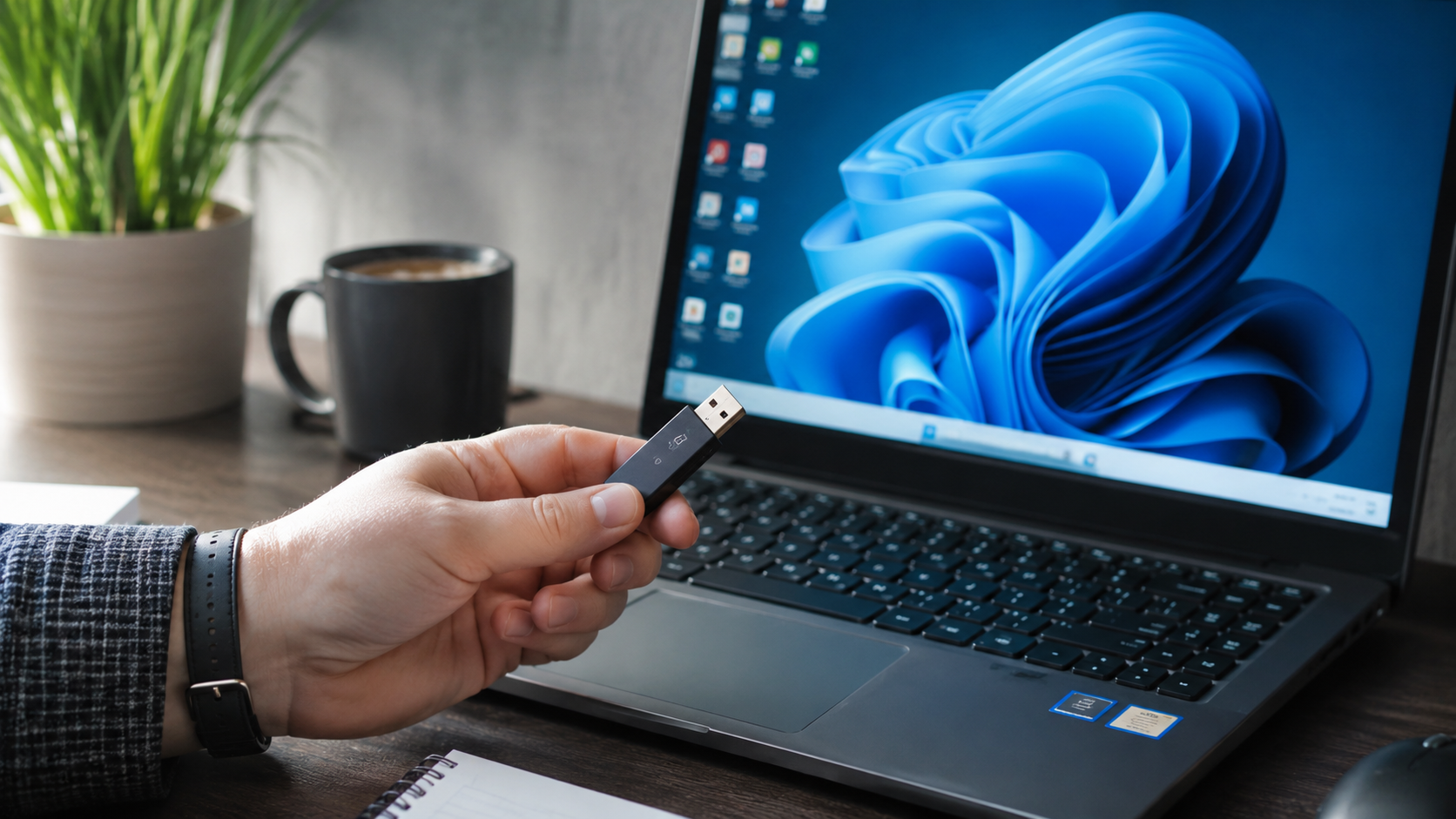




Finding an unfamiliar USB flash drive raises an obvious question: how can its contents be checked without putting a computer at risk? The safest answer is not to plug it in at all. An unknown USB drive may contain infected files, modified firmware, or hardware designed to behave like something other than a storage device. Even an antivirus scan cannot guarantee that every type of threat will be detected.
The distinction matters during the 2026 holiday season, when people exchange photos, presentations, travel documents, and files between personal and workplace devices. A USB stick found at a hotel, received as an unexpected promotional gift, or left beside a shared computer may look completely ordinary. Its appearance, however, provides little information about its security.
Knowing how to check an unknown USB drive safely starts with identifying where it came from and deciding whether it needs to be connected at all. The following precautions explain what can be checked without a computer, when antivirus scanning makes sense, and how to respond if an unfamiliar device has already been inserted.
How to Check an Unknown USB Drive Safely Without Connecting It
An unknown USB drive can be assessed for obvious warning signs without inserting it into a computer, but its files and internal electronics cannot be reliably verified through an ordinary visual inspection. If the device was found in a public place or came from an unverified sender, leave its contents unopened and arrange for appropriate handling.
A useful first step is to distinguish between an unfamiliar drive and a genuinely untrusted one. A flash drive received directly from a known colleague has a different risk profile from one discovered in a parking lot, although neither should automatically be considered free of malware.
| Situation | Risk consideration | Safest next step |
| USB drive found outdoors or in a public place | Origin and purpose are unknown | Do not connect it; notify security or lost and found |
| Unexpected USB received in the mail | Possible tampering or deliberate delivery | Verify the sender independently; contact IT if relevant |
| USB received from a known colleague | Files could still contain malware | Confirm its purpose and scan it before opening files |
| USB found in an office or shared workspace | Potential exposure to business systems | Follow the organization's removable-media policy |
| Personally owned USB used on a public computer | Possible contamination from another device | Treat it as potentially compromised and seek a controlled check |
| Unknown USB already connected to a laptop | Possible device or file-based exposure | Disconnect it and assess the computer |
The central difference is trust in the device's origin, not whether it looks legitimate. A sealed package, familiar brand, or handwritten label does not prove that a flash drive is safe.
7 Safety Checks to Make When You Find an Unknown USB Drive
The seven checks below help determine what to do with an unfamiliar USB device without exposing a personal computer to unnecessary risk. They focus on practical decisions rather than technical tools that require connecting the device.
- Identify where the drive was found. A USB stick lying near an office entrance, airport workstation, or hotel reception desk should be treated as untrusted. Record the location if the device needs to be reported.
- Do not connect it to any personal device. Avoid inserting the unknown USB drive into a laptop, desktop computer, smartphone, tablet, or USB hub. Using a different connector does not establish that the device is safe.
- Inspect its exterior without opening it. Look for obvious damage, unusual attachments, exposed components, or evidence of tampering. These signs may justify extra caution, but their absence does not establish that the device is trustworthy.
- Question suspicious labels and packaging. Words such as "Confidential," "Payroll," "Private Photos," or "Employee Bonus" can encourage curiosity. Never open files simply because a label suggests that their contents are important.
- Verify the sender through a separate channel. If the USB arrived unexpectedly, contact the supposed sender using an independently verified phone number, email address, or official website. Do not rely solely on contact information supplied inside the package.
- Determine who should handle it. At work, contact the IT or security department. In a hotel, school, library, or conference venue, notify the appropriate staff without trying to identify the owner by opening files.
- Leave technical inspection to qualified personnel. When the data genuinely needs to be examined, an authorized specialist can use controlled equipment and an appropriate investigation process. A personal laptop, public kiosk, or spare home computer is not a safe substitute.
These checks do not certify that a device is harmless. Their purpose is to prevent an unnecessary connection and determine whether professional examination is warranted.
Why an Unknown USB Drive Can Be Dangerous Even Before You Open a File
An unfamiliar flash drive can present risks beyond infected documents. Some threats depend on someone opening a malicious file, while others exploit the way a computer recognizes and communicates with attached USB hardware.
Understanding these differences explains why simply disabling AutoPlay or running antivirus software cannot eliminate every risk.
Malware Hidden in Ordinary Files
An unknown USB drive may contain malicious software disguised as a legitimate document, installer, photograph, or shortcut. Opening the wrong item can trigger malware installation, credential theft, or unauthorized changes to the computer.
Common warning signs include unfamiliar executable files, unexpected scripts, shortcuts that resemble folders, and documents requesting unnecessary permissions. A file extension or icon alone is not a reliable indicator of safety, and malicious content is not limited to executable files.
Modern Windows protections reduce several older removable-media risks, but users can still be tricked into launching harmful files. Keeping security software updated is important, although it does not justify opening material from an untrusted source.
BadUSB Attacks That Imitate a Keyboard
A BadUSB attack can use modified USB firmware to make a device behave like a keyboard, network adapter, or another type of peripheral. Instead of merely exposing stored files, the device may attempt actions through the hardware interface recognized by the operating system.
For example, a malicious USB device configured to act as a keyboard could attempt to enter commands automatically. Whether those commands succeed depends on the system's configuration, permissions, and other security protections.
An ordinary file scan cannot reliably identify malicious behavior hidden in USB firmware. That is why a drive that contains no detected infected files cannot automatically be considered safe.
Hardware Designed to Damage a Computer
Some specialized malicious USB devices are designed to damage connected electronics rather than steal information. Devices commonly described as USB killers can use electrical mechanisms capable of harming vulnerable hardware.
These are distinct from ordinary malware infections and should not be confused with the behavior of a typical flash drive. Nevertheless, the possibility illustrates why experimenting with unknown hardware on a personal computer is unnecessary.
A USB drive does not have to display unusual lights, make sounds, or look modified to be dangerous. The safest assessment is based on provenance and controlled handling, not appearance.
Can You Scan an Unknown USB Drive for Viruses Before Opening It?
Yes, antivirus software can scan files on a USB storage device, but the device must first be connected to a system capable of reading it. That connection itself may create risk when the USB hardware is untrusted.
For a drive received from a verified source, scanning before opening files is a sensible precaution. For a device discovered in a public location, a routine scan on a home computer is not an appropriate first step.
| Safety method | What it can help detect or prevent | Important limitation |
| Visual inspection | Obvious damage or tampering | Cannot establish whether firmware or files are malicious |
| Microsoft Defender Antivirus | Many known malicious files and suspicious behaviors | Cannot guarantee detection of modified USB firmware |
| Disabling AutoPlay | Unwanted automatic media actions | Does not prevent every USB hardware attack |
| Scanning with another antivirus | Additional file-based threat detection | A clean result is not proof of safety |
| Professional security analysis | Hardware behavior, files, and other indicators using specialized controls | Requires appropriate tools and expertise |
| Formatting the drive | Removes accessible file-system contents | Does not necessarily remove compromised firmware |
No single entry in this comparison provides universal protection. The most useful strategy combines trusted devices, updated software, appropriate access restrictions, and avoiding unnecessary connections.
Why a Virtual Machine or Old Laptop Is Not a Guaranteed Solution
A virtual machine can isolate many software operations, but it does not automatically isolate the physical USB connection from the host computer. The host may recognize the device and interact with its hardware before any guest operating system can examine its files.
Similarly, a spare laptop or an older computer is not inherently a safe testing environment. An affected device may still contain personal information, connect to networks, or expose other systems when reused.
Specialized laboratories can employ isolated equipment and controlled procedures. Those setups should not be confused with ordinary home computers running virtual machine software.
How to Scan a USB Drive Safely on Windows 11 When the Source Is Trusted
To scan a USB drive in Windows 11, confirm that the device comes from a trustworthy source, enable current security protections, and scan its contents before opening individual files. This procedure is appropriate for normal removable storage, not an unidentified drive found in public.
Windows Security includes Microsoft Defender Antivirus and provides quick, full, and custom scanning options. Computers using another antivirus provider may show different menus.
Step 1 – Update Windows Security Before Using the Drive
Start by making sure Windows 11 and the active antivirus software are up to date. Security intelligence updates help antivirus software identify newly recognized threats.
The main checks are straightforward:
- Open Start and search for Windows Security.
- Select Virus & threat protection.
- Check which antivirus provider is active.
- If Microsoft Defender Antivirus is active, open Protection updates and select Check for updates.
- Confirm that real-time protection is enabled in the active antivirus product.
If another antivirus application is managing protection, use that product's update and scanning controls instead. Having Microsoft Defender in passive mode does not necessarily mean the computer is unprotected.
Step 2 – Turn Off AutoPlay for Removable Devices
Disabling AutoPlay reduces unwanted automatic actions when media is connected. In Windows 11, the setting is generally available under Settings > Bluetooth & devices > AutoPlay.
Turn off Use AutoPlay for all media and devices when that option is available. Menu names and organizational policies may vary across Windows builds.
This is a preventive setting for normal USB use, not a technique for making an unknown drive harmless. A malicious peripheral may behave differently from an ordinary storage device.
Step 3 – Scan the Trusted USB Drive Before Opening Files
After verifying the device's origin and preparing the computer, scan the removable drive before browsing its contents. Do not approve unexpected permission requests, launch installers, or open unfamiliar shortcuts during the process.
On Windows 11, the usual sequence is:
- Insert the verified USB storage device.
- Dismiss any AutoPlay notification without opening files.
- Open File Explorer and select This PC.
- Right-click the USB drive without opening it.
- Select Scan with Microsoft Defender, using Show more options if necessary.
- If that option is unavailable, open Windows Security > Virus & threat protection > Scan options > Custom scan and select the removable drive.
- Review the scan results and follow the security software's instructions if a threat is detected.
A scan may take longer when the USB contains many files or large amounts of data. Avoid interrupting the process unnecessarily.
A clean antivirus result means no threat was detected by that scan. It does not prove that every file or the USB hardware is safe. Files from trusted sources should still be opened cautiously, particularly when they request macros, elevated permissions, or software installation.
Step 4 – What to Do If Windows Defender Finds Malware
When antivirus software detects malware on a USB drive, stop using the affected files and follow the recommended quarantine or removal actions. Do not restore a detected threat merely because its filename appears familiar.
If the drive belongs to a colleague or organization, notify the owner or IT department before modifying important data. Security software may quarantine or delete infected files, and some incidents require preserving evidence.
For personal removable storage containing important documents, recover clean copies from a trusted backup when possible. Continuing to use a repeatedly infected drive without identifying the cause is not a reliable solution.
How to Check an Unknown USB Drive Safely on a Mac
The safest approach on macOS is also to avoid connecting a USB device whose origin cannot be verified. Apple's built-in malware protections, including XProtect, help defend against recognized malicious software but do not certify unfamiliar USB hardware as safe.
For removable storage received from a trusted person, keep macOS updated and use reputable, current security software if additional scanning is needed. Avoid opening unexpected applications, installers, scripts, or documents that request unusual permissions.
Mac computers are not immune to malicious USB peripherals simply because their operating system differs from Windows. A USB device that imitates another hardware category may still create security concerns, and antivirus scanning does not address every firmware-level threat.
If an unknown USB drive was connected to a Mac and unusual activity followed, disconnect it, stop using sensitive accounts on the affected computer, and seek professional assistance. Workplace Macs should be handled through the organization's security process.
What to Do If You Already Plugged in an Unknown USB Drive
If an unknown USB drive has already been connected, stop interacting with it and disconnect it promptly. The next steps depend on whether the drive was simply inserted, whether files were opened, and whether the computer displayed unexpected behavior.
Connecting an unfamiliar drive does not automatically mean the computer has been infected. However, a lack of visible warnings cannot rule out every type of compromise.
Scenario 1 – The USB Was Inserted but No Files Were Opened
Disconnect the device without browsing its contents or approving additional prompts. If Windows provides a straightforward eject option and no suspicious activity is occurring, it can be used; otherwise, prioritize stopping the connection rather than continuing to interact with the device.
After disconnection, check the computer for security alerts and review the active antivirus protection. On a personal Windows 11 PC, a full system scan is a reasonable precaution, especially when the drive's origin is completely unknown.
Keep in mind that a full scan checks the computer for detectable threats. It cannot retrospectively prove that the USB connection caused no hardware-level activity.
Scenario 2 – A Document, Shortcut, or Program Was Opened
If a file from the unknown USB drive was launched, treat the situation more seriously. Stop using the affected computer for banking, email, password management, and other sensitive activities until it has been assessed.
If malware is suspected, disconnect the computer from Wi-Fi and Ethernet to limit possible network communication. A personal computer may require a full antivirus scan, additional investigation, or professional cleanup, depending on what was executed.
When work-related files or accounts may be involved, notify the IT or security department immediately. Avoid deleting suspicious files, clearing logs, or resetting the entire computer before receiving instructions.
Scenario 3 – The Computer Started Typing or Opening Windows by Itself
Unexpected command windows, rapid unexplained typing, or applications launching immediately after USB insertion are reasons to suspect malicious device behavior. Disconnect the USB promptly and isolate the affected computer from the network.
Do not attempt to observe more activity just to identify the attack. That could allow unwanted commands or network communication to continue.
Report the incident to IT on managed devices. Personal computers used for financial transactions or sensitive work should be professionally assessed if suspicious activity occurred.
Scenario 4 – Antivirus Finds Nothing but the Computer Acts Strangely
A negative antivirus result does not automatically resolve a suspected USB-related incident. Some malicious behaviors may not leave an easily detectable file, and unrelated Windows problems can also resemble malware symptoms.
Unexpected startup applications, persistent security warnings, unfamiliar account activity, or system settings changing without authorization deserve further investigation. A slowdown alone, however, is not proof of infection.
For ordinary performance problems unrelated to a confirmed security incident, the guide on how to speed up a Windows 11 laptop explains how to identify resource-heavy applications and other common causes. If suspicious activity began immediately after connecting an unknown USB drive, security assessment should come before performance optimization.
How to Scan Windows 11 After Connecting a Suspicious USB Device
After removing an unfamiliar USB drive, Windows 11 users can check for detectable malware through the Windows Security app. The objective is to examine the computer itself rather than reconnect the suspicious storage device.
For personal computers, the following sequence provides a practical starting point:
- Disconnect the suspicious USB device. Do not reconnect it to complete a scan or inspect its contents.
- Check the active antivirus provider. Open Windows Security and confirm that protection is enabled.
- Update security intelligence when it is safe to do so. If there are signs of an active compromise, prioritize network isolation and professional guidance rather than reconnecting immediately.
- Run a full system scan. Open Virus & threat protection, select Scan options, and choose Full scan.
- Review Protection history. Look for detected threats, quarantined items, and actions requiring attention.
- Consider Microsoft Defender Offline if warranted. This option restarts the computer and scans outside the normal Windows session, which can help with certain persistent malware.
- Seek assistance if suspicious activity continues. A qualified technician may need to examine startup behavior, security logs, account activity, and system integrity.
Microsoft Defender Offline is available through the Windows Security scan options on supported Windows systems. Save necessary work before starting it because the computer will restart.
The absence of a detection is reassuring only within the limits of the tools used. If the USB triggered unexplained commands, security changes, or sensitive-account activity, a clean scan should not be the sole basis for declaring the computer safe.
What If an Unknown USB Drive Exposed Passwords or Personal Data?
If an unfamiliar USB device may have compromised a computer, potentially exposed passwords and accounts should be secured from a different, trusted device. Changing credentials directly on a computer that may still be compromised can expose the new passwords as well.
Start with the most sensitive accounts, especially primary email, password managers, financial services, and work logins. Where appropriate, change passwords, revoke suspicious sessions, review recovery information, and enable multifactor authentication.
Also check for account alerts, unexpected sign-ins, unauthorized transactions, and changes to security settings. Contact financial institutions promptly if banking information or payment activity appears affected.
Not every USB connection leads to data theft, so account changes should be proportionate to the suspected exposure. However, confirmed unauthorized access requires immediate action even when the computer appears to be functioning normally.
Is It Safe to Plug an Unknown USB Drive Into a Phone?
No. Connecting an untrusted USB storage device to an Android phone or iPhone does not automatically eliminate the risks associated with its origin.
Many smartphones support USB-C accessories and external storage, while some configurations require additional adapters or permissions. The exact interaction depends on the phone, operating system, and accessory type.
Although mobile operating systems apply different security restrictions from desktop Windows, unknown peripherals may still present compatibility, hardware, or software risks. A smartphone should not be used as a disposable testing device for a suspicious USB drive.
If a phone begins displaying unexplained behavior after connecting unfamiliar hardware, disconnect it and review its security settings and installed apps. On Android, unwanted advertising can also originate from browser notifications or problematic applications; the guide on how to stop pop-up ads on an Android phone covers those common causes without relying on risky cleanup apps.
Do USB-C Adapters, Hubs, or Data Blockers Make Unknown Drives Safe?
No. A USB-C adapter or ordinary USB hub changes the connection method but does not automatically prevent malicious USB commands, firmware behavior, or hardware problems.
USB data blockers are generally designed to allow charging while restricting data transfer. They are useful for certain charging scenarios, but a device that requires data communication cannot be meaningfully inspected through a charge-only connection.
A data blocker is therefore not an antivirus scanner or a universal device-isolation tool. It should not be treated as a way to safely inspect an unknown flash drive.
What About USB Drives Received as Gifts or Promotional Items?
A free USB drive from a conference, trade show, retailer, or promotional package should not be trusted solely because it carries a recognizable brand. The important question is whether its source, handling, and intended use can be verified.
Unexpected packages deserve particular caution. A convincing company logo, printed letter, or sealed presentation box does not establish that the device came from the organization named on the packaging.
Before using a promotional USB drive, consider whether the files are actually necessary. Presentations, manuals, photographs, and promotional materials may be available through an official website or another verified delivery channel.
For workplace gifts and devices containing business material, follow internal security rules. Some organizations prohibit unapproved removable media regardless of whether the sender appears legitimate.
Can You Format an Unknown USB Drive and Use It Again?
Formatting removes accessible file-system content, but it does not necessarily make an untrusted USB device safe. If its firmware has been modified, erasing visible files may not eliminate the underlying problem.
Moreover, formatting requires connecting the device to a compatible system. That makes it an unsuitable first step for a USB drive discovered in public.
A trusted drive previously used on an infected computer may be assessed, cleaned, or replaced through an appropriate security process. For an unidentified drive with no legitimate reason to be retained, reuse generally offers little benefit compared with obtaining a new device from a reputable supplier.
How to Return a Lost USB Drive Without Opening Its Files
The safest way to return a found flash drive is to give it to the appropriate lost-and-found or security service. Opening its contents to search for names, contact details, or photographs creates unnecessary exposure.
If the USB was found in a hotel, airport, library, office, or educational institution, notify the responsible staff. They may have an established procedure for handling lost electronic devices.
Do not upload unknown files to cloud storage, email them to other people, or send them to public malware-scanning websites. Such actions can expose private information or spread malicious content.
If the device supposedly contains photographs or documents belonging to someone familiar, contact that person through a separate channel rather than opening the contents. When personal files appear to be missing, existing backups and legitimate recovery methods are preferable; guidance on how to recover deleted photos explains available options for iPhone, Android, and Google Photos.
Protecting the owner's privacy is another reason not to inspect an unknown USB drive. A lost device may contain sensitive medical records, personal photographs, financial information, or confidential work documents.
Common Mistakes When Checking an Unknown USB Drive
The biggest mistake is assuming that an antivirus scan can make unknown hardware safe. Several other seemingly sensible shortcuts also fail to address the underlying risks.
These are the practices to avoid:
- Using a spare laptop as a test computer. An older device may still contain personal files, connect to other systems, or become compromised.
- Opening only photographs or PDFs. File icons and extensions do not guarantee that the content is harmless.
- Assuming macOS or Linux eliminates the risk. Different operating systems offer different protections, but malicious USB hardware is not limited to Windows.
- Trusting a drive because it looks new. Packaging and branding do not establish an item's origin or internal configuration.
- Formatting an unidentified drive immediately. Erasing storage does not reliably address compromised firmware.
- Uploading suspicious files to random scanning websites. This may disclose private or confidential information and does not evaluate USB hardware.
- Ignoring suspicious activity after removing the device. Some consequences of a compromise may continue after the original hardware is disconnected.
Avoiding these mistakes is more effective than experimenting with unfamiliar devices in an attempt to prove they are safe.
How to Protect a Computer From Malicious USB Drives in 2026
Protecting a computer from USB-based threats requires a combination of device handling, updated software, sensible permissions, and reliable backups. No individual setting can guarantee complete protection from every malicious peripheral.
A practical long-term approach includes the following precautions:
- Use removable drives from verified sources. Keep personal and workplace storage separate where required by policy.
- Install operating system and security updates. Current software reduces exposure to known vulnerabilities.
- Keep antivirus protection active. Real-time protection and regular scans help identify many file-based threats.
- Disable unnecessary AutoPlay actions. Prevent unwanted media prompts and automatic opening behavior.
- Use standard user accounts for everyday tasks. Limiting administrative privileges can reduce the impact of some malicious software.
- Back up important files. Maintain a separate backup that can be recovered without relying on a single USB drive.
- Follow workplace removable-media restrictions. Security teams may use device controls to limit which USB hardware can connect.
- Report suspicious devices promptly. Early reporting helps prevent additional computers from being exposed.
The goal is not to avoid USB storage entirely. It is to use removable media deliberately, with an understanding of its source and limitations.
A flash drive remains a convenient way to transfer files, but convenience should never replace basic verification when sensitive devices or information are involved.
Frequently Asked Questions About Unknown USB Drive Safety
You can examine its exterior, verify its origin, and determine whether it belongs to someone trustworthy. You cannot reliably inspect its internal files or firmware without specialized equipment. A found or otherwise untrusted drive should be referred to appropriate security personnel rather than connected to a personal computer.
Yes, certain malicious USB devices can exploit hardware interactions or imitate peripherals without requiring the user to open a file. However, an ordinary USB connection does not automatically mean an infection has occurred. The risk depends on the device and the computer's security protections.
Microsoft Defender can scan files on connected storage devices for recognized threats, but it cannot guarantee that USB hardware or firmware is harmless. For a genuinely unknown device, connecting it solely to run Defender is not the safest approach.
Turning off AutoPlay reduces certain automatic actions, but it does not eliminate malicious peripheral behavior or make suspicious files safe. Only connect removable storage from a sufficiently trustworthy source, and scan its contents before opening files.
Some specially configured malicious USB devices may attempt unauthorized actions without a user manually opening a file. Whether those actions succeed depends on the system and its security controls. An unknown drive should therefore never be connected merely to satisfy curiosity.
Disconnect the device, stop interacting with its contents, and report the incident to the organization's IT or security team promptly. Provide the approximate time, location, and any unusual behavior observed. Follow the team's instructions before scanning, restarting, or changing settings.
Not necessarily. A full scan can detect many file-based threats, but it cannot establish that every type of malware or malicious USB firmware is absent. A clean result should not be treated as certification of an unidentified device.
Potentially, although the risks and available protections differ from desktop computers. A suspicious USB accessory can create hardware or software security concerns, and a phone should not be used to test unknown storage devices.
Yes, a new-looking device can be compromised through tampering, an untrustworthy supply chain, or deliberate malicious preparation. Purchasing removable storage from a reputable retailer and verifying its origin are sensible precautions, although no physical appearance guarantees security.
Not necessarily. At a workplace, school, hotel, or other managed location, give it to the appropriate security or lost-and-found personnel so it can be handled according to local procedures. Avoid connecting, destroying, or discarding a device that may need to be returned or investigated.