



Windows 11 26H2 not showing up in Windows Update doesn't necessarily mean something is wrong with your PC. The 2026 feature update is officially available, but an outdated Windows version, missing cumulative update, compatibility restriction, or device management policy can prevent the installation option from appearing. Before downloading an installer or changing system settings, check whether your computer is actually ready for the upgrade.
Microsoft released Windows 11 version 26H2 on September 29, 2026. On October 28, the company updated its release-health information to confirm that the new version was available for all eligible devices. That makes eligibility, compatibility, and local update settings especially important when troubleshooting a missing upgrade in November.
The good news is that most initial checks require nothing more than Windows Settings. Several common problems can be investigated without modifying the registry, reinstalling Windows, or downloading unofficial software.
Why Is Windows 11 26H2 Not Showing Up After Its Official Release?
Windows 11 26H2 may be missing because the computer does not meet the update's prerequisites, has a safeguard hold, or is not configured to receive the feature update. A missing installation button is not automatically evidence of a Windows Update failure. The correct solution depends on the version already installed and the messages displayed in Settings.
The Windows 11 2026 Update uses an enablement package for eligible PCs running versions 24H2 and 25H2. These versions share a servicing foundation, allowing Microsoft to activate features already delivered through earlier updates rather than requiring a traditional full operating system replacement.
For properly updated systems, this generally means a relatively small download and a restart. However, a PC running an older version, missing required servicing updates, or affected by a compatibility problem may not receive the same straightforward upgrade path.
There is also an important difference between general availability and device-specific availability. Microsoft can make Windows 11 26H2 broadly available while still restricting installation on particular hardware configurations when necessary.
What does "You're up to date" actually mean?
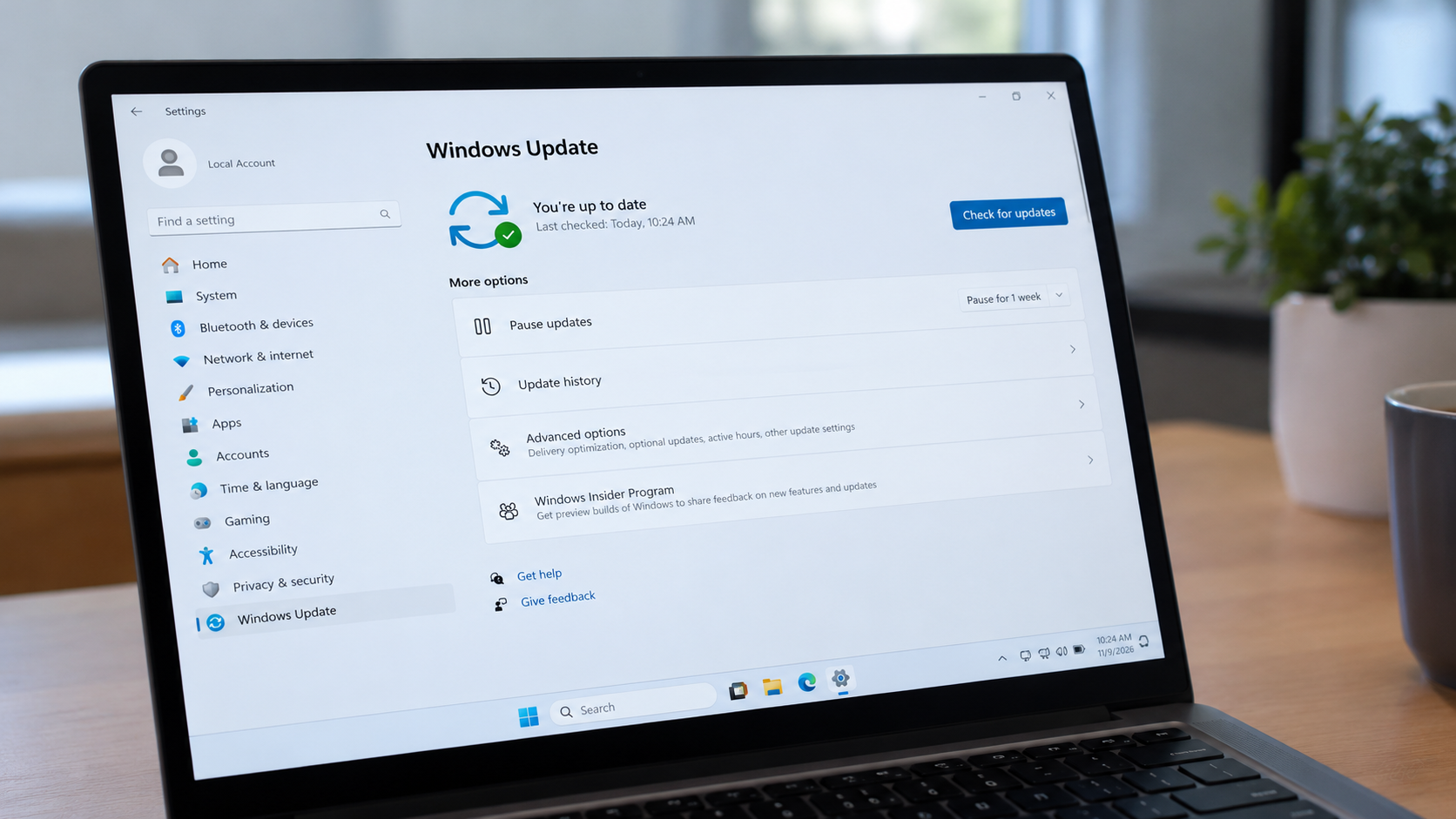
The message "You're up to date" does not necessarily confirm that a computer is running Windows 11 26H2. It may simply mean that Windows Update has no currently applicable updates to offer under the device's existing configuration.
For example, a PC can have the latest cumulative update for Windows 11 25H2 while the 26H2 feature update remains unavailable. The same message can appear when an organization controls which Windows versions may be installed.
The following comparison helps distinguish common situations before making any changes.
| What appears on your PC | Possible explanation | What to check first |
| "You're up to date" | No additional applicable update is currently offered | Current version and update prerequisites |
| Windows 11 25H2 is installed | 26H2 has not been offered or installed | Latest updates and compatibility restrictions |
| Windows 11 24H2 is installed | The upgrade path may require additional servicing updates | Cumulative update history |
| "Coming soon" or a compatibility warning | A safeguard hold may be preventing the upgrade | Microsoft release-health information |
| Updates are paused | Windows Update is temporarily delaying downloads | Pause updates setting |
| "Some settings are managed by your organization" | An administrator may control feature updates | Work or school management policies |
| An error code appears | Windows Update or installation has encountered a problem | Error details and the Windows Update troubleshooter |
These situations require different solutions. An update intentionally withheld for compatibility reasons should not be treated like a corrupted download.
7 Things to Check When Windows 11 26H2 Is Not Showing Up
The safest way to troubleshoot Windows 11 26H2 is to start with the installed version and basic update settings, then investigate potential compatibility or servicing problems. More disruptive options should come only after the simpler checks have ruled out ordinary causes.
The following seven checks cover the most important reasons Windows 11 26H2 may not appear.
1. Check Which Windows 11 Version Is Already Installed
Windows 11 26H2 is delivered as an enablement package to eligible PCs running Windows 11 24H2 or 25H2. If the computer is running an older release, or the special 26H1 release, the expected upgrade path is different.
To check the installed version:
- Press Windows + R.
- Type winver into the Run dialog.
- Press Enter.
- Find the Windows version and OS build number.
- Record the information before continuing.
Alternatively, open Settings > System > About and scroll to Windows specifications. The Version field identifies the installed Windows release.
The main versions can be distinguished by their OS build families.
| Windows version | OS build family | What it means for 26H2 |
| Windows 11 23H2 | 22631 | An older release that needs a different upgrade path |
| Windows 11 24H2 | 26100 | Eligible for the 26H2 enablement-package upgrade |
| Windows 11 25H2 | 26200 | Eligible for the 26H2 enablement-package upgrade |
| Windows 11 26H1 | 28000 | Separate hardware-focused release without a direct 26H2 upgrade path |
| Windows 11 26H2 | 26300 | The 2026 feature update is already installed |
The four-digit version number matters more than the exact revision at the end of the OS build when identifying which Windows release is installed. A PC displaying version 26H2 has already completed the feature upgrade, even if additional monthly updates are available.
Special case: Windows 11 26H1 is not the same upgrade branch as 26H2.
Microsoft introduced 26H1 for selected new devices using next-generation processors. Because it has a different underlying Windows core, devices running 26H1 cannot upgrade directly to the second-half 2026 feature release. They will instead receive an upgrade path through a future Windows version.
That distinction is particularly important for owners of certain newer ARM-based laptops. Trying to install a conventional 26H2 package is not a solution for a device running 26H1.
Older Windows 11 installations also deserve attention. Windows 11 24H2 Home and Pro reached the end of servicing on October 13, 2026, while Enterprise and Education editions have a different support schedule. Users still on unsupported releases should prioritize moving to a supported version through an approved upgrade path.
2. Enable the Windows Update Setting That Prioritizes New Releases
The "Get the latest updates as soon as they're available" setting allows a compatible Windows 11 PC to receive eligible feature updates and other improvements as soon as Microsoft makes them available to that device. If Windows 11 26H2 is not showing up, this is one of the simplest settings to inspect.
To enable it:
- Open Settings using Windows + I.
- Select Windows Update.
- Find Get the latest updates as soon as they're available.
- Turn the setting on.
- Select Check for updates.
- Install any available updates and restart if prompted.
After restarting, return to Windows Update and check whether the feature update appears.
If Windows 11 version 26H2 is offered, select Download & install and follow the on-screen instructions. Keep the computer connected to power throughout installation.
One important detail is easy to miss: turning this setting on does not override hardware restrictions or safeguard holds. It affects update priority, not compatibility.
Regular security updates are still delivered regardless of whether this optional setting is enabled. A computer with the toggle turned off is not automatically missing every security fix.
If the toggle is unavailable or locked, the device may be controlled by organizational policies. That possibility becomes especially important on computers used for work or education.
3. Install Missing Cumulative Updates Before Trying Windows 11 26H2
Windows 11 26H2 requires a sufficiently recent servicing baseline before its enablement package can be applied. Microsoft's documentation identifies the September 22, 2026 cumulative update, KB5124010, or a later cumulative update as a prerequisite.
This requirement matters because the enablement package activates components already included through previous Windows servicing updates. Without the necessary underlying files, the small feature-update package cannot perform its intended function.
To check for missing updates:
- Open Settings > Windows Update.
- Select Update history.
- Expand the Quality Updates section.
- Review recently installed cumulative updates.
- Return to Windows Update and check for available updates.
- Install the applicable updates and complete any required restart.
A later cumulative update can satisfy the prerequisite even if KB5124010 is not listed separately in Update History. Windows cumulative updates contain earlier fixes and servicing improvements, so the goal is to reach a supported update baseline rather than install every historical package individually.
If Windows Update displays "Restart required" or "Pending restart," finish that process before checking again. Pending changes can prevent another installation from proceeding normally.
Avoid downloading individual KB packages from third-party websites. If a standalone package is genuinely required, use Microsoft's official Update Catalog and verify that it matches the installed Windows version and processor architecture.
For computers that take unusually long to start, freeze during ordinary maintenance, or remain at high disk usage after updates, the guide to speeding up a Windows 11 laptop explains how to check storage pressure, startup applications, and background processes without using third-party booster tools.
Once the cumulative updates are installed and the computer has restarted, check Windows Update again before attempting a manual upgrade.
4. Find Out Whether a Safeguard Hold Is Blocking Windows 11 26H2
A safeguard hold is a protective restriction that prevents a Windows feature update from being offered to devices affected by a known compatibility problem. If Windows 11 26H2 is missing because of a safeguard hold, forcing installation can expose the computer to the very problem Microsoft is trying to prevent.
Compatibility issues can involve hardware components, drivers, firmware, or installed applications. A PC may meet the general Windows 11 hardware requirements but still have a specific configuration that is not ready for a particular feature update.
Start by opening Microsoft's official Windows 11 26H2 release-health page. Review the known issues, their current status, affected platforms, and any documented safeguard information.
The October 2026 release-health records illustrate why checking the status matters. They include several different kinds of problems:
- USB Audio Class 1.0 devices. Certain USB audio devices experienced startup failures, missing sound, or Code 10 errors. The issue was listed as mitigated rather than fully resolved in the published status.
- Virtual desktop environments. Some Azure Virtual Desktop systems experienced black screens or desktop-loading failures after sign-in. Microsoft marked this problem resolved with the October 13, 2026 update.
- Remote Desktop connections. A problem affecting certain non-administrator connections to systems using Administrator protection was resolved with the October 28, 2026 update.
These examples are documented post-update compatibility issues, not proof that every affected configuration is under an active 26H2 upgrade hold. A reported issue and an active safeguard hold are not necessarily the same thing.
If Windows Update displays a compatibility notification or a Learn more option, open it and follow the available guidance. Some safeguard information can be tailored to the specific device, although Microsoft does not publicly disclose every third-party compatibility restriction.
It is also worth checking the computer manufacturer's support page for BIOS, firmware, and driver updates specifically approved for the model. Install relevant updates only when the manufacturer identifies them as applicable.
Do not replace functioning drivers with random downloads or disable security features simply to make the Windows 11 26H2 installation button appear.
If a confirmed safeguard hold applies to the PC, the safest option is to wait for the issue to be resolved or follow the officially documented fix.
5. Check Paused Updates, Internet Access, and Available Storage
Paused updates, restricted internet connections, or insufficient storage can interfere with downloading and installing Windows updates. These problems do not always explain why Windows 11 26H2 is absent from the update list, but they can prevent an otherwise eligible computer from progressing normally.
Start with the update controls.
Resume Windows Update if downloads are paused
Open Settings > Windows Update and check whether the page displays a pause status. If updates are paused, select the available option to resume them.
Windows may need to check for updates again after the pause ends. Any pending downloads or installation tasks should be allowed to complete before another feature-update check.
Review metered connection settings
Windows treats metered connections differently to help control data usage. On these networks, some non-priority updates may not download automatically.
To investigate:
- Open Settings > Network & internet.
- Select the active Wi-Fi or Ethernet connection.
- Find the Metered connection setting.
- Check whether it is enabled.
- If the network has sufficient data allowance, adjust the setting or use an unrestricted connection.
Windows Update also includes a Download updates over metered connections option under Advanced options. Enabling it may increase data usage, so it should not be changed casually on limited mobile plans.
An unreliable connection can create similar symptoms. If the laptop shows a Wi-Fi connection but cannot reach Microsoft services, first determine whether the problem affects the entire network or only one device. The instructions for fixing Wi-Fi connected without internet cover these checks without unnecessary router resets.
A normal internet connection should be restored before attempting large downloads or troubleshooting update installation errors.
Check free space on the system drive
Low storage can prevent Windows from downloading, unpacking, or completing an update. The exact amount required depends on the installation method and the computer's configuration.
Open Settings > System > Storage to see how much space is available on the Windows drive. Review Temporary files and unused applications, but avoid deleting personal data or unfamiliar system folders without checking their purpose.
Microsoft specifies at least 9 GB of free disk space for downloading Windows 11 with its Installation Assistant. That is a tool-specific requirement, not a universal guarantee that every feature update will complete with exactly 9 GB available.
For an ordinary Windows Update installation, the storage requirement can differ. Maintaining additional free space provides room for temporary files, servicing operations, and recovery data.
On laptops, connect the charger before beginning the upgrade. A stable power supply reduces the risk of interruption during installation and restarting.
6. Check Whether Work Policies or Insider Settings Control the Update
Windows 11 26H2 may not appear on computers managed by an employer, school, or other organization because feature-update availability can be controlled centrally. This is normal behavior on many managed devices and does not necessarily indicate a problem.
Organizations can use Microsoft Intune, Windows Autopatch, Group Policy, and other management tools to control Windows deployment. An administrator may approve a version for testing before allowing it across the organization.
To check for device management:
- Open Settings > Accounts.
- Select Access work or school.
- Check whether the device is connected to an organization.
- Return to Windows Update and look for management-related messages.
- Contact the appropriate administrator before attempting to change restricted settings.
A work account does not automatically mean every update is controlled, but an enrolled and managed device may have restrictions that ordinary users cannot override.
Do not disconnect work or school management simply to obtain Windows 11 26H2. Removing organizational enrollment can affect company applications, access certificates, security requirements, and protected work data.
Windows Insider participation is another situation worth checking.
If a computer is enrolled in an Insider channel, it may be receiving preview builds through a different update pathway. The version number and build can differ from those available to the general public.
Open Settings > Windows Update > Windows Insider Program to review the device's enrollment and channel. Avoid switching channels or installing public-release media without checking the supported transition path, because leaving certain preview builds may require reinstalling Windows.
For an ordinary personal PC running a stable release, Windows Update should remain the preferred installation method.
7. Run the Windows Update Troubleshooter if the Upgrade Still Does Not Appear
The Windows Update troubleshooter can diagnose common update-service problems when Windows 11 26H2 remains unavailable or existing updates repeatedly fail. It is especially useful if Windows Update displays errors, cannot complete downloads, or fails to install prerequisite packages.
Microsoft recommends starting with the automated troubleshooter in the Get Help app on Windows 11.
To run it:
- Open the Start menu.
- Search for Get Help.
- Launch the application.
- Enter Windows Update troubleshooter.
- Follow the diagnostic instructions.
- Apply recommended fixes when appropriate.
- Restart the computer if prompted.
Another available route is Settings > System > Troubleshoot > Other troubleshooters > Windows Update > Run.
After the troubleshooter finishes, return to Windows Update and check for updates again. If 26H2 is still missing, examine the latest entries in Update History for failed cumulative updates or specific error messages.
What if Windows Update keeps failing?
Repeated errors can indicate problems with update files, permissions, storage, or device drivers. The error code can help narrow down the cause, although it rarely identifies the exact failed component by itself.
Some common Windows Update and installation errors are listed below.
| Error code | Possible cause | Recommended first step |
| 0x80070070 | Insufficient storage space | Free space on the system drive |
| 0x80070005 | Access denied or permission problem | Run the troubleshooter and review account permissions |
| 0x8007000D | Invalid or corrupted update data | Run Windows Update diagnostics |
| 0x80240034 | Download or installation did not complete | Restart and check the connection |
| 0xC1900101 | Possible driver-related upgrade failure | Check compatible drivers and setup details |
| 0x800F081F | Missing or unavailable repair files | Use supported Windows repair procedures |
These codes can occur during Windows maintenance generally and are not unique to Windows 11 26H2. Record the full error code, installed Windows build, and the update that failed before attempting more advanced repairs.
Avoid immediately resetting all Windows Update components, deleting system directories, or applying registry changes from an unverified guide. Such methods may be unnecessary when the actual cause is a compatibility hold or an unfinished cumulative update.
How to Install Windows 11 26H2 if It Still Doesn't Show Up
Windows 11 26H2 can also be installed through Microsoft's official installation tools on supported devices, but a manual installation should not be the first response to a missing update offer. The safest approach is to verify eligibility, resolve known problems, and back up important files before changing the operating system.
The official download page currently identifies Windows 11 version 26H2 as the Windows 11 2026 Update. It provides installation options for eligible devices, including the Windows 11 Installation Assistant and installation media.
Can the Windows 11 Installation Assistant install 26H2?
The Windows 11 Installation Assistant offers an official alternative for supported x64 PCs when an upgrade is appropriate. However, it should not be used to bypass an unresolved compatibility restriction.
Before opening the installer, confirm that the system meets the hardware requirements, has enough free space, and is not subject to a documented safeguard hold.
For a compatible computer, the general procedure is:
- Visit Microsoft's official Windows 11 download page.
- Find the Windows 11 Installation Assistant section.
- Select Download Now.
- Run the downloaded tool with administrator permissions.
- Follow the compatibility checks and license prompts.
- Review the installation instructions before proceeding.
- Restart when prompted and allow Windows to finish installing.
Microsoft states that the Installation Assistant is intended for x64 processors and does not run on ARM-based PCs. Devices using ARM processors require an appropriate supported upgrade method.
The Installation Assistant is not equivalent to installing the small 26H2 enablement package through Windows Update. Depending on the installation method, a manual upgrade may involve a larger download and a longer installation process.
That makes the standard Windows Update route preferable when it is working normally.
Should you use an ISO file or bootable USB instead?
An official Windows 11 ISO can be used for supported installation or repair scenarios, but creating installation media does not automatically solve a missing feature-update offer. An ISO can also introduce additional risks if the wrong edition, architecture, language, or installation method is selected.
Running Windows Setup from within an existing Windows installation is different from booting directly from installation media. Depending on the selected procedure, the former may offer options to retain files and applications, while a clean installation can remove installed programs and personal data.
A bootable USB is therefore not the default solution when Windows 11 26H2 is missing from Windows Update.
Before considering any installation media, verify that the edition and architecture are correct and that the device manufacturer supports the planned upgrade. If Windows reports a compatibility block, resolve it instead of attempting to bypass the restriction.
What should you back up before installing Windows 11 26H2?
Important files should be backed up before any manual operating system upgrade, even when the installation is designed to preserve personal data. Unexpected power interruptions, storage problems, or setup failures can complicate recovery.
The most important items to protect include:
- Personal documents. Copy work files, spreadsheets, PDFs, and essential folders.
- Photos and videos. Confirm that valuable media exists on another drive or trusted cloud storage.
- Browser data. Verify bookmarks, saved profiles, and account synchronization.
- Application files. Save important local configurations and project data.
- Game progress. Check whether games use cloud saves or local save folders.
- Recovery information. Make sure required account credentials and BitLocker recovery keys are accessible.
A backup should be stored separately from the Windows system drive whenever possible. Simply moving files to another folder on the same SSD does not protect them against a drive failure.
Gaming PCs deserve particular attention because not every title stores its progress in the cloud. The guide to backing up game saves on PC explains where Windows games commonly store saves and how to verify a backup before reinstalling software.
Completing this preparation does not guarantee a trouble-free upgrade, but it significantly improves the options available if recovery becomes necessary.
When Should You Avoid Forcing the Windows 11 26H2 Update?
Forcing Windows 11 26H2 is a poor choice when a confirmed compatibility restriction applies, the device runs an unsupported upgrade branch, or an essential application depends on hardware and drivers that have not been validated.
The fact that a newer version exists is not sufficient reason to bypass Windows Update protections. Feature upgrades can change driver behavior, security configuration, and application compatibility, particularly in specialized computing environments.
There are several situations where waiting or seeking device-specific guidance is safer:
- An active safeguard hold. The restriction should remain in place until the underlying issue is resolved.
- A Windows 11 26H1 device. This release does not have a direct upgrade path to 26H2.
- A managed business computer. Feature updates may require administrative approval and application testing.
- An unstable storage drive. Existing read or write errors should be investigated before an operating system upgrade.
- A missing backup. Important files should be protected before starting a more disruptive installation.
- An unresolved driver problem. Manufacturer-approved updates should be checked before proceeding.
The safest decision depends on the device rather than the release date alone. A supported Windows version with current security updates may be preferable to an unsupported workaround that introduces new compatibility problems.
Is Windows 11 26H2 worth installing in November 2026?
Windows 11 26H2 is a supported feature update that offers a new servicing lifecycle and incorporates improvements delivered through Microsoft's ongoing update process. For an eligible personal computer without known compatibility problems, installing it through Windows Update is a reasonable way to remain on a current Windows release.
The upgrade is also different from a major Windows redesign. Because 24H2, 25H2, and 26H2 share a servicing foundation, users who have consistently installed monthly updates may already recognize many of the included changes.
Microsoft's lifecycle information lists October 10, 2028 as the end-of-servicing date for Windows 11 26H2 Home and Pro, and October 9, 2029 for Enterprise and Education. Exact support dates depend on the Windows edition.
For devices still running Windows 11 24H2 Home or Pro, moving to a supported release is especially important because those editions reached the end of servicing in October 2026. However, that security consideration does not justify ignoring a known hardware or software incompatibility.
How to Confirm Windows 11 26H2 Installed Successfully
The most reliable way to confirm an installation is to check the Windows version and OS build after the computer restarts. A completed download or disappearing update notification is not enough to establish that the feature upgrade succeeded.
To verify the installed version:
- Press Windows + R.
- Enter winver.
- Select OK or press Enter.
- Confirm that the dialog displays Version 26H2.
- Check that the OS build belongs to the 26300 family.
You can also open Settings > System > About to review the version information. If Windows still reports 24H2 or 25H2, the upgrade has not completed, regardless of whether other cumulative updates were successfully installed.
Next, check Settings > Windows Update > Update history for recent entries. Install any additional applicable security or quality updates and complete pending restarts.
Afterward, verify that essential hardware and software still work normally. Test Wi-Fi, audio output, Bluetooth accessories, external displays, and applications needed for work or study.
For gaming systems, launch a familiar game and confirm that controllers, graphics settings, and saved progress remain available. Any new malfunction should be investigated against recent update history and relevant manufacturer guidance.
The goal is not merely to make Windows 11 26H2 appear in Settings, but to complete the upgrade without sacrificing stability or access to important data.
Frequently Asked Questions About Windows 11 26H2 Not Showing Up
Windows 11 26H2 may be missing because the PC is running an unsupported upgrade branch, lacks a required cumulative update, has a compatibility restriction, or is controlled by organizational policies. Microsoft made 26H2 available to all eligible devices on October 28, 2026, so checking these conditions is more useful than assuming the rollout has not reached the computer.
Yes. Windows 11 26H2 was released on September 29, 2026, and Microsoft announced general availability for all eligible devices on October 28. It is the Windows 11 2026 Update and is delivered through servicing technology to supported 24H2 and 25H2 devices.
Start by installing the latest applicable cumulative updates, completing pending restarts, and enabling Get the latest updates as soon as they're available. If the update is still missing, check for safeguard holds and managed-device policies before considering Microsoft's official installation tools.
Yes. Microsoft supports an enablement-package upgrade from an appropriately updated Windows 11 24H2 installation to version 26H2. The required servicing baseline must be present, and device-specific compatibility restrictions still apply.
No, not through a supported direct feature-update path. Windows 11 26H1 is a separate hardware-focused release based on a different Windows core, and Microsoft plans a future upgrade path for those devices instead.
No. The setting prioritizes applicable feature and non-security updates, but it cannot override hardware compatibility restrictions, safeguard holds, or organizational policies. An eligible PC may still need to resolve another issue before version 26H2 appears.
Yes, Microsoft provides official Windows installation tools, including the Installation Assistant for supported x64 PCs. Manual installation should be considered only after checking eligibility and compatibility, and it should not be used to bypass a confirmed safeguard hold.
A normal feature update is designed to preserve personal files and installed applications. However, a clean installation or an incorrectly selected installation method can remove data, so important files should always be backed up before attempting a manual upgrade.
On an eligible Windows 11 24H2 or 25H2 computer using the enablement package, installation can be relatively quick because much of the required code is already present. Actual time depends on the device, pending updates, restart process, and installation method, so there is no single guaranteed duration.
Not without identifying why the feature update is missing. If Windows Update is withholding 26H2 because of an unresolved compatibility issue, forcing installation may cause avoidable problems, whereas missing prerequisites or ordinary update errors can often be corrected safely.