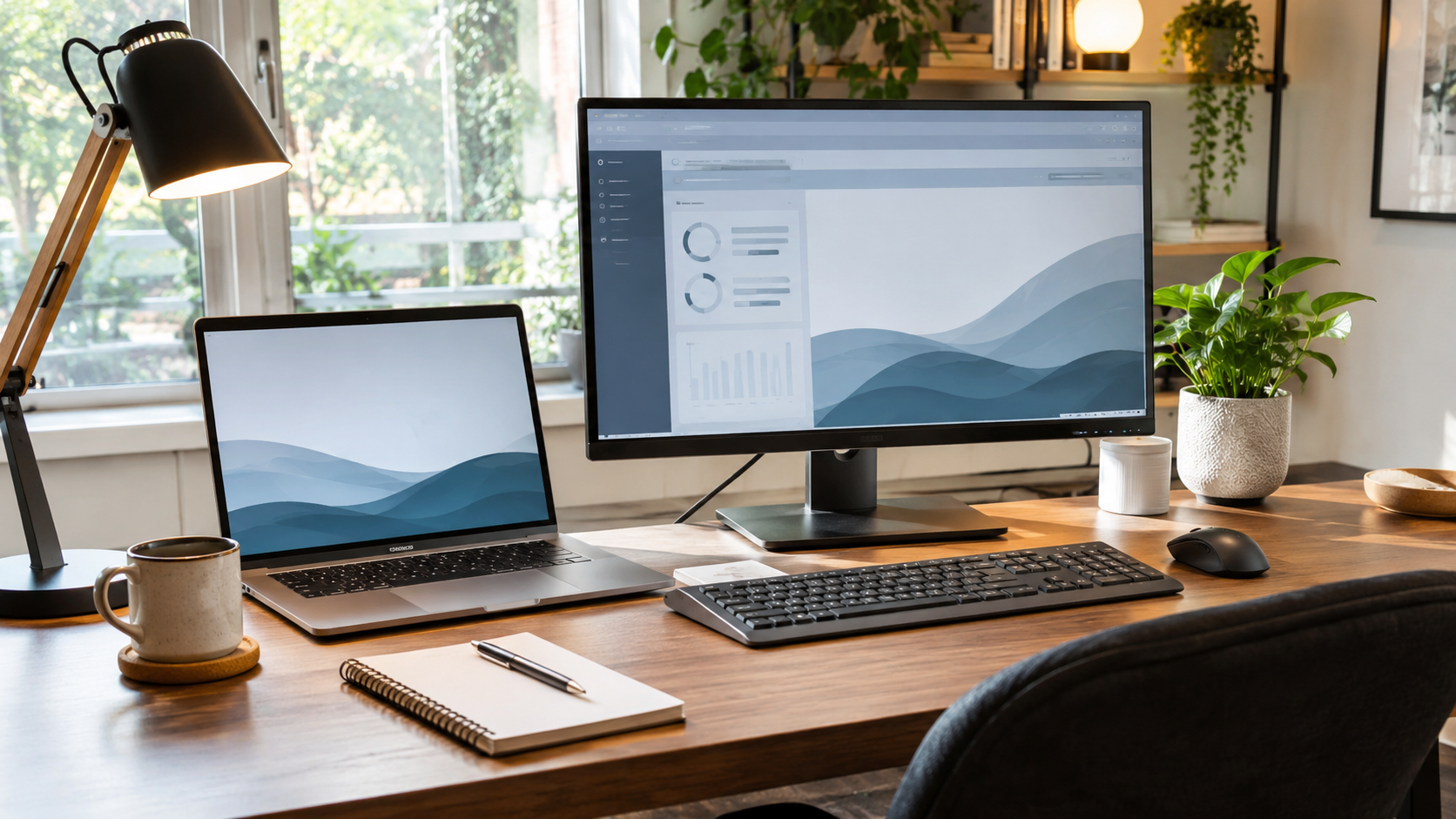



A second monitor for a home office can make working with documents, spreadsheets, video calls, and multiple applications considerably easier. But choosing the wrong screen can introduce new problems, including blurry text, limited desk space, incompatible connections, and uncomfortable viewing angles. The best second monitor is not necessarily the biggest or most expensive one – it is the display that fits your computer, workspace, and daily tasks.
With Black Friday approaching on November 27, 2026, November is a practical time to compare monitor specifications and prepare for year-end workspace upgrades. Discounts can make a larger or more advanced display attractive, but a lower price will not fix a laptop that cannot support its features or a desk that cannot accommodate it.
Before buying, six details deserve attention: video connections, screen resolution, Windows scaling, physical desk space, monitor mounting, and the features that matter for everyday work.
Is a Second Monitor for a Home Office Actually Worth It?
A second monitor is worth considering when daily work regularly involves switching between applications, comparing information, or keeping reference material visible. It provides additional screen space without requiring constant window minimization or rearrangement.
For example, a writer can keep research open beside a document, an accountant can compare spreadsheets, and a remote employee can follow a video meeting while reviewing notes. A developer may use one display for code and another for documentation, previews, or debugging tools.
However, additional screen space does not automatically increase productivity. Someone who mainly uses one browser window or occasionally answers email may gain more from replacing a small primary screen with one larger, sharper monitor.
Who benefits most from a dual-monitor setup?
A second display is particularly useful for work that requires two or more applications to remain visible simultaneously. Its value depends on how often information must be moved, checked, or compared between those applications.
Common examples include:
- Writers and editors: Research material on one screen and the working document on another.
- Accountants and analysts: Spreadsheets, reports, and reference data displayed side by side.
- Programmers: Code, documentation, and testing tools available without constant window switching.
- Remote employees: Video meetings on the primary display and relevant documents on the secondary screen.
- Designers: Creative software on a high-quality primary display and tools or reference images on another.
- Customer support teams: Communication platforms, customer records, and knowledge bases visible together.
These scenarios do not require identical equipment. A compact secondary display can be sufficient for messages and reference documents, while detailed spreadsheets or professional design work may benefit from a larger, sharper panel.
Mistake 1 – Buying a Second Monitor Without Checking Your Computer's Ports
The first mistake is assuming that any monitor will connect to any modern laptop or desktop. A compatible second monitor requires a working video connection, sufficient display support, and the appropriate cable or adapter.
HDMI, DisplayPort, USB-C, and Thunderbolt can all be used for external displays, but their capabilities differ between computers and monitors. The shape of a connector alone does not confirm what it can do.
HDMI, DisplayPort, or USB-C – which connection is best?
The most practical connection is the one that supports the monitor's intended resolution and refresh rate without unnecessary adapters. USB-C can offer additional convenience for laptops, while HDMI and DisplayPort remain suitable for many desktop and home office configurations.
| Connection | Main advantage | What to check before buying |
| HDMI | Common on laptops, desktops, and monitors | Supported resolution and refresh rate |
| DisplayPort | Useful for high-resolution displays and compatible multi-monitor setups | Port version, cable capabilities, and available GPU output |
| USB-C with video support | Can carry video and, on supported devices, data and charging | DisplayPort Alt Mode or another supported video protocol |
| Thunderbolt | Can support displays, docks, and other peripherals through a compatible connection | Exact Thunderbolt generation and computer capabilities |
| USB-C docking station | Consolidates several connections | Number of independent displays, video bandwidth, and charging power |
For a typical 1080p or 1440p office monitor, a compatible HDMI or DisplayPort connection is often sufficient. USB-C becomes especially attractive when a laptop is frequently connected and disconnected from the same workstation.
Why a USB-C port may not work with a monitor
Not every USB-C port supports video output. Some USB-C connections are designed for data transfer, charging, or a limited combination of functions, while others support DisplayPort Alternate Mode or Thunderbolt video.
This distinction matters when purchasing a USB-C monitor for a laptop. A computer may have a USB-C port that physically accepts the monitor cable but cannot send an image through that connection.
The same issue occurs with other devices connected to external displays. The guide to connecting a phone to a TV using HDMI or USB-C explains why a matching connector does not guarantee video output.
Before ordering a USB-C monitor, check the exact laptop model's technical specifications for DisplayPort Alt Mode, Thunderbolt, or USB4 video support. Also verify that the selected cable supports the required video mode.
Can one HDMI port support two monitors?
An ordinary HDMI splitter generally duplicates one video signal rather than creating two independent desktops. Connecting two monitors through such a splitter can therefore result in both showing the same content.
For two independently extended external displays, the computer and connection hardware must support separate display outputs. This may involve dedicated video ports, an appropriate USB-C or Thunderbolt dock, or another compatible multi-display solution.
The laptop manufacturer's maximum external display specification is more important than the number of connectors visible on the device. Some computers have multiple ports but support fewer simultaneous displays than expected.
Mistake 2 – Choosing the Wrong Screen Size and Resolution
A second monitor for a home office should have enough resolution to display readable text at the intended viewing distance. Choosing a larger screen without increasing its resolution can make text and interface elements appear noticeably less sharp.
Monitor size and resolution are separate specifications. Screen size describes the diagonal measurement, while resolution determines how many pixels form the image.
Is a 24-inch or 27-inch monitor better for home office work?
A 24-inch monitor is a practical choice for compact workstations, particularly when it will sit next to a laptop or another display. A 27-inch monitor provides more physical screen area and can offer a useful balance between space, clarity, and comfortable multitasking.
A 32-inch display may suit people working with large spreadsheets, detailed graphics, or several windows simultaneously. However, it requires more desk space and an appropriate viewing distance.
The resolution is just as important as the diagonal measurement.
| Monitor size | Resolution | Approximate pixel density | Practical consideration |
| 24 inches | 1920 × 1080 (Full HD) | 92 PPI | Practical for everyday office tasks |
| 27 inches | 1920 × 1080 (Full HD) | 82 PPI | Larger text and interface elements, but less sharp up close |
| 27 inches | 2560 × 1440 (QHD) | 109 PPI | Balanced clarity and workspace |
| 27 inches | 3840 × 2160 (4K) | 163 PPI | Sharper text with appropriate scaling |
| 32 inches | 2560 × 1440 (QHD) | 92 PPI | Large screen area with moderate pixel density |
| 32 inches | 3840 × 2160 (4K) | 138 PPI | High clarity on a larger display |
PPI means pixels per inch. A higher pixel density generally produces finer text and image detail when other factors, including viewing distance and panel quality, are comparable.
For many Windows home offices, a 27-inch QHD IPS monitor is a sensible starting point. It provides a useful middle ground between basic Full HD displays and more expensive 4K configurations.
Is 1080p enough for a second monitor?
Full HD remains sufficient for many office tasks, particularly on a 24-inch display used for communication tools, reference pages, and ordinary documents. It also places fewer demands on the video connection than higher-resolution alternatives.
A 27-inch Full HD monitor is less compelling when sharp text is a priority. Its relatively low pixel density becomes more apparent when working close to the screen, especially beside a sharper laptop display.
For reading, writing, programming, and spreadsheet work, QHD or 4K can provide more detailed text. However, the higher resolution must be paired with comfortable operating-system scaling.
Is 4K worth paying extra for?
A 4K second monitor can be worth the additional cost when exceptionally sharp text, detailed images, or precise visual work are important. It may be less necessary when the screen mainly displays email, chat applications, and occasional browser windows.
Higher resolution also does not automatically mean more usable interface space. At larger scaling percentages, text and controls occupy more pixels to remain readable.
The useful comparison is not simply 4K versus QHD. It is how comfortably each display presents the applications used throughout the workday.
Mistake 3 – Ignoring Scaling Differences Between Two Monitors
A second monitor can make a home office less comfortable when text, windows, and interface elements appear at noticeably different sizes between displays. This commonly happens when combining screens with different resolutions and pixel densities.
For example, a high-resolution laptop screen may use 150% or 200% scaling, while a 27-inch QHD monitor might be comfortable at 100% or 125%. Moving application windows between them can make text appear to change size.
Why do windows look blurry on the second monitor?
Blurry text can result from an incorrect resolution, unsuitable scaling settings, or applications that do not handle mixed-DPI configurations correctly. It does not necessarily indicate a defective monitor.
Windows 11 allows scaling to be adjusted separately for each detected display. The recommended scaling option is usually a sensible starting point.
To configure a second monitor:
- Open Settings. Press Windows + I.
- Select System > Display. Identify the monitor that needs adjustment.
- Choose the external display. Click its numbered rectangle in the display arrangement.
- Check Display resolution. Use the monitor's native resolution, usually marked Recommended.
- Adjust Scale. Select a comfortable percentage, preferably from the recommended options.
- Reopen blurry applications. Close and restart programs that fail to render correctly after moving between screens.
Changing the resolution to a lower value merely to enlarge text can reduce sharpness. Adjusting scaling is generally preferable because it allows the monitor to continue operating at its native resolution.
Should both monitors use the same resolution?
Two monitors do not need identical resolutions to work together. Windows 11 can extend the desktop across displays with different resolutions, sizes, and scaling percentages.
Matching the monitors can simplify window movement and make their visual appearance more consistent. However, a laptop with a high-density built-in screen and a larger external monitor can still provide a comfortable setup.
The most important factors are readable text, correct display arrangement, and minimal disruption when switching between screens.
Does a higher resolution make everything smaller?
At the same scaling percentage and screen size, a higher-resolution display generally makes interface elements physically smaller. Operating-system scaling compensates by increasing their rendered size while retaining finer image detail.
For instance, a 27-inch 4K monitor might be comfortable at 150% scaling, while a 27-inch QHD monitor could work well at 100% or 125%. These are starting examples rather than universal settings.
The ideal scaling percentage depends on viewing distance, eyesight, operating system, and personal comfort. A monitor should be judged by its readable workspace rather than its pixel count alone.
Mistake 4 – Forgetting to Measure the Desk Before Buying a Second Monitor
A second monitor for a home office must fit the desk without forcing uncomfortable viewing angles or leaving insufficient space for the keyboard and mouse. Screen measurements alone do not reveal how much room the complete setup will occupy.
The monitor stand, rear clearance, screen positioning, and any existing equipment all affect the available workspace.
How much desk space do two monitors need?
Two standard 24-inch widescreen panels have a combined visible width of approximately 42 inches (107 cm), excluding bezels and stand requirements. Two 27-inch panels measure approximately 47 inches (120 cm) across their visible screen areas.
The total usable desk width needed may be greater, depending on stand dimensions, monitor angles, and other equipment.
Before selecting a second display, measure:
- Available desk width: Include the existing monitor, laptop, and other equipment.
- Desk depth: Confirm that the screens can sit at a comfortable viewing distance.
- Stand footprint: Check how much usable space the bases occupy.
- Rear clearance: Allow room for power and video cables.
- Monitor movement: Consider whether the screens will be angled, rotated, or frequently repositioned.
- Lighting and windows: Avoid positions that create distracting reflections or glare.
A narrow desk may accommodate two angled monitors more comfortably than two screens placed in one straight line. A monitor arm can also help reclaim desk space, provided the desk supports the mount.
What is the ideal distance from a second monitor?
The Occupational Safety and Health Administration identifies approximately 20–40 inches (50–100 cm) as a generally preferred monitor viewing-distance range. The comfortable position depends on screen size, text readability, and individual vision requirements.
A monitor should be positioned so that reading does not require leaning forward or tilting the head into an awkward position. The top of the display should generally be at or slightly below eye level.
For two monitors, placing the primary screen directly in front of the user helps reduce repeated neck rotation. The secondary display can sit beside it and angle inward.
If both screens are used equally, arranging them together around the center of the normal viewing position can reduce the need for large head movements.
Should a second monitor go on the left or right?
There is no universally correct side for a second monitor. The better position depends on which screen is used most often and how frequently the user moves between them.
If one monitor handles the main work and the other displays reference documents, the primary display should remain directly ahead. The secondary screen can sit on either side, angled toward the user.
For equal use, two monitors can meet near the center of the desk with their inner edges close together. The chair and keyboard should align with the natural working position rather than forcing the body to face one side continuously.
Mistake 5 – Buying a Monitor That Cannot Be Mounted or Adjusted Properly
An inexpensive monitor can become an awkward addition to a home office when its stand offers little adjustment. Height, tilt, swivel, pivot, and mounting compatibility can matter more during long work sessions than decorative design features.
A fixed-height stand may position the second screen too high or low relative to the existing display. This can be particularly inconvenient when switching between monitors throughout the day.
Does a second monitor need a VESA mount?
A VESA-compatible mount is useful when the monitor will be attached to an adjustable arm, wall bracket, or multi-monitor stand. It is not essential if the included stand already provides the necessary positioning.
Many office monitors use 75 × 75 mm or 100 × 100 mm mounting patterns, although these dimensions are not universal. The monitor and mounting hardware must use compatible specifications.
Before purchasing an arm, verify:
- VESA compatibility. Confirm the monitor's mounting-hole pattern.
- Monitor weight. Check the weight without its stand against the arm's supported range.
- Desk attachment. Verify that the clamp or grommet mount fits the desk.
- Desk strength. Confirm that the surface can safely support the mounting force.
- Arm reach. Make sure the monitor can move to the desired position.
- Cable clearance. Allow enough cable length for movement and rotation.
A monitor arm does not automatically solve every desk-space problem. Some arms extend significantly behind the desk when repositioned, which can cause problems if the workstation is close to a wall.
Is a dual monitor arm better than two separate stands?
A dual monitor arm can free desk space and make it easier to adjust two compatible displays. However, it may be less convenient when the monitors have significantly different sizes, weights, or positioning requirements.
Two individual arms offer more independent movement but require additional mounting space. Traditional stands are simpler and may be preferable on desks that cannot safely accept clamps.
A height-adjustable monitor stand is often more valuable than a premium screen feature that will rarely be used. Comfortable positioning affects everyday usability, regardless of resolution.
Is a vertical second monitor better for work?
A vertical second monitor can be useful for long documents, coding, reading, and applications with extensive scrolling. It allows more lines of text to remain visible without constantly moving through the page.
However, portrait orientation is less suitable for wide spreadsheets, video editing timelines, and applications designed around horizontal layouts.
Before choosing a vertical configuration, confirm that the monitor supports pivot adjustment or compatible VESA mounting. Windows 11 can rotate the displayed image through Settings > System > Display > Display orientation.
The physical screen must also be rotated to match the selected orientation.
Mistake 6 – Paying for Features You Do Not Need While Missing Essential Ones
The final mistake is prioritizing promotional specifications over features that improve everyday work. High refresh rates, HDR labels, advanced gaming functions, and decorative lighting may increase the price without adding meaningful value to an ordinary office setup.
For most office tasks, text clarity, comfortable positioning, reliable connectivity, and suitable panel characteristics deserve greater attention.
IPS, VA, or OLED – which panel is best for office work?
IPS is a practical choice for many second-monitor setups because it generally provides consistent viewing angles and balanced image quality. VA can offer stronger contrast, while OLED delivers excellent blacks and fast pixel response but requires greater consideration for prolonged static-interface use.
| Panel type | Strengths | Main considerations | Suitable use |
| IPS | Wide viewing angles and balanced image quality | Lower contrast than many VA or OLED panels | General office work, documents, multitasking |
| VA | Strong contrast on many models | Viewing angles and motion performance vary | Office work, media, mixed use |
| OLED | Excellent contrast and pixel response | Image retention and burn-in considerations with prolonged static content | Premium mixed creative and entertainment use |
Panel type alone does not determine monitor quality. Resolution, brightness, screen coating, calibration, and the specific model's performance also influence the result.
For a conventional second monitor used primarily for documents and browser windows, an IPS LCD is usually a straightforward option.
Is 60Hz enough for a second home office monitor?
A 60Hz monitor is sufficient for everyday document editing, email, spreadsheets, and video calls. Higher refresh rates can make scrolling, pointer movement, and window animations appear smoother.
A 75Hz, 100Hz, or 120Hz office monitor can be appealing when available without a significant price increase. However, the computer and connection must support the chosen refresh rate.
For a workstation shared between professional tasks and gaming, refresh rate becomes more important. For a secondary display dedicated to static documents, a higher-resolution panel or adjustable stand may be a more useful investment.
Which extra features are worth paying for?
Useful features depend on whether the monitor will connect to a laptop, desktop, or multiple devices. A USB-C hub may simplify a laptop workstation, while a desktop connected through DisplayPort may not need the same functionality.
The most practical extras include:
- USB-C Power Delivery: Can charge a compatible laptop while transmitting video.
- Height-adjustable stand: Supports more comfortable screen positioning.
- VESA mounting: Makes it easier to use adjustable monitor arms.
- USB hub: Provides additional ports for connected peripherals.
- KVM switch: Allows compatible monitors to share a keyboard and mouse between computers.
- Anti-glare screen coating: Can reduce distracting reflections in bright rooms.
- Adequate brightness: Helps maintain visibility under changing room lighting.
- Reliable warranty: Provides protection against hardware defects.
The usefulness of these features should be considered alongside the monitor's price and the equipment already available.
For example, a built-in KVM switch may be valuable for someone who regularly switches between a work laptop and a personal computer. It offers less value when only one device will ever use the display.
How much USB-C charging power does a monitor need?
A monitor's USB-C Power Delivery rating should be compared with the laptop's normal charging requirements. A monitor offering 65W may adequately power many compatible productivity laptops, while some more demanding models require 90W, 100W, or more.
Insufficient power delivery may cause slow charging, battery discharge under heavy workloads, or charging-related warnings. USB-C video support and USB-C charging support must be checked separately.
If the monitor cannot provide sufficient power, the laptop's original power adapter may still be necessary.
Best Second Monitor for Home Office Work by Screen Size and Usage
The most suitable second monitor depends on what will appear on it throughout the workday. For a compact workspace, a 24-inch Full HD screen can be enough, while a 27-inch QHD model provides a strong balance of clarity and usable space.
There is no need to buy matching monitors simply because they will stand beside one another. However, displays with similar physical dimensions, height adjustments, and pixel densities can be easier to arrange comfortably.
| Home office scenario | Practical starting configuration | Main priority |
| Compact desk | 24-inch Full HD IPS | Size and affordability |
| Everyday remote work | 27-inch QHD IPS | Readability and multitasking |
| Writing and programming | 27-inch QHD or 4K | Sharp text and comfortable scaling |
| Detailed spreadsheets | 27–32-inch QHD or 4K | Readable workspace |
| Creative work | 27–32-inch 4K | Detail and color accuracy |
| Laptop docking setup | 27-inch QHD or 4K with USB-C | Connectivity and charging |
| Work and casual gaming | 27-inch QHD, 100–144Hz | Balanced performance |
| Vertical reference screen | 24–27-inch monitor with pivot support | Portrait orientation and ergonomics |
These configurations are starting points rather than fixed requirements. A smaller high-resolution monitor or an existing spare display may work better when desk space and budget are limited.
Second Monitor vs. Ultrawide Monitor – Which Makes More Sense?
Two monitors offer separate display areas that can be arranged independently, while an ultrawide monitor provides one continuous workspace. Neither arrangement is universally better.
A dual-monitor setup is particularly useful when applications need to remain separated or when one display is dedicated to meetings, communication, or reference material.
An ultrawide monitor can simplify cable management and eliminate the physical gap between two screens. It may also provide a cleaner arrangement for timelines, large spreadsheets, and multiple side-by-side windows.
| Factor | Two monitors | One ultrawide monitor |
| Application organization | Separate physical screens | One continuous desktop |
| Window management | Straightforward screen separation | May benefit from window snapping tools |
| Video calls and sharing | Dedicated screen available | Individual windows or regions can be shared |
| Cable management | Usually more connections | Often simpler |
| Positioning | Each monitor can be adjusted separately | One larger display |
| Desk requirements | Depends on both stands or arms | Depends on overall panel width and stand |
| Upgrading later | One screen can be replaced independently | Usually requires replacing the main display |
For someone who already owns a satisfactory primary monitor, adding a second display is often the simpler upgrade. Replacing the entire setup with an ultrawide becomes more attractive when the existing monitor is outdated or unsuitable.
How to Set Up a Second Monitor in Windows 11
Windows 11 allows compatible monitors to function as an extended desktop, making it possible to use different applications on each screen. Once the physical connection is working, the display arrangement and scaling settings can be configured independently.
Connect and extend the desktop
The simplest setup involves connecting the monitor, selecting the correct input, and enabling extended display mode. The new screen should then function as additional desktop space rather than duplicating the existing display.
Follow these steps:
- Connect the monitor. Use a compatible HDMI, DisplayPort, or USB-C connection.
- Turn on the monitor. Select the correct input through its on-screen controls.
- Press Windows + P. Choose Extend instead of Duplicate.
- Open Settings > System > Display. Confirm that both displays appear.
- Select Identify. Check which number corresponds to each physical screen.
- Arrange the displays. Drag the numbered rectangles to match their real positions.
- Set the primary monitor. Select the desired display and enable Make this my main display.
- Check resolution and scaling. Use appropriate settings for each screen.
- Check refresh rate. Open Advanced display and select a supported value.
- Test window movement. Drag an application between screens and check readability.
After configuration, Windows should allow the mouse pointer and application windows to move naturally between monitors.
If a window appears to move in the wrong direction, return to Display settings and adjust the monitor rectangles. Their relative positions determine how the pointer travels between screens.
How to use the second monitor more productively
A dual-monitor setup works best when each screen has a clearly defined role. Keeping the main task directly ahead reduces unnecessary movement between displays, while the second screen can hold supporting information.
For example, a secondary monitor can display WhatsApp Web on a PC alongside email or scheduling tools. This allows communication to remain accessible without repeatedly replacing the main working window.
Windows Snap Layouts can help arrange applications into consistent sections on each display. Keyboard shortcuts such as Windows + Shift + Left Arrow or Right Arrow can also move the active window between connected monitors.
Can Windows remember window positions?
Windows 11 includes options for remembering window locations based on monitor connections. These are useful for laptops that are repeatedly connected to and disconnected from a home office workstation.
Open Settings > System > Display and expand Multiple displays. Look for the option to remember window locations based on monitor connection.
Keeping this enabled can reduce the need to rearrange applications after reconnecting the external display.
Can You Use a Second Monitor With a MacBook?
A second monitor can work with a MacBook, but the number of supported external displays depends on the exact model and chip. MacBook Air and MacBook Pro generations do not all provide the same external display capabilities.
Before buying, check the Mac's technical specifications rather than assuming that a USB-C or Thunderbolt dock will add unlimited external monitors.
Some Mac models support one external display, while newer models can support two or more. Supported resolutions and refresh rates can also differ.
To configure a compatible external monitor:
- Connect the display using a supported HDMI, USB-C, or Thunderbolt connection.
- Open System Settings.
- Select Displays.
- Arrange the screens according to their physical positions.
- Configure the intended extended or mirrored desktop arrangement.
- Adjust resolution, scaling, and other available display settings.
Mac users should also check text clarity carefully when considering a lower-density monitor. Different pixel densities and scaling options can affect how comfortable an external display feels beside the built-in screen.
Why Is a Second Monitor Not Working?
A second monitor that shows no image may have an incorrect input selection, incompatible connection, faulty cable, or unsupported display configuration. The problem is not necessarily the monitor itself.
Start with the simplest checks before buying a replacement cable, adapter, or docking station.
Windows 11 does not detect the second monitor
Windows may fail to detect an external display because of connection problems, incorrect projection settings, or graphics-driver issues. A direct connection can help determine whether a dock or adapter is responsible.
Try these steps:
- Check the monitor's power and video cable connections.
- Select the correct HDMI, DisplayPort, or USB-C input.
- Press Windows + P and choose Extend.
- Open Settings > System > Display.
- Expand Multiple displays and select Detect if available.
- Test another compatible cable or video port.
- Disconnect the docking station and connect directly if possible.
- Check Windows Update and the computer manufacturer's approved graphics drivers.
If the display works through a direct connection but fails through a dock, check the docking station's supported resolution, refresh rate, and display count.
The second monitor is stuck at 30Hz
A monitor operating at 30Hz instead of 60Hz or higher may be limited by the connection, adapter, dock, cable, or selected display mode. The monitor's advertised refresh rate does not guarantee that every input supports it at every resolution.
Open Settings > System > Display > Advanced display and inspect the available refresh rates. If higher options are missing, check the specifications of the entire connection path before changing the monitor.
Some combinations of resolution, color depth, and refresh rate require more bandwidth than the available connection can supply.
The second monitor makes the laptop lag
An additional monitor increases the amount of display output the computer must manage, although ordinary desktop use is generally not demanding on modern compatible hardware. Performance problems may also come from heavy applications, overloaded memory, graphics drivers, or docking hardware.
Check Task Manager before assuming that the second screen is the cause. For a broader diagnosis, the guide to speeding up a Windows 11 laptop explains how to identify CPU, memory, disk, and startup bottlenecks without questionable optimization software.
If the issue occurs only through a specific dock or adapter, test a direct display connection. USB-based graphics solutions and certain docking configurations can introduce additional processing overhead.
Should You Buy a Second Monitor on Black Friday 2026?
Black Friday 2026 falls on Friday, November 27, followed by Cyber Monday on November 30. The shopping period may provide opportunities to compare office monitors, accessories, docking stations, and mounting hardware.
However, a discount does not automatically make a monitor suitable for a particular workstation. A cheaper 27-inch Full HD model can be a worse long-term purchase than a moderately priced QHD display when text clarity matters.
How to find a genuinely useful monitor deal
The most effective approach is to select the required specifications before evaluating promotional prices. This reduces the risk of buying an unsuitable display because of a large advertised discount.
Use the following process:
- Identify the intended use. Determine whether the second display will handle documents, communication, design work, or mixed tasks.
- Confirm connection compatibility. Check the computer's video outputs and any docking requirements.
- Choose the resolution and size. Base the decision on text clarity, viewing distance, and available desk space.
- Compare exact model numbers. Similar-looking monitors can have different stands, ports, and panel specifications.
- Review previous prices. Compare the current offer with prices recorded before the sale.
- Calculate the complete cost. Include any necessary monitor arm, dock, cables, and adapters.
- Check return and warranty conditions. Confirm what happens if the display is incompatible or defective.
The final price should be evaluated against the exact configuration rather than a general product family. Different regional models may also have different power plugs, warranty coverage, or included accessories.
Should you wait until CES 2027?
Waiting for future monitor announcements makes sense when the existing setup is adequate and a significant upgrade is not urgent. It is less useful when an additional display would immediately solve a persistent workspace limitation.
CES 2027 is scheduled for January, when new display technologies and product announcements may influence future purchasing decisions. However, an announcement does not guarantee immediate retail availability or a lower price for comparable existing monitors.
A reliable second monitor that meets current needs can remain useful for years without requiring the latest display technology.
Final Checklist Before Buying a Second Monitor for Your Home Office
A second monitor should be chosen around the complete workstation rather than one attractive specification. The strongest setup combines compatible connections, readable text, suitable dimensions, adjustable positioning, and the features required for daily work.
Before purchasing, verify the following:
- The computer supports the intended number of independent displays.
- The required HDMI, DisplayPort, or USB-C video connection is available.
- The cable and any dock support the desired resolution and refresh rate.
- The monitor's size and resolution suit the intended viewing distance.
- Text will remain comfortable at an appropriate scaling percentage.
- The desk has enough width, depth, and cable clearance.
- The monitor stand provides suitable height and angle adjustments.
- Any VESA arm supports the monitor's size, weight, and mounting pattern.
- USB-C charging power meets the laptop's requirements, if applicable.
- The panel type and refresh rate match the actual work.
- The full cost includes required accessories.
- The warranty and return conditions are acceptable.
For many home office setups, a 27-inch QHD IPS monitor with adjustable positioning and the correct video input offers a strong starting point. On smaller desks, a 24-inch monitor may be more comfortable and practical.
The most useful upgrade is the one that makes work easier without introducing new connection, visibility, or ergonomic problems.
FAQ About a Second Monitor for Home Office Use
A 27-inch QHD IPS monitor is a practical starting point for many home office users. It offers a useful combination of readable text, screen space, and flexible positioning, although the ideal choice depends on the computer and desk.
Yes, particularly when work involves comparing documents, attending meetings, or keeping several applications visible. It may be less useful when daily tasks fit comfortably on one well-sized screen.
A 24-inch monitor suits compact desks, while 27 inches provides more room for multitasking. A 32-inch display can be useful for detailed work but needs sufficient desk space and viewing distance.
Matching monitors can improve visual consistency and simplify positioning, but identical screens are not required. Different sizes and resolutions can work well when scaling and ergonomic arrangements are configured properly.
At 27 inches, 1440p generally provides noticeably sharper text than 1080p. Full HD remains suitable for many 24-inch monitors, particularly when the second screen is used for supporting tasks.
Many laptops can support two external monitors, but not all models provide that capability. Check the manufacturer's specifications for the maximum number of independent displays and supported resolution combinations.
Yes, if the computer's USB-C port supports compatible video output, such as DisplayPort Alt Mode or Thunderbolt. A USB-C connector intended only for data or charging cannot automatically drive a monitor.
Not necessarily. A monitor can connect directly through a compatible video port. A docking station becomes useful when additional display outputs, peripheral connections, or one-cable laptop docking are required.
Yes. Windows 11 supports different resolutions and scaling settings across connected displays. Configure each monitor individually to maintain readable text and comfortable window movement.
Not necessarily. Curved screens can be appealing in larger or ultrawide configurations, but flat monitors are often simpler to position beside an existing display and may be more practical for ordinary office tasks.
No. A monitor arm is optional when the included stands provide suitable positioning. It becomes useful for reclaiming desk space, improving adjustability, or rotating a compatible screen into portrait orientation.
60Hz is sufficient for routine office work, while 75–120Hz can make scrolling and movement appear smoother. Higher refresh rates become more relevant when the monitor is also used for gaming.
It can add display-processing demands, but basic office use normally works well on compatible modern hardware. Noticeable slowdown may indicate heavy applications, graphics-driver problems, or limitations in the docking equipment.
A second monitor is often more practical when an existing screen is already satisfactory and separate application areas are useful. An ultrawide offers one continuous workspace and can simplify cable management.
Black Friday on November 27 and Cyber Monday on November 30 provide opportunities to compare promotional offers. However, the best purchase depends on genuine price savings, technical compatibility, and the complete setup cost.