


A new phone is exciting, especially during the holiday upgrade season. But moving your photos, contacts, and apps does not automatically remove Google account access from the device left behind. That old Android phone, iPhone, tablet, or laptop may still have active sessions connected to Gmail, Google Drive, Photos, and other services.
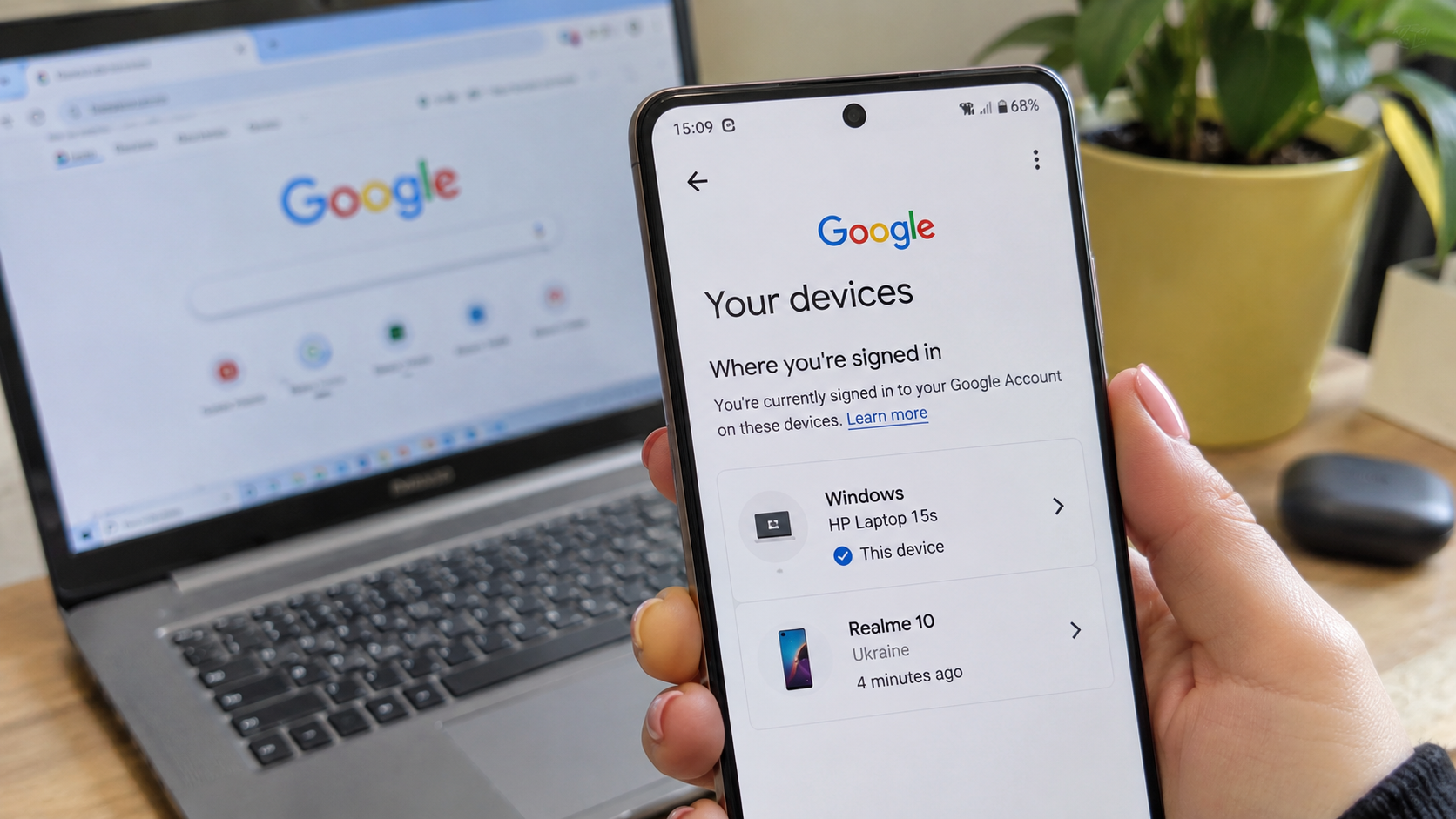
The fastest way to sign your Google account out of old devices is to visit devices, select an unwanted device or session, and choose Sign out. You can do this from your new phone or any trusted computer without touching the old device.
There is one important catch: signing out does not erase everything stored on a phone, and passkeys may need additional attention. Anyone preparing to sell, trade in, donate, or recycle a device should complete a few more checks before handing it over.
How to Remove Google Account Access From Old Devices Quickly
You can remotely remove Google account access from old devices through your account's security settings. The same process works on Android, iPhone, Windows, macOS, and other platforms with a supported web browser.
Follow these steps to disconnect a phone or computer you no longer use:
- Open Google Account settings. Visit Google Account and sign in to the correct account.
- Find the device management page. Select Security & sign-in, then locate Your devices and choose Manage all devices.
- Select the old device. Open its entry and review the device name, recent activity, and available session details.
- Choose Sign out. Confirm the action if Google requests confirmation.
- Check for additional sessions. If the same device appears several times, sign out of every unwanted session associated with it.
- Verify the result. Return to the device list and look for the Signed out status on the relevant entries.
A Signed out label indicates that the corresponding Google session has ended. The entry may remain visible because Google also displays devices used within the past few weeks.
If the old device is still in your possession, removing the account locally and performing a factory reset may also be necessary. The appropriate next step depends on whether the device is being kept, sold, or recovered after being lost.
What Happens When You Sign Your Google Account Out of an Old Device?
Signing out ends the selected device's authenticated Google account session, but it is not the same as wiping the device. Understanding that difference prevents two common problems: leaving personal information behind and accidentally deleting data that has not been backed up.
The available actions protect different parts of your digital information.
| Action | What it does | When to use it |
| Remote sign-out | Ends selected Google account sessions on another device. | Old, shared, missing, or unfamiliar devices. |
| Remove account locally | Removes the Google account and associated synced account data from a device. | Phones or tablets you can still access. |
| Remove a passkey | Revokes a selected passkey as a Google sign-in method. | Lost devices, shared devices, or outdated credentials. |
| Revoke third-party access | Stops a selected app from accessing authorized Google account data. | Apps or services you no longer trust or use. |
| Factory reset | Erases data and installed apps from the device. | Selling, donating, recycling, or transferring ownership. |
Remote sign-out alone does not guarantee that downloaded files, browser data, or other locally stored information have been deleted. A device being handed to another person requires more thorough preparation than one that will remain locked in a drawer.
7 Steps to Disable Google Account Access on Old Devices Safely
Removing Google account access from old devices is easiest when the new phone is already configured and the old one is still available. The safest sequence preserves important information and account recovery options before disconnecting the previous device.
Step 1. Make Sure Your New Phone Can Access Your Google Account
Before signing out of an old phone, confirm that the replacement device can access your Google account independently. Otherwise, you could remove the phone that receives verification prompts before setting up another way to sign in.
Open Gmail, Google Photos, and Google Drive on the new device. Check that recent emails, contacts, documents, and important photos are available, then confirm that account recovery information is current.
Pay particular attention to the following:
- Google Authenticator: Transfer or restore the verification accounts you need. Do not assume every authenticator entry automatically transferred.
- Google prompts: Confirm that the new phone can receive account verification requests when supported.
- Recovery information: Check that the recovery email address and phone number remain accessible.
- Backup codes: Store available 2-Step Verification backup codes somewhere secure and separate from the old phone.
- Local files: Check downloads, recordings, app data, and photos that may not exist in cloud storage.
Moving from Android to iOS requires additional care because not every app transfers its data in the same way. The guide to transfer data from Android to iPhone explains which files can move between platforms and which information needs separate attention.
Once the replacement phone is working correctly, the old Google account sessions can be removed without sacrificing an essential sign-in method.
Step 2. Find Every Device Connected to Your Google Account
Google's device activity page shows computers, phones, and other devices currently signed in or used within the past few weeks. Reviewing it reveals forgotten browser sessions, previously owned phones, and unfamiliar account activity.
Open Google Account, select Manage all devices if necessary, and inspect the available entries.
A device's details may include:
- Device type or model.
- Browser, app, or session information.
- Approximate location.
- Recent activity.
- Current or previous sign-in status.
One physical device can have several Google account sessions. A phone may create different sessions when accessing Google services through apps, browsers, or other authentication processes.
The activity timestamp also needs careful interpretation. Google records communication with its systems, which may include automatic background synchronization rather than direct interaction with the device.
An unfamiliar city does not automatically mean an account has been compromised. Travel, network routing, and approximate location information can explain some discrepancies, but unexplained devices and suspicious security activity deserve immediate investigation.
Step 3. Sign Out of Google Account Sessions on Old Devices Remotely
Remote sign-out is the most convenient way to remove Google account access from devices you cannot physically reach. It is especially useful for a laptop left at another location, a phone already traded in, or a browser session forgotten on a shared computer.
Choose the relevant entry under Manage all devices, select Sign out, and confirm the action. Repeat the process for other sessions associated with the same old device.
For example, a previously owned laptop might show separate entries for Chrome and another browser. Signing out of one entry does not necessarily mean every session associated with that computer has been terminated.
Afterward, revisit the list and check which entries show Signed out.
There is no need to change your Google account password simply because you bought a new phone. However, a password change becomes important if an unknown person may have accessed the account or the old device was stolen.
A remote sign-out also does not physically lock a computer or delete previously downloaded documents. Those protections must be handled separately.
Step 4. Remove Your Google Account Directly From the Old Phone
When the old phone is still accessible, removing its Google account locally provides a more complete cleanup than simply closing a remote session. The process differs between Android and iOS because account management is integrated differently into each operating system.
Remove a Google Account From an Old Android Phone
To remove Google account access from an Android phone you still own, open its system account settings and select the account you no longer want on that device.
On many Android phones, the steps are:
- Open Settings. Find Passwords & accounts or the equivalent account management section.
- Select the Google account. Choose the email address associated with the old device.
- Tap Remove account. Confirm the action when prompted.
- Verify your identity. Enter the phone's PIN, pattern, or password if required.
Depending on the manufacturer and Android version, the menu may instead appear under Users & accounts, Manage accounts, or Passwords, passkeys & autofill.
Removing the account also removes associated synced email, contacts, and account settings from the device. It does not delete the Google account itself or erase the data stored in that account's cloud services.
However, separate local files and information belonging to other accounts may remain on the phone. A factory reset is still appropriate before transferring ownership.
Remove a Google Account From an Old iPhone
On iPhone, the Gmail app provides a direct way to remove the Google account from the device's Google apps. The process does not require deleting the account permanently.
Follow these steps:
- Open Gmail. Tap the profile picture in the upper-right corner.
- Choose Manage accounts on this device. Locate the Google account you want to remove.
- Tap Remove from this device. Confirm the action.
This signs the account out of connected Google apps such as Gmail, Maps, and YouTube on that device.
If the account was also added to Apple's Mail, Contacts, or Calendar settings, check those configurations separately. Browser sessions, downloaded files, and Apple account settings may also require attention.
Sign Out of Google on an Old Laptop or Shared Computer
On a computer you still use, sign out of Gmail or other Google services through the profile menu. If the computer is no longer available, use the remote device management page instead.
For a shared or previously owned laptop, also check browser profiles, locally saved passwords, downloaded files, and synchronized browser information. Clearing the appropriate browser data or removing an unused profile may be necessary when the computer is still accessible.
If the entire laptop is being sold, deleting only the Google account session is not sufficient. Personal files and operating-system accounts should be removed through the device's recommended handoff or reset procedure.
Step 5. Remove Old Google Passkeys and Update 2-Step Verification
Passkeys require particular attention when removing Google account access from old devices. They allow users to authenticate with a fingerprint, facial recognition, or device screen lock instead of entering a traditional password.
Unlike an ordinary browser session, a passkey is a separate sign-in credential. Signing out does not always immediately eliminate the ability to sign back in using a passkey stored on the old device.
Google describes two important behaviors:
- Android: A passkey on a signed-out Android device may still work for signing back in for up to six hours. After that period, another sign-in method is required.
- Non-Android devices: A passkey created on a device may remain usable for signing in even after the Google account session has ended.
This distinction matters when a phone is being sold, shared, or lost.
How to Delete Google Passkeys From Old Devices
Passkeys created manually can be reviewed and removed through Google account security settings.
Follow these steps:
- Open Google Account security. Visit myaccount.google.com/signinoptions/passkeys.
- Verify your identity. Use an available account authentication method.
- Review Passkeys and security keys. Identify credentials associated with devices you no longer trust or own.
- Select an unwanted passkey. Choose Remove and confirm.
For passkeys automatically created by Android devices, Google directs users to Manage all devices and Sign out of the corresponding device.
If an old passkey still appears as an option after removal, it may also be saved in a separate credential manager. Review that manager's settings and remove the obsolete credential where appropriate.
Create passkeys only on devices you personally own and control. Anyone able to unlock a device containing a usable passkey may be able to authenticate with it.
Check Google Prompts and Backup Verification Methods
A phone signed in to your Google account may receive Google prompts requesting approval for a new login. Removing the account from that phone prevents it from continuing to receive those prompts through that signed-in account.
Before disconnecting the old device, check the 2-Step Verification settings under Security & sign-in.
Make sure a usable alternative is available, such as a passkey on the new phone, a trusted security key, another supported verification method, or securely stored backup codes.
Turning off 2-Step Verification is not necessary for a device upgrade. Keeping it enabled helps protect the account if someone obtains the password.
Step 6. Review Apps That Still Have Google Account Access
Removing an old phone does not automatically revoke every third-party application previously authorized to access Google account information. Some connected services can continue operating through permissions granted separately from the phone's own sign-in session.
This is why a device upgrade is also a good opportunity to review apps with access to Gmail, Drive, Calendar, Contacts, and other Google services.
Visit the Google Account third-party connections page and inspect the linked applications.
Google separates several types of connections, including Sign in with Google, linked accounts, and applications with access to Google account data.
Look for applications that are no longer needed or recognized. Select an entry to inspect its permissions before deciding whether to remove the connection.
The available controls depend on the connection type. For example, an application with permission to access account data may offer Remove access, while a service using Google for authentication may offer Stop using Sign in with Google.
Removing a third-party connection does not necessarily delete information the application previously received or stored. Contact the service or review its privacy controls if that information also needs to be deleted.
Revoking unnecessary permissions reduces the number of applications that can interact with the account after an old device has been retired.
Step 7. Back Up and Factory Reset Old Devices Before Selling Them
A factory reset is the appropriate final step when an old phone is being sold, traded in, donated, or recycled. It removes data and installed applications from the device rather than merely ending its Google account sessions.
Start by verifying that important information is safely stored elsewhere. Open the replacement phone or a trusted computer and check photos, documents, contacts, messages, and other valuable files.
If storage cleanup was part of the upgrade, the guide to free up storage on your phone without losing photos explains how to distinguish removable files from information that still needs to be preserved.
Before resetting an Android device, remove the Google account locally. This also turns off the associated Android device protection that can otherwise require previous account credentials after certain resets.
On a Google Pixel, the usual reset path is Settings, System, Reset options, and Erase all data (factory reset). Other Android manufacturers may use different menus.
A few additional details deserve attention:
- Transfer or deactivate an eSIM according to the carrier's instructions.
- Remove any physical SIM card and removable storage card that should not accompany the device.
- Disconnect accessories and accounts where the manufacturer's handoff instructions require it.
- Ensure authenticator credentials and locally stored app data have been transferred or backed up.
- Use the normal reset procedure in the phone's Settings app whenever possible.
Google advises charging an Android phone to at least 70% before a factory reset. The process can take up to an hour, so avoid beginning it immediately before a scheduled trade-in appointment.
Do not hand over the old phone until the reset has completed and the device is ready for its next owner. If setup still requests personal credentials unexpectedly, resolve the issue before transferring ownership.
What to Do if Your Old Phone Was Lost or Stolen
A lost or stolen phone needs a different response from an ordinary device upgrade. Removing Google account access is important, but locating or locking the phone may need to happen first.
For Android devices, Google's Find Hub can help locate, secure, or erase a missing phone when the necessary conditions are met.
Use Google Find Hub Before Disconnecting a Missing Android Device
If the missing Android phone is still signed in to the account, open Find Hub on another device and select it. Depending on the phone's status and available features, you may be able to locate it, play a sound, mark it as lost, or perform a factory reset.
For remote security actions, Google lists requirements including power, network connectivity, an active Google account on the phone, and Find Hub being enabled.
If you still need Find Hub to locate, lock, or erase the phone, consider those actions before remotely signing out. Ending the Google account session first may interfere with the requirements for remote device management.
The correct sequence depends on the situation. If the phone might be nearby, try locating and securing it. If recovery appears unlikely and sensitive information is at risk, remote erasure may be appropriate.
Erasing an Android device permanently deletes its local data, although removable SD cards may not be erased. Once a device has been factory reset, it will no longer be available for location tracking through Find Hub.
A missing iPhone must be managed through Apple's own device security and Find My services. Google's device management page controls the Google account session, not the iPhone's Apple Account or Activation Lock.
Secure Your Google Account After a Phone Theft
Once the appropriate device recovery actions are complete, review Google account access from another trusted device.
The security response should include several checks:
- Sign out of the missing device. End unwanted sessions through Manage all devices.
- Change the Google account password. Do this promptly if the device or account may have been compromised.
- Review passkeys. Remove credentials associated with the missing phone where necessary.
- Check 2-Step Verification. Replace unavailable sign-in methods and protect recovery options.
- Review recent security activity. Investigate changes or logins that do not belong to you.
- Contact your carrier. Ask about protecting the SIM or transferring the number if the phone was stolen.
If there are clear signs of unauthorized access, inspect connected applications, recovery information, Gmail forwarding settings, and other security-sensitive options.
Do not approve an unexpected Google sign-in prompt. An unrecognized request can indicate that someone is attempting to access the account.
Why Does an Old Device Still Appear in Your Google Account After Sign-Out?
An old phone remaining in the device list does not necessarily mean it still has access to your Google account. Google's device management page includes recently used devices and previously active sessions, even after they have been signed out.
The most useful indicator is the status attached to the specific session.
| What you see | Possible explanation | What to check |
| Old device marked Signed out | Google retains recently used device information. | Confirm all related sessions are signed out. |
| Several entries with the same name | The device has multiple sessions, or several devices share similar names. | Inspect and sign out of unwanted sessions individually. |
| Recent activity on an unused phone | Background synchronization may have contacted Google's systems. | Review the time, device details, and sign-in status. |
| Device shown after a factory reset | The previous device record may remain temporarily visible. | Check whether it is still signed in. |
| Unrecognized active session | The account may have been accessed from an unfamiliar device. | Follow Google's account security process immediately. |
There is no need to repeatedly change passwords simply to make a previously used device disappear from the historical list. Focus on whether any unwanted session remains active.
If a device continues to show active access after cleanup, open its details again and verify that every relevant session has been disconnected.
What if You Already Sold or Reset Your Old Phone?
If an old phone has already been sold, traded in, or reset, begin by checking whether Google account access remains active. You can still review sessions and sign out remotely, even without physical possession of the device.
A completed factory reset normally removes the phone's local user data. However, remote sign-out cannot prove that a secondhand device was wiped properly before it changed hands.
If important files appear to be missing after an upgrade, inspect existing cloud backups and recently deleted folders before assuming they are permanently gone. The guide on how to recover deleted photos covers recovery options available through iPhone, Android, and Google Photos.
Do not delete files from a synchronized photo library just because they remain visible on the new phone. Depending on the service and action, deleting synchronized content can affect the cloud library and other connected devices.
If a device was sold without a factory reset, remotely sign out of the Google account, remove any relevant passkeys, and change the password if unauthorized access is possible. The buyer or trade-in provider may need to complete the physical device cleanup.
If the device was connected to a workplace or school account, an administrator may also need to handle device enrollment or organizational access.
6 Mistakes That Can Leave Google Account Access on Old Devices
The most common mistakes involve confusing an account session with the device itself. Another frequent problem is removing access before transferring the verification methods required to sign back in.
Avoid these errors during a phone upgrade:
- Signing out of only one session. Check every unwanted session associated with the old device instead of assuming one sign-out covers them all.
- Forgetting Google passkeys. Review credentials stored on old phones and computers, particularly devices being sold or shared.
- Resetting before confirming backups. Verify that essential photos, documents, authentication methods, and locally stored data are available elsewhere.
- Removing the only verification method. Set up a working replacement before disconnecting the phone used for Google prompts or authentication.
- Assuming remote sign-out erases personal files. Use an appropriate device reset procedure when transferring ownership.
- Ignoring unknown account activity. Review suspicious sign-ins and recovery changes rather than treating every unfamiliar entry as an outdated device.
These checks help prevent account lockouts, accidental data loss, and unwanted access. They also make device replacements less stressful when several devices and Google accounts are involved.
Google Account Security Checklist Before a 2026 Phone Trade-In
Before handing over an old phone, complete a final security review. A few checks can prevent the new owner from encountering an account lock while also protecting personal information.
Use this checklist after transferring data to the replacement device:
- The new phone can access the correct Google account.
- Important photos, contacts, documents, and local files have been backed up and verified.
- Google Authenticator accounts and other required verification methods are available on the new device.
- Recovery email, phone number, and backup options are current.
- Old Google account sessions have been reviewed and disconnected where appropriate.
- Unneeded passkeys and third-party permissions have been checked.
- Google accounts have been removed locally from the old Android phone where applicable.
- SIM cards, eSIM arrangements, and removable storage have been handled.
- The device has been factory reset and is ready for its next owner.
A successful upgrade involves more than copying apps and contacts. The safest handoff leaves the new device fully functional, the old device cleared of personal information, and no unwanted Google account sessions active.
FAQ About Removing Google Account Access From Old Devices
Visit google.com/devices from a trusted phone or computer. Open Manage all devices, select the old device or session, and choose Sign out. Repeat for other unwanted sessions linked to that device. Physical access to the old phone is not required.
No. Removing a Google account from a phone does not delete the Google account itself. Gmail, Google Drive, and other cloud-based account data remain available when you sign in on another device, although associated account data is removed locally.
Google's device management interface lets you review devices and sign out of selected sessions. To make sure an old device no longer has account access, sign out of all unwanted sessions associated with it. Do not assume that signing out of one entry disconnects every device.
Google displays devices that are currently signed in and those used within the past few weeks. A phone may remain listed after a factory reset or sign-out. Check whether its sessions are marked Signed out rather than relying only on its appearance in the list.
Changing the password can sign your account out of many devices, but exceptions may apply. It should not replace a review of active sessions, passkeys, and connected applications. Use Manage all devices to verify which sessions remain.
Yes. Review passkeys associated with the old device and remove credentials that should no longer be trusted. Signing out does not always immediately prevent passkey-based sign-in, so passkey management and a proper device reset are important.
Remote sign-out ends the selected authenticated Google account session. However, it does not erase messages or attachments previously downloaded to local storage. If the phone was lost or stolen, review account security and consider additional protective actions.
Yes, if the phone is being sold, donated, recycled, or transferred to another person. Remove the Google account locally and verify your backups before using the manufacturer's recommended factory reset procedure. If the phone will remain in your possession, a complete reset may not be necessary.