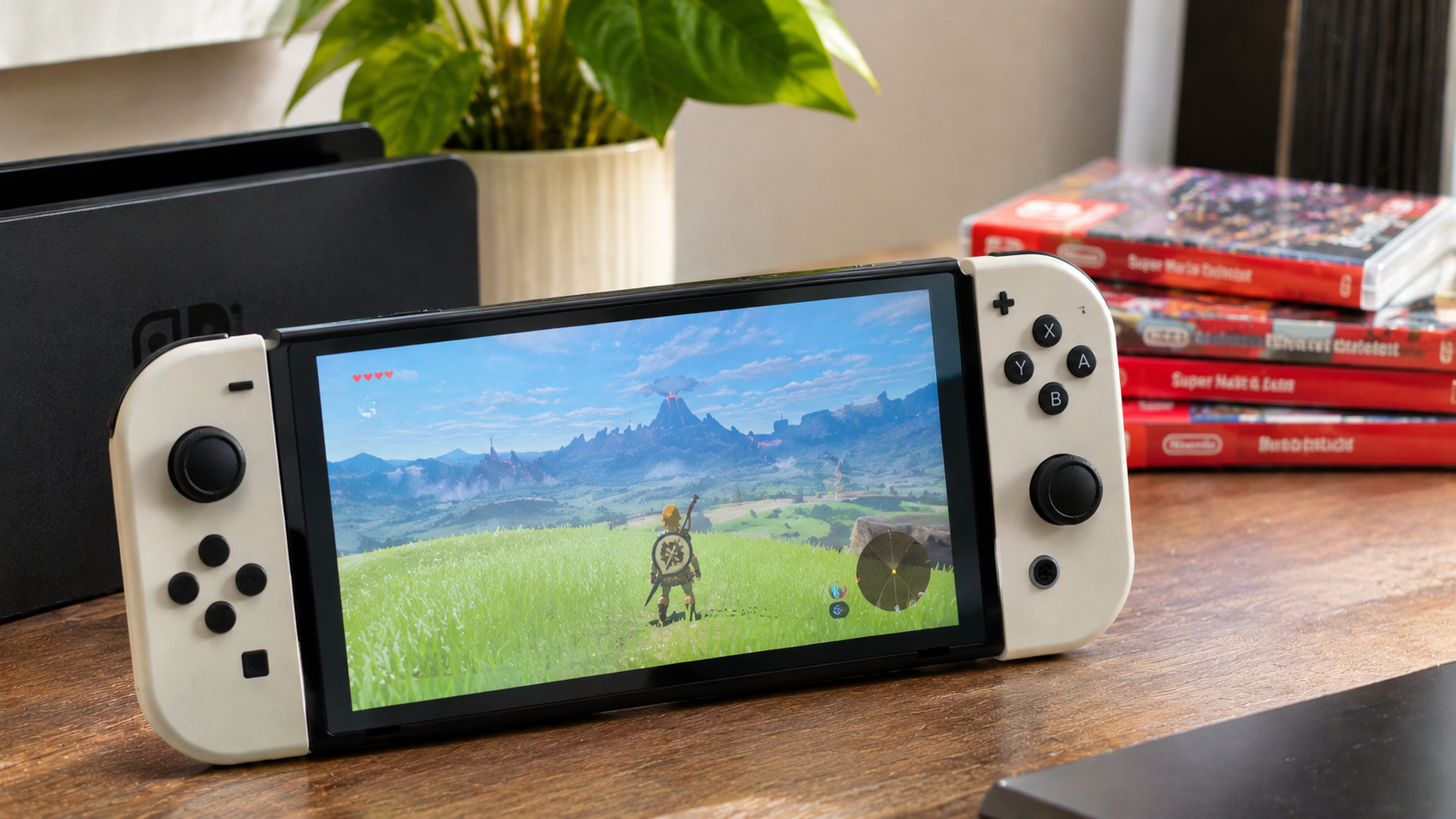



A gaming console under the Christmas tree can be the highlight of the holiday season, but turning it on for the first time may reveal several surprises. System updates can take hours, online games may introduce children to unfamiliar players, and a saved payment card can make purchasing virtual currency surprisingly easy.
Before giving your child a gaming console for Christmas 2026, set up a separate child account, configure parental controls, restrict purchases, review communication permissions, and download the games your child is expecting to play. These preparations can prevent unnecessary frustration and create a more manageable gaming environment from the first day.
PlayStation 5, Xbox Series X and Series S, and Nintendo Switch 2 all offer parental controls. However, their settings work differently, particularly when it comes to spending limits, multiplayer permissions, and gaming time.
Nintendo Switch 2 also introduces GameChat, which adds voice and video communication to the list of features parents should review before handing over the console.
The most important preparation is not simply installing parental controls. It is making sure your child cannot accidentally access an unrestricted adult profile or bypass the protections through another account.
10 Gaming Console Settings Every Parent Should Check Before Christmas
The most useful gaming console settings address four main areas: age-appropriate content, financial security, communication with other players, and gaming time. System updates, account security, and game installation are equally important for making the gift ready to use.
Parents do not need advanced technical knowledge to complete most of these preparations. The three major console manufacturers provide family management tools that can be accessed through smartphones, browsers, or the console itself.
Use this checklist to prepare a new gaming console for Christmas.
| Gaming console setting | Recommended starting configuration |
| Child account | Create a separate age-appropriate profile |
| Game age ratings | Restrict content according to the child's age and maturity |
| Store purchases | Require approval or prohibit independent spending |
| Voice and text chat | Disable initially or limit to approved friends |
| Online multiplayer | Allow only appropriate games and interactions |
| Screen time | Establish daily limits and permitted hours |
| Privacy | Restrict personal information and public visibility |
| System restrictions | Protect adult profiles and parental settings |
| System updates | Install available updates before wrapping |
| Game downloads | Install and test the first games |
These settings provide a practical foundation rather than a universal configuration for every family. A teenager playing cooperative games with school friends may need different permissions from a seven-year-old playing racing games with siblings.
Gaming Console Setting 1. Create a Separate Child Account
Creating a child account is the first step when setting up a gaming console for a younger player. It allows parents to manage permissions without sharing their personal gaming profile, payment information, purchase history, or unrestricted game library.
Avoid registering your child with an adult date of birth simply to complete the setup faster. Age information affects several safety features and determines which account protections are available.
If your child already has a gaming account, check whether it can be added to your existing family group before creating a new one. Otherwise, previously purchased games, saved progress, achievements, and friends may remain associated with the original account.
How to Create a Child Account on a PS5 Gaming Console
PlayStation uses a family management system in which an adult account acts as the family manager. Each child can have an individual account with separate restrictions.
To prepare a PlayStation 5 gaming console:
- Sign in using the adult PlayStation account.
- Open Settings.
- Select Family and Parental Controls.
- Open Family Management.
- Follow the option to add a family member.
- Create the child's account or follow the appropriate account setup instructions.
- Enter the correct birth date.
- Configure the available age-based parental controls.
- Confirm the child's account appears in the family group.
The PlayStation Family app also provides access to important settings from a smartphone. Parents can manage gaming time, approve eligible requests, review privacy permissions, and adjust spending restrictions without interrupting the television setup.
How to Create a Child Account on an Xbox Gaming Console
Xbox Series X and Series S use Microsoft accounts and Microsoft family groups. A separate Microsoft account allows a child's gaming permissions to be managed independently of other family members.
The Xbox Family Settings app offers a convenient way to organize these accounts.
Follow these steps:
- Install the Xbox Family Settings app on a parent's smartphone.
- Sign in using the adult Microsoft account.
- Create a family group if one does not already exist.
- Add the child's Microsoft account or create an account when required.
- Review the child's age-based restrictions.
- Sign the child into the Xbox gaming console using the managed account.
- Confirm that the correct account appears in the family settings.
The child must use the Microsoft account associated with the family group for its account-specific restrictions to apply. Playing through an unrestricted adult profile defeats much of the protection.
How to Create a Child Account on a Nintendo Gaming Console
Nintendo separates the local user profile on the gaming console from the Nintendo Account used for online services.
Create a Nintendo Account family group through the adult's account and add the child's supervised account. Then link the appropriate Nintendo Account to the child's user profile on the console.
Download the Nintendo Switch Parental Controls app and pair it with the system for additional management features.
Nintendo differs from PlayStation and Xbox because many restrictions, including general playtime limits, apply to the entire console rather than independently to each local user. Certain online services, purchases, and GameChat permissions can be managed for individual accounts.
This distinction matters particularly when several siblings share one Nintendo Switch 2.
Gaming Console Setting 2. Choose Appropriate Game Age Restrictions
Game age restrictions prevent children from launching or accessing content above the selected rating where platform controls support such restrictions. They are especially useful when a gaming console contains games belonging to older siblings or parents.
However, an age rating is only one part of deciding whether a video game is suitable. Parents should also consider how the game handles purchases, communication, competition, and content created by other players.
How to Understand Gaming Console Age Ratings
In the United States, most commercially distributed console games use Entertainment Software Rating Board (ESRB) classifications.
These ratings describe the recommended audience for a game's content rather than its difficulty.
| ESRB rating | General audience |
| E – Everyone | Generally suitable for all ages |
| E10+ – Everyone 10+ | Generally suitable for ages 10 and older |
| T – Teen | Generally suitable for ages 13 and older |
| M – Mature 17+ | Generally suitable for ages 17 and older |
| AO – Adults Only 18+ | Intended for adults aged 18 and older |
| RP – Rating Pending | A final rating has not yet been assigned |
In Europe and other markets, parents may encounter PEGI ratings of 3, 7, 12, 16, and 18. The available rating options on a gaming console depend partly on its region and account configuration.
Read the content descriptors alongside the rating. They explain whether a game includes violence, strong language, sexual content, gambling-related elements, or other material relevant to a family's decisions.
Interactive features also deserve attention. A game can have an age-appropriate content rating while still offering communication with other players or opportunities to spend real money.
How to Restrict Games on PS5, Xbox, and Nintendo Gaming Consoles
Each gaming console provides a different interface for restricting games, but the underlying goal is similar.
| Gaming console | Where to manage age restrictions |
| PS5 and PS5 Pro | Family and Parental Controls, Family Management, or PlayStation Family app |
| PS4 | Parental Controls/Family Management |
| Xbox Series X and Series S | Xbox Family Settings app or console family settings |
| Xbox One | Account and family settings |
| Nintendo Switch 2 | Nintendo Switch Parental Controls app or system settings |
| Nintendo Switch and Switch OLED | Nintendo Switch Parental Controls app or system settings |
When configuring these restrictions, test a game that falls within the allowed age range and, if available, confirm that unsuitable content is blocked.
Some platforms allow exceptions for individual games. This is preferable to raising the general age restriction whenever a parent decides that one particular title is suitable.
For example, approving a specific adventure game does not need to grant unrestricted access to every other game with the same rating.
Gaming Console Setting 3. Prevent Unexpected Purchases and In-Game Spending
Purchase restrictions are among the most important gaming console parental controls because modern games can contain additional purchases even when the original download is free.
Children may encounter virtual currencies, cosmetic items, expansion packs, premium subscriptions, seasonal passes, and randomized rewards. Some purchases use virtual currency rather than displaying the real-world cost directly.
A child might understand that a cosmetic item costs 1,500 game coins without realizing how much money was required to obtain those coins.
How to Block Purchases on a PS5 Gaming Console
PlayStation allows family managers to establish a monthly spending limit for a child's account. Purchases made through the child's PlayStation Store account generally use the family manager's wallet.
The default monthly spending limit for a child account is zero. Check that it remains appropriate before giving the gaming console as a gift.
To review the restriction:
- Sign in using the adult PlayStation account.
- Open Settings.
- Select Family and Parental Controls.
- Open Family Management.
- Choose the child's account.
- Open Parental Controls.
- Review Monthly Spending Limit.
- Set the permitted amount.
A zero spending limit is a practical starting point when a parent wants to review purchases individually. Additional games or content can then be arranged using the appropriate account and purchasing procedure.
Do not assume that a restriction on the child account also protects an unrestricted adult account. Secure the adult profile and review its checkout authentication settings separately.
How to Prevent Purchases on an Xbox Gaming Console
Microsoft offers family spending controls and purchase approval features through its family management tools.
Parents can manage payment methods, account balances, and purchase requests using the Xbox Family Settings app or Microsoft family settings.
Enable the available purchase approval option and review whether the child has money already stored in their Microsoft account. Spending from an existing account balance may be treated differently from purchases requiring a parent's payment method.
For a younger child, an effective starting configuration is to require parental approval, avoid storing unrestricted payment information, and provide only an agreed amount of gaming credit when appropriate.
How to Block Nintendo Gaming Console Purchases
Nintendo eShop restrictions are managed through the parent or guardian's Nintendo Account settings rather than exclusively through the Nintendo Switch Parental Controls app.
Sign in to the adult Nintendo Account, open the family group, select the child's supervised account, and review the relevant spending and purchase restrictions.
This additional step is easy to overlook when the gaming console already has playtime and age restrictions enabled.
Restricting gaming time on Nintendo Switch 2 does not automatically prohibit eShop purchases. These settings must be reviewed independently.
Why Gaming Console Gift Cards Still Need Spending Rules
Gift cards can make gaming purchases easier to budget, but prepaid credit does not necessarily require approval for every transaction.
Consider a child who receives a $25 gift card for Christmas. Spending $10 on virtual currency and $15 on cosmetic items could consume the entire balance without adding a new game to the collection.
Before redeeming gift cards, agree on what the credit may be used for and whether unused funds should be saved.
Parents should pay particular attention to the following purchase categories:
- Virtual currencies purchased with real money.
- Randomized item packs and loot boxes.
- Automatically renewing subscriptions.
- Seasonal battle passes.
- Cosmetic character upgrades.
- Additional downloadable content.
- Purchases made through external game accounts or websites.
ESRB interactive labels can identify games containing in-game purchases, including those with randomized items. Check these labels even when the game itself has an otherwise suitable age rating.
Gaming Console Setting 4. Restrict Voice Chat, Text Messages, and Video Calls
Communication settings determine whether children can receive messages, participate in voice conversations, and interact with unfamiliar players. They should be reviewed before launching any online game.
A game that looks appropriate from its graphics and storyline can still expose children to inappropriate language or unwanted contact during multiplayer sessions.
The best starting configuration depends on the child's age and whether online communication is necessary for the games they intend to play.
How to Configure Communication on a PS5 Gaming Console
PlayStation family management includes controls related to communication and user-generated content, alongside separate privacy settings.
Review whether the child can communicate with other players, send or receive messages, access shared content, and interact through supported social features.
For a younger child, restricting communication and then reviewing individual exceptions is generally easier than beginning with unrestricted access.
Teenagers who regularly play with school friends may benefit from carefully configured privacy and communication permissions rather than a complete prohibition.
How to Configure Communication on an Xbox Gaming Console
Xbox family settings provide controls for multiplayer gaming, communication, friends, and interactions with players on other networks.
Depending on the feature, parents can restrict communication completely, limit it to friends, or allow broader interaction.
Remember that a player appearing on a digital friends list is not necessarily someone your child knows personally. Review friend approval settings and establish a rule about accepting unfamiliar requests.
A child who enjoys online racing or cooperative games may not need unrestricted voice chat to participate.
How to Restrict GameChat on a Nintendo Switch 2 Gaming Console
GameChat is an important feature for parents preparing a Nintendo Switch 2 for Christmas 2026. It supports communication while playing and can provide video functionality with compatible camera hardware.
Children under 16 and supervised users require the Nintendo Switch Parental Controls app and the appropriate GameChat configuration before using the feature.
Parents can manage approved contacts, review GameChat activity, and control video communication permissions.
Before enabling GameChat, decide whether your child needs voice communication at all and which contacts should be permitted.
Video chat deserves separate consideration. A camera may reveal parts of the home, family members, documents, or other personal information unintentionally.
If the child has no practical need for video calls while gaming, leave video permissions restricted.
Gaming Console Setting 5. Manage Online Multiplayer and Cross-Platform Gaming
Online multiplayer and communication are not always the same feature. A child may be allowed to participate in a multiplayer match without being allowed to exchange messages or speak with other players.
This distinction allows parents to preserve some of the social benefits of gaming while limiting unnecessary exposure.
Cross-platform gaming introduces another layer because players using PlayStation, Xbox, Nintendo, and computers may interact within the same game.
Should Children Be Allowed to Play Online on a Gaming Console?
Online multiplayer can be appropriate when the game, communication settings, and people involved are suitable for the child.
A cooperative session with cousins or classmates presents different circumstances from joining public competitive matches with unknown players.
Consider the following starting configurations.
| Age group | Example starting configuration |
| Ages 5–7 | Offline games and local multiplayer |
| Ages 8–10 | Local multiplayer and selected supervised online sessions |
| Ages 11–12 | Approved online games with restricted communication |
| Ages 13–15 | Age-appropriate multiplayer with carefully managed contacts |
| Ages 16–17 | Greater independence with agreed privacy and spending rules |
These examples are household configurations, not official age requirements or universal developmental recommendations. Individual maturity, previous online experience, platform rules, and the specific game should guide the final decision.
Why Gaming Console Controls Are Not Enough for Fortnite
A gaming console's parental controls may not cover every feature of an individual game.
Fortnite, for example, uses Epic Games accounts and offers separate parental controls for communication, time limits, friend interactions, purchases through supported Epic payment systems, and other features.
Review both the console account and the relevant Epic Games account before allowing a child to play.
Restricting voice chat within Fortnite does not necessarily disable the gaming console's separate party chat system. Both communication channels should be checked.
The same principle applies to other games and services that maintain their own account systems. Minecraft and other online experiences may have additional privacy or multiplayer permissions.
Check the game account as well as the console account whenever a game uses its own online services.
Gaming Console Setting 6. Establish Screen Time and Bedtime Restrictions
Gaming console screen time controls allow families to define how long children can play and, on supported platforms, when gaming is permitted.
A useful schedule accounts for school, sleep, physical activity, homework, family commitments, and the child's other recreational screen use.
The Christmas holidays may justify a more flexible schedule than a regular school week. However, temporary exceptions should not accidentally become permanent settings.
How to Set Screen Time on a PS5 Gaming Console
PlayStation allows family managers to configure playtime for individual child accounts.
On a PS5 gaming console:
- Sign in as the family manager or authorized parent.
- Open Settings.
- Select Family and Parental Controls.
- Open Family Management.
- Choose the child's account.
- Set the correct time zone.
- Open Playtime Settings.
- Configure the allowed duration and permitted hours.
- Choose the appropriate action when gaming time ends.
- Save the changes.
Depending on the configuration, the child may receive notifications or be logged out when the permitted time expires.
PlayStation also allows additional time to be granted when appropriate, including through supported requests from the child.
How to Set Screen Time on an Xbox Gaming Console
The Xbox Family Settings app allows parents to establish gaming schedules for their children's accounts.
Open the child's profile, select screen time settings, and configure the available daily limits and permitted hours.
Parents can also respond to requests for additional time and use supported temporary pause features.
This can be useful when a child has remaining gaming time but needs to stop for dinner, homework, or a family activity.
Review any associated Windows gaming devices separately or through the relevant Microsoft family management settings. A console schedule alone should not be assumed to cover every screen the child uses.
How to Set Screen Time on a Nintendo Gaming Console
Nintendo Switch and Nintendo Switch 2 playtime management is available through the Nintendo Switch Parental Controls app.
Parents can configure daily playtime, set bedtime restrictions, review activity, and enable the option to suspend software when a limit is reached.
Without software suspension enabled, a time limit may function primarily as a reminder rather than automatically stopping gameplay.
Unlike account-specific PlayStation and Xbox controls, Nintendo's general playtime restrictions apply to the console itself.
If two children share a Nintendo Switch 2 with a 90-minute daily limit, those 90 minutes should not be interpreted as a separate allowance for each child.
Example Gaming Console Screen Time Schedule for the Holidays
A predictable schedule can help children understand when they can play and when other activities take priority.
The following example illustrates one possible arrangement for a school-age child.
| Day or situation | Example gaming allowance |
| Regular school day | 45–60 minutes |
| Friday evening | 60–90 minutes |
| Saturday or Sunday | 90 minutes, potentially split into sessions |
| Christmas Day | A planned extended session |
| School holidays | 90–120 minutes, depending on other activities |
| Homework or family commitments | Gaming after agreed responsibilities |
| Before bedtime | Gaming ends according to the established evening routine |
These times are illustrative family rules, not medical recommendations. The appropriate amount depends on the child's age, sleep, daily responsibilities, and overall well-being.
Choose stopping times that allow children to finish a match or reach a save point where practical.
Gaming Console Setting 7. Protect Privacy and Personal Information
Gaming console privacy settings determine what other players may learn about your child, including their online status, gaming activity, friends, profile information, and shared content.
Configure these settings before allowing children to create public profiles or interact with online communities.
Start by choosing a username that does not reveal identifying information. Avoid using a full name, school name, exact birth date, neighborhood, or phone number.
Review whether the gaming console or associated account allows other players to:
- Find the child's profile.
- Send friend requests.
- See current gaming activity.
- View the child's friends list.
- Follow the child's account.
- Send private messages.
- Access publicly shared screenshots or videos.
- View a real name associated with the profile.
Restrict unnecessary visibility and sharing permissions. Some platforms allow parents to control who can modify the child's privacy settings, which should also be reviewed.
Children should understand that a gaming friend asking for photographs, contact details, passwords, or a private conversation on another application is not making an ordinary gameplay request.
Teach them how to block and report players before problems occur. These practical skills remain important even when strict gaming console parental controls are enabled.
Gaming Console Setting 8. Secure Adult Profiles and Parental Controls
Parental controls are only effective when children use the accounts and profiles to which those restrictions apply.
If a gaming console automatically signs into an unrestricted adult account, the child may unintentionally gain access to purchases, unsuitable games, or communication features.
Protect the parent account and the console's restriction settings separately.
How to Prevent Children From Changing PS5 Gaming Console Restrictions
PlayStation offers a console restriction passcode and separate user login passcodes.
Open Settings, select Family and Parental Controls, and enter PS5 Console Restrictions. Replace the initial restriction passcode with a private code.
Review User Creation and Guest Login and select Not Allowed when unrestricted new profiles are not appropriate for the household.
Adult users should also configure their individual PS5 login passcodes through Users and Accounts, under Login Settings.
This prevents a child from switching into an unrestricted profile simply because the parent previously used the console.
How to Secure Adult Accounts on an Xbox Gaming Console
Xbox offers sign-in security and access restrictions that can help protect adult profiles and limit unauthorized changes.
Review the adult account's sign-in and security settings, require authentication for sensitive actions, and check the console's access restrictions for signed-out or guest users.
Do not allow the child's account to become dependent on an adult profile remaining accessible.
When possible, disable automatic sign-in to unrestricted profiles and verify that parental purchase approval requests are delivered to the appropriate adult account.
How to Secure Nintendo Gaming Console Parental Controls
Nintendo's parental control settings can be protected using a PIN. Keep the PIN private and avoid using an obvious combination already known to the child.
Review the app on the parent's smartphone and ensure the child cannot access it through an unlocked device.
Nintendo Account security is equally important because family supervision and eShop purchase restrictions involve account-level settings.
A console PIN does not replace a strong account password or appropriate sign-in protection.
Gaming Console Setting 9. Install System Updates and Prepare Internet Connectivity
A gaming console may require substantial software updates before its first game can be launched. Installing these updates before Christmas morning can save considerable time, especially when several people are using the household internet connection.
Connect the console to the television, or complete handheld setup where applicable, and establish a reliable internet connection.
Allow the system to check for updates, install the required files, and restart.
How Long Does It Take to Prepare a Gaming Console Before Christmas?
Initial setup may take less than an hour, but game downloads can extend the process considerably.
The time required depends on the available internet speed, server performance, storage, and the size of the downloaded files.
A 100 GB download provides a useful illustration.
| Internet download speed | Theoretical download time |
| 10 Mbps | 22 hours 13 minutes |
| 25 Mbps | 8 hours 53 minutes |
| 50 Mbps | 4 hours 27 minutes |
| 100 Mbps | 2 hours 13 minutes |
| 300 Mbps | 44 minutes |
| 500 Mbps | 27 minutes |
These figures assume a continuous connection operating at the specified speed and use decimal storage units. Actual downloads may take longer because of network overhead, server congestion, installation, verification, or other household internet activity.
A wired Ethernet connection can provide more stable downloads on supported consoles. For wireless connections, check the signal strength at the location where the gaming console will normally be used.
Why Physical Gaming Console Games May Still Need Downloads
Purchasing a physical game does not guarantee that every file required to play is included on the disc or game card.
Games may require patches, language packs, installation files, or additional downloads before certain features become available.
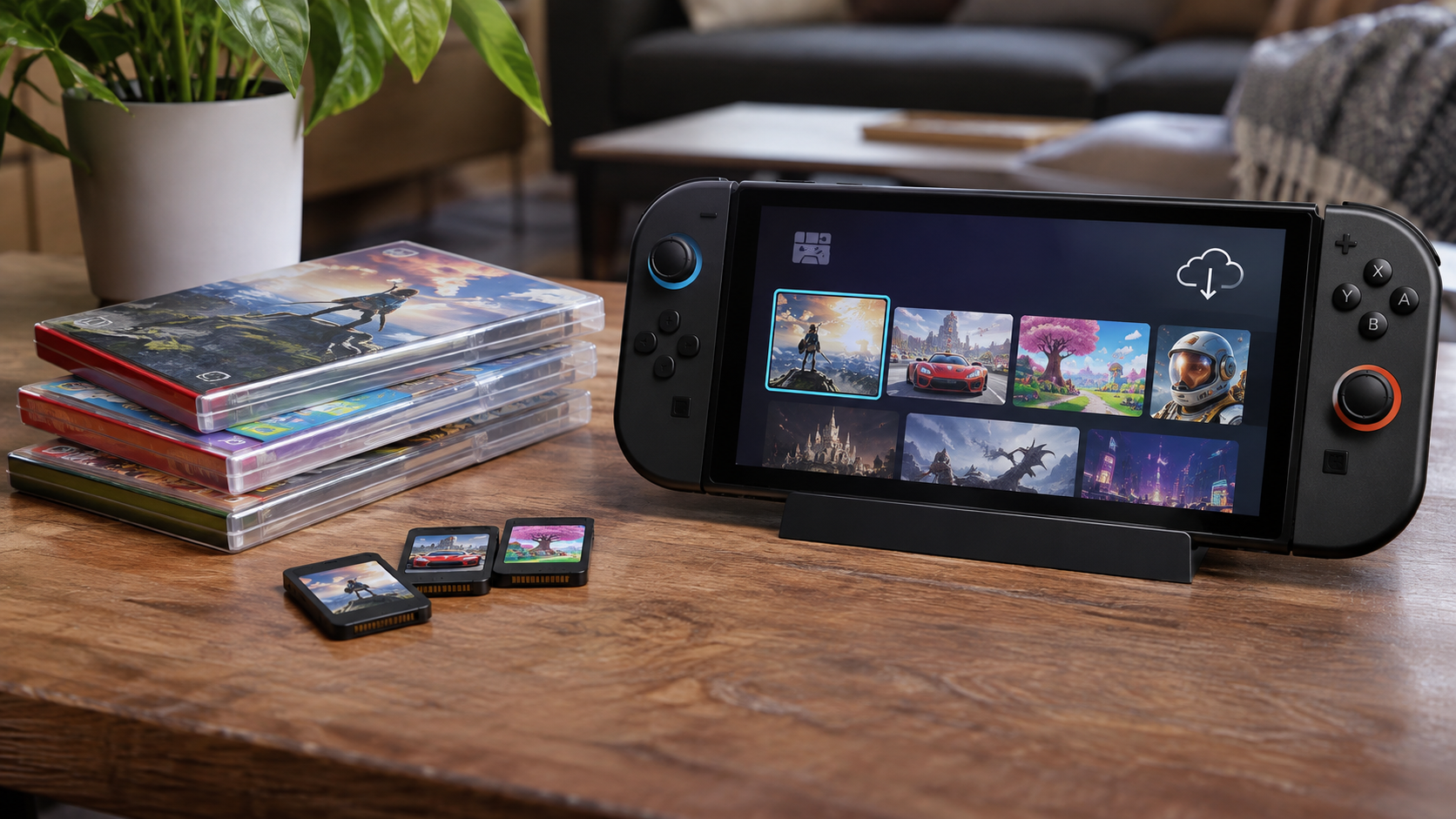
Nintendo Switch 2 Game-Key Cards are especially important to understand. They require an initial game download, with the card subsequently serving as a physical access key.
The guide to Switch 2 physical vs. digital games explains how different formats affect downloads, storage, lending, and offline access.
Check the packaging before assuming that a physical Christmas gift will be playable immediately.
Gaming Console Setting 10. Install Games and Test the Complete Setup
Installing and launching the first games before wrapping a gaming console helps identify compatibility problems, missing downloads, account restrictions, and subscription requirements.
It also gives parents an opportunity to test whether the previously configured protections behave as expected.
Start with one or two games that the child is particularly excited to receive. Make sure they can launch from the child's intended account rather than only from the adult profile used during setup.
How to Check Game Compatibility on a New Gaming Console
Physical and digital game compatibility depends on the console generation, hardware configuration, and individual title.
A digital-only console cannot use physical discs without compatible disc-drive hardware. Games developed exclusively for a newer console may also be unavailable on older systems.
Nintendo Switch 2 supports many original Nintendo Switch games, but compatibility is not universal. Some titles and accessories have specific limitations.
If your family already owns Nintendo games, check the Nintendo Switch 2 game compatibility guide before purchasing replacement copies.
How to Test Gaming Console Parental Controls Before Wrapping
A short practical test is more useful than assuming every setting has been applied correctly.
Sign into the child's profile and complete the following checks:
- Launch an age-appropriate game.
- Confirm that unsuitable content is restricted where applicable.
- Open the online store and check purchase permissions without completing a transaction.
- Review available messaging and voice chat features.
- Check whether friend requests require the intended permissions.
- Confirm that the gaming time schedule uses the correct time zone.
- Verify that the adult profile requires authentication.
- Review guest access and unrestricted profile creation.
- Launch the first installed game and check for additional updates.
- Confirm that account recovery information is available to the parent.
Testing should be performed using the child's account because the adult profile will naturally have different permissions.
Once everything works, shut down the gaming console properly and return it to the packaging.
Which Gaming Console Has the Best Parental Controls for Children?
PlayStation, Xbox, and Nintendo all provide useful parental controls, but none offers precisely the same approach.
PlayStation is convenient for managing individual child accounts, spending limits, and playtime. Xbox provides detailed family management and communication settings, particularly for households using Microsoft accounts. Nintendo offers straightforward device-level controls alongside separate account-based purchasing and communication permissions.
| Parental control | PS5 | Xbox Series X/S | Nintendo Switch 2 |
| Managed child accounts | Yes | Yes | Yes |
| Game age restrictions | Yes | Yes | Yes |
| Individual child playtime management | Yes | Yes | General limits apply to the console |
| Purchase controls | Monthly spending limit | Approval and spending management | eShop account restrictions |
| Voice communication restrictions | Yes | Yes | Yes |
| Multiplayer and social restrictions | Available settings | Available settings | Available settings |
| Dedicated parental control app | PlayStation Family | Xbox Family Settings | Nintendo Switch Parental Controls |
| Activity monitoring | Yes | Yes | Yes |
| Parental settings protection | Passcodes | Account security and access restrictions | PIN |
| Video communication controls | Feature-dependent | Feature-dependent | GameChat-specific controls |
The best choice depends on the child's preferred games, family gaming arrangements, and the level of individual account management required.
Parents who have not yet chosen a Christmas gift can compare PlayStation, Xbox, and Nintendo gaming consoles to understand their broader differences in hardware, portability, and game libraries.
What Parents Should Know About Gaming Console Subscriptions
A gaming console does not necessarily include access to every online service. Depending on the platform and game, a separate subscription may be needed for online multiplayer, downloadable game libraries, or cloud storage features.
PlayStation uses PlayStation Plus, Xbox offers Game Pass subscription tiers with varying benefits, and Nintendo provides Nintendo Switch Online memberships.
Many free-to-play games do not require the same paid online multiplayer subscription as conventional paid games. Check the requirements for the specific title before subscribing.
Review automatic renewal settings and determine which account will manage the subscription. Some subscription benefits may be shared on a designated console, but sharing rules differ between platforms and individual benefits.
Avoid purchasing several memberships simply because multiple family members have separate gaming profiles. A suitable household arrangement may already cover the required features.
The Final Gaming Console Checklist Before Christmas Morning
The best time to prepare a gaming console for Christmas is several days before giving it to your child. This allows enough time to resolve account verification problems, download large games, and adjust settings without holiday pressure.
Complete these final checks before returning the console to its box.
- Confirm the child is using a separate supervised account.
- Verify that adult accounts require authentication.
- Review age ratings and game exceptions.
- Restrict unwanted purchases.
- Configure voice, text, and video communication.
- Set a gaming time schedule.
- Check game-specific parental controls.
- Install system and game updates.
- Charge controllers and compatible handheld devices.
- Confirm that the included accessories work.
- Check available storage space.
- Review subscriptions and automatic renewal settings.
- Launch the first game successfully.
- Store passwords and recovery information securely.
A properly prepared gaming console lets children enjoy their Christmas gift while giving parents more control over the experience from the beginning.
The settings can gradually become less restrictive as children demonstrate greater independence, understand digital spending, and learn how to handle online interactions.
FAQ About Gaming Console Parental Controls for Children
Yes. Creating accounts, installing updates, downloading games, and configuring parental controls beforehand can prevent lengthy delays and unexpected restrictions or purchases on Christmas morning.
Yes. PlayStation, Xbox, and Nintendo support child or supervised accounts. Separate accounts allow parents to manage age-related permissions while preserving the child's individual gaming progress.
Use the platform's purchase approval or spending restrictions, protect adult accounts, review stored payment methods, and check whether prepaid account balances can be spent without additional approval.
Yes. PlayStation Family, Xbox Family Settings, and Nintendo Switch Parental Controls provide remote management features. Nintendo's general playtime limits apply to the system rather than separately to every user.
Yes, many online games support multiplayer without voice communication. Review the console's multiplayer and chat permissions separately, as well as any communication settings within the individual game.
Yes. Free games can include in-game purchases, online communication, competitive multiplayer, and content created by other players. The absence of an initial purchase price does not eliminate these features.
Restrictions may be avoided if children can access unrestricted profiles or if adult credentials are available. Protect parental settings, review guest access, and ensure children use their supervised accounts.
Yes. The Nintendo Switch Parental Controls app provides GameChat management features, including approved contacts and video communication permissions. Additional parental setup is required for children under 16 and supervised users.
No. The official family management and parental control tools are generally available without a paid gaming membership. Certain online gaming features may require a separate subscription.
Many installed games support offline play, but compatibility depends on the game, its licensing requirements, and the console. Online-only games and certain subscription-based features require internet connectivity.